Add Fees to a Collection
1 min
When you first Add a Collection, you will input the various names and settings and then be automatically taken to a screen where you can add Fees. The steps below will also walk you through how to add a Fee after the fact.
Navigate to Collections --> Standard.
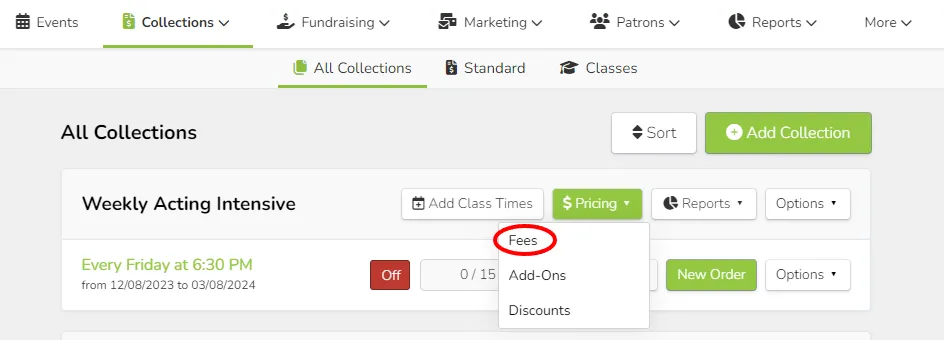
Next to the desired Collection, click Pricing --> Fees.
Click the green + Fee button.
Fill out the applicable information.
To learn more about each setting and what is possible, check out this article. Suggested Article: Settings for Collection Fees
Click Done.