Change the colors on your Ludus page
4 min
Within the Design Tool, you have the ability to customize the colors of your Ludus ticketing page. Follow the instructions below to edit each color setting.
Click the Settings Wheel Icon (⚙️) in the upper right-hand corner.
Click the Design Tool tab.
Choose which area (Main, Header, Notices along the top) you want to edit.
Click the dropdown arrow next to the desired area in that section.
From the options box, either select a new color or insert the color code in the text box.
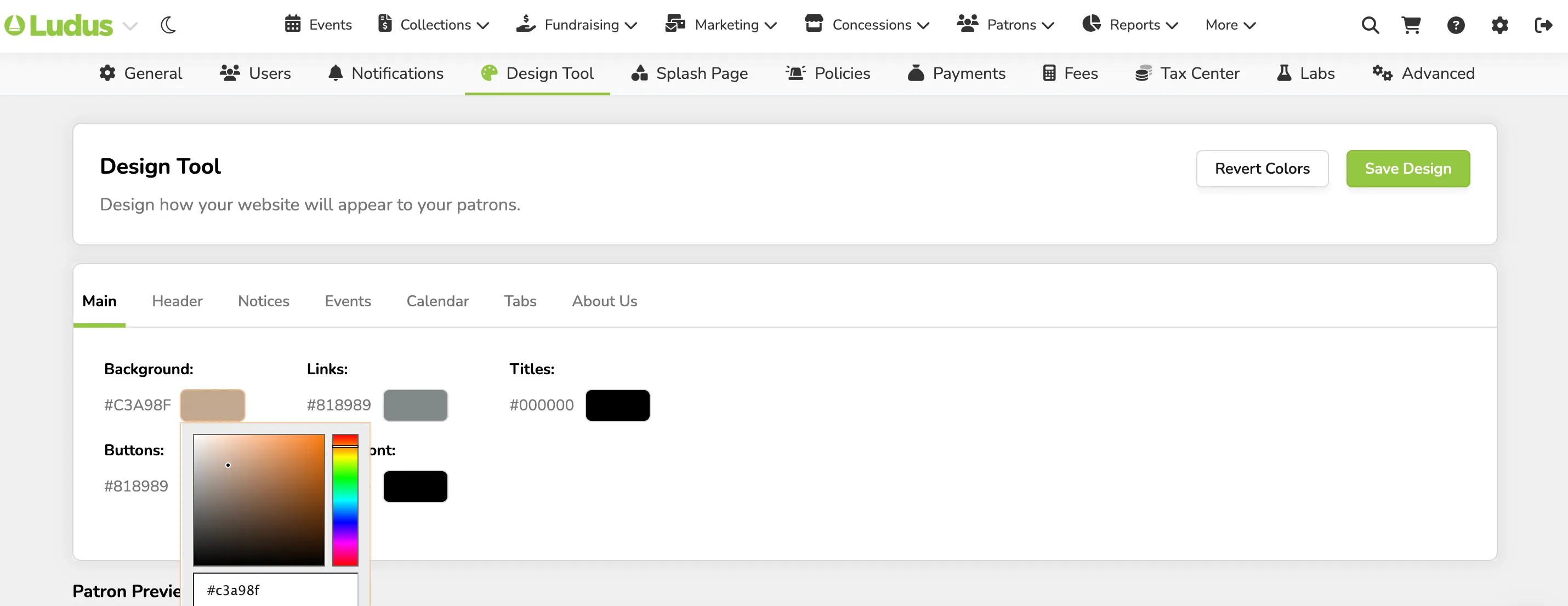
Click Choose
Click Save Design
Check out the guide below to see exactly where each color appears on your page.
Where does each color appear?
Main:
- Background (1)
- Links (2)
- Titles (3)
- Buttons (4)
- Buttons Font (5)
Header:
- Header (6)
- Header Font (7)
Notices:
- Background (8)
- Links (9)
- Titles (10)

When using the Embed Widget, some color changes do not carry over into the widget, including the Main Background Color and Header Background Color