Create a Fundraiser
3 min
To create a new Fundraiser, navigate to Fundraising --> Fundraisers. Click New Fundraiser.
This will take you to a screen where you set up all of the details for the Fundraiser. See below for more details about each section.
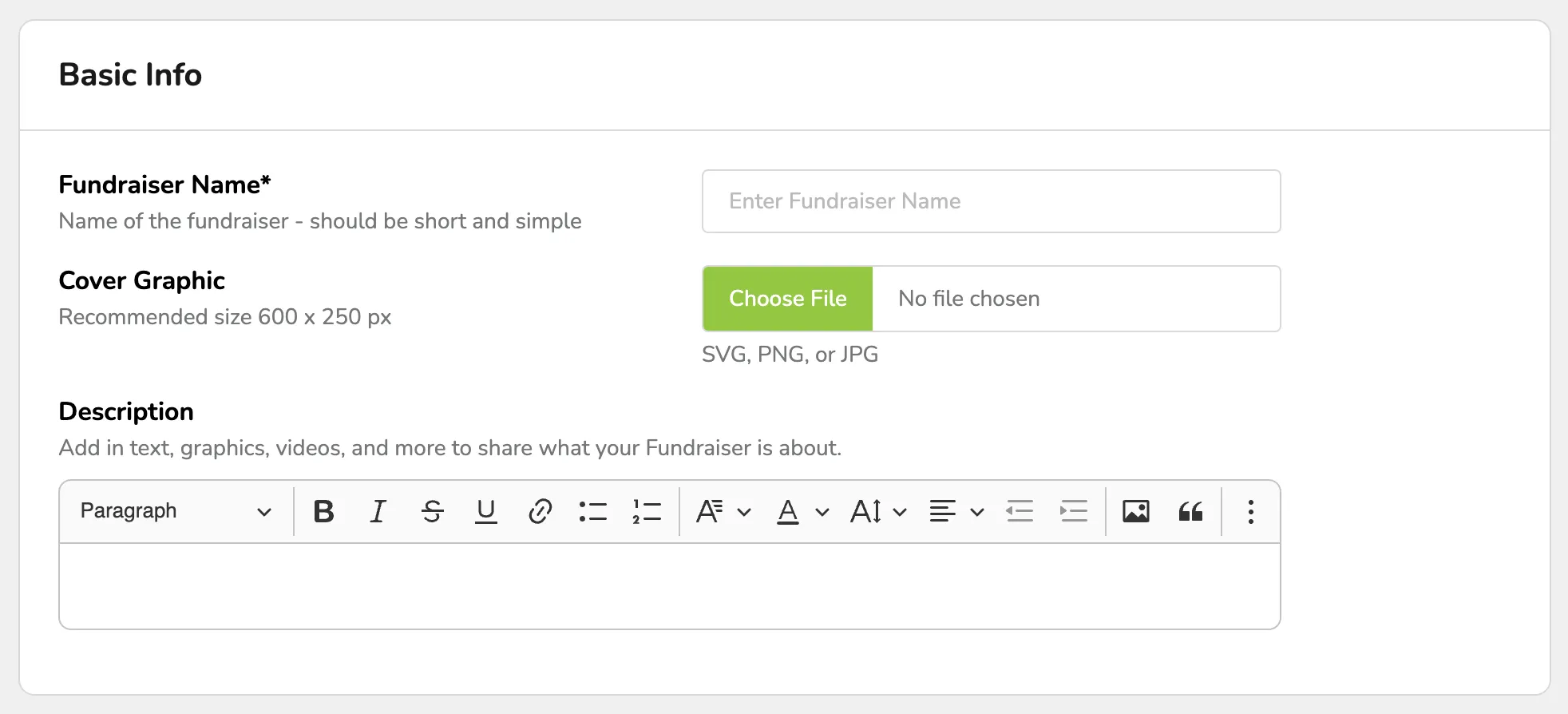
Basic Info
- Fundraiser Name - The name of your Fundraiser. This is how it will appear on all public and internal pages.
- Cover Graphic - This is the image that will appear on your Fundraiser's main donation page. The recommended size is 600 x 250 pixels
- Description - Add text, graphics, videos, and more to share what your Fundraiser is about.
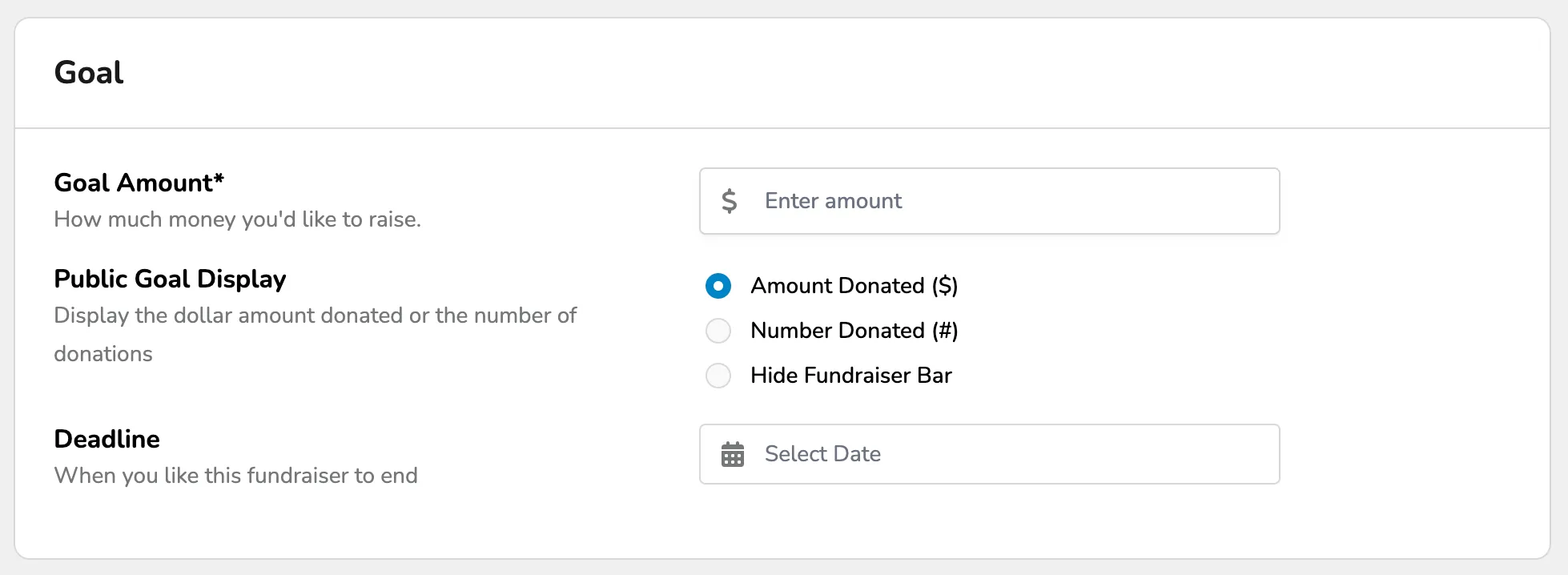
Goal
- Public Goal Display - Display the dollar amount donated, the number of donations, or hide the progress bar completely.
- Goal Amount - The dollar amount of your fundraising goal.
- Deadline - When you'd like this Fundraiser to end.
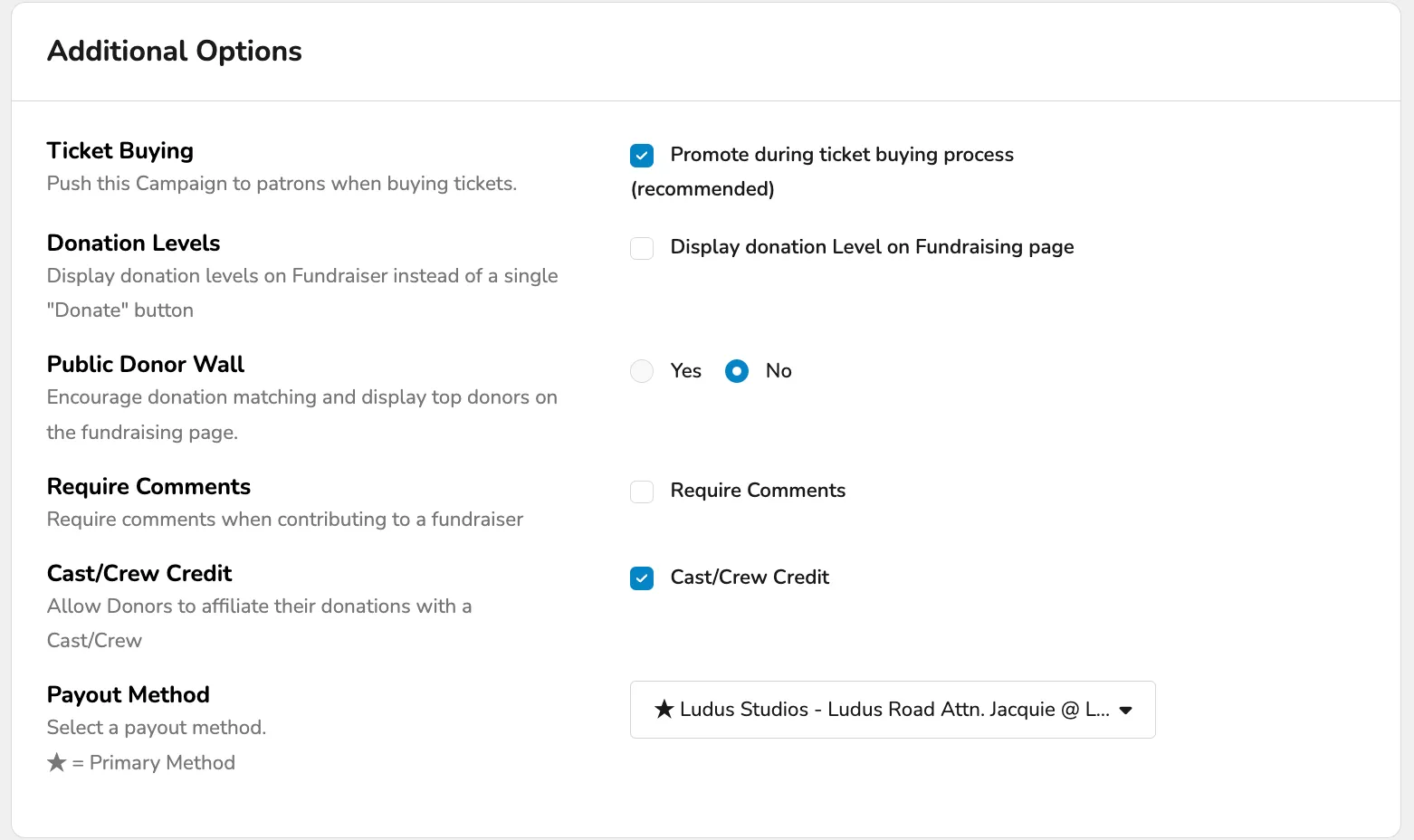
Additional Options
- Ticket Buying - Allow patrons to route their donation to this fundraiser at checkout.
- Suggested Article: Display Fundraiser at checkout
- Donation Levels - Display Donor Levels on the Fundraiser instead of a single "Donate" button.
- Suggested Article: Display Levels on a Fundraiser
- Public Donor Wall - Encourages donation matching and displays top donors on the fundraising page. Allows turning off the public Donor Wall.
- If enabled, you can also opt to include full donor names on your donor wall.
- Require Comments - Requires comments when contributing to a Fundraiser.
- Suggested Article: Require comments on Fundraiser donations
- Student Credit: Allow donors to associate their donations with a student.
- Payout Method: Select a Payout Method.
- Suggested Article: Add paper check payout option