Delete an Archived Event
If you or another admin on your account has created a test event or an accidental duplicate event, you are able to Archive and then Delete that event if there is no data associated with it.
In order to be able to Delete an Archived Event:
- The Event must have no purchases, reservations, donations, waitlist sign-ups, or messages associated with it.
- You must confirm the "Delete" action to prevent accidental deletion.
To delete an event, you must first Archive it under More (next to the event on the events page) -> Archive.
From here, you will navigate to and select Archived Events (at the bottom of the events page).
Locate the event you archived, and select More (next to the event) -> Delete.
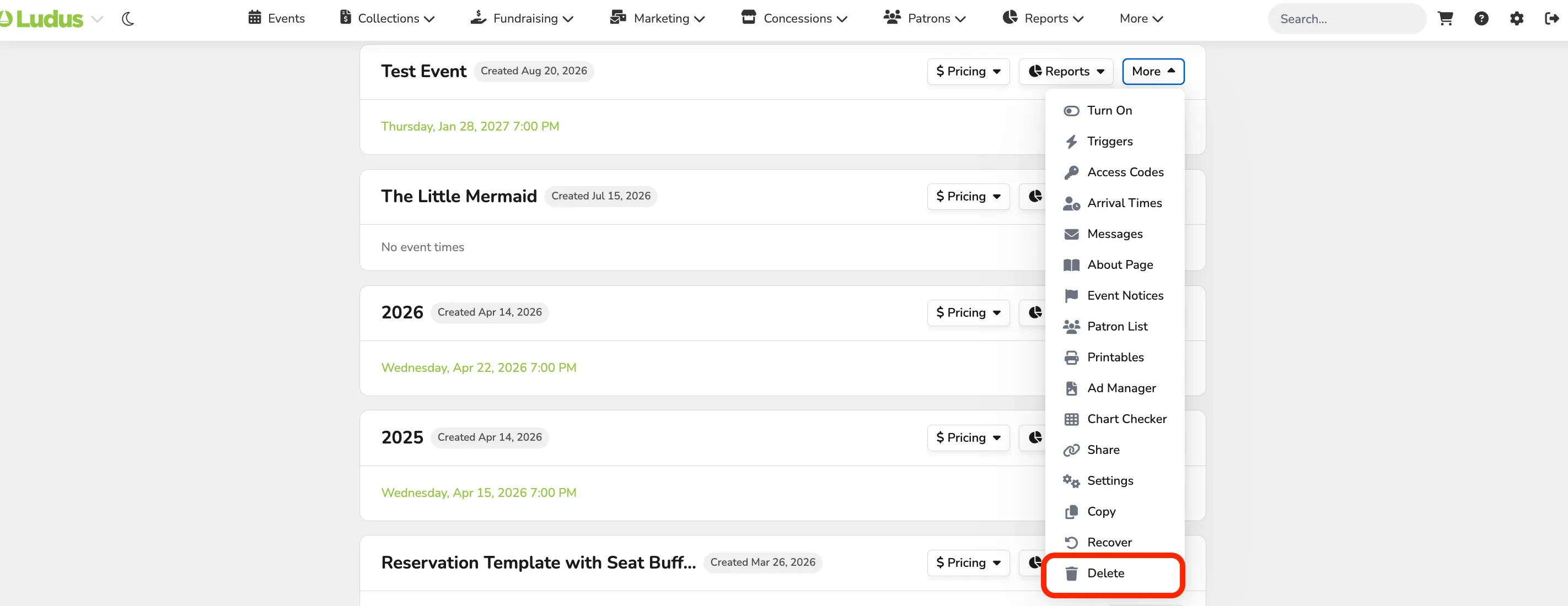
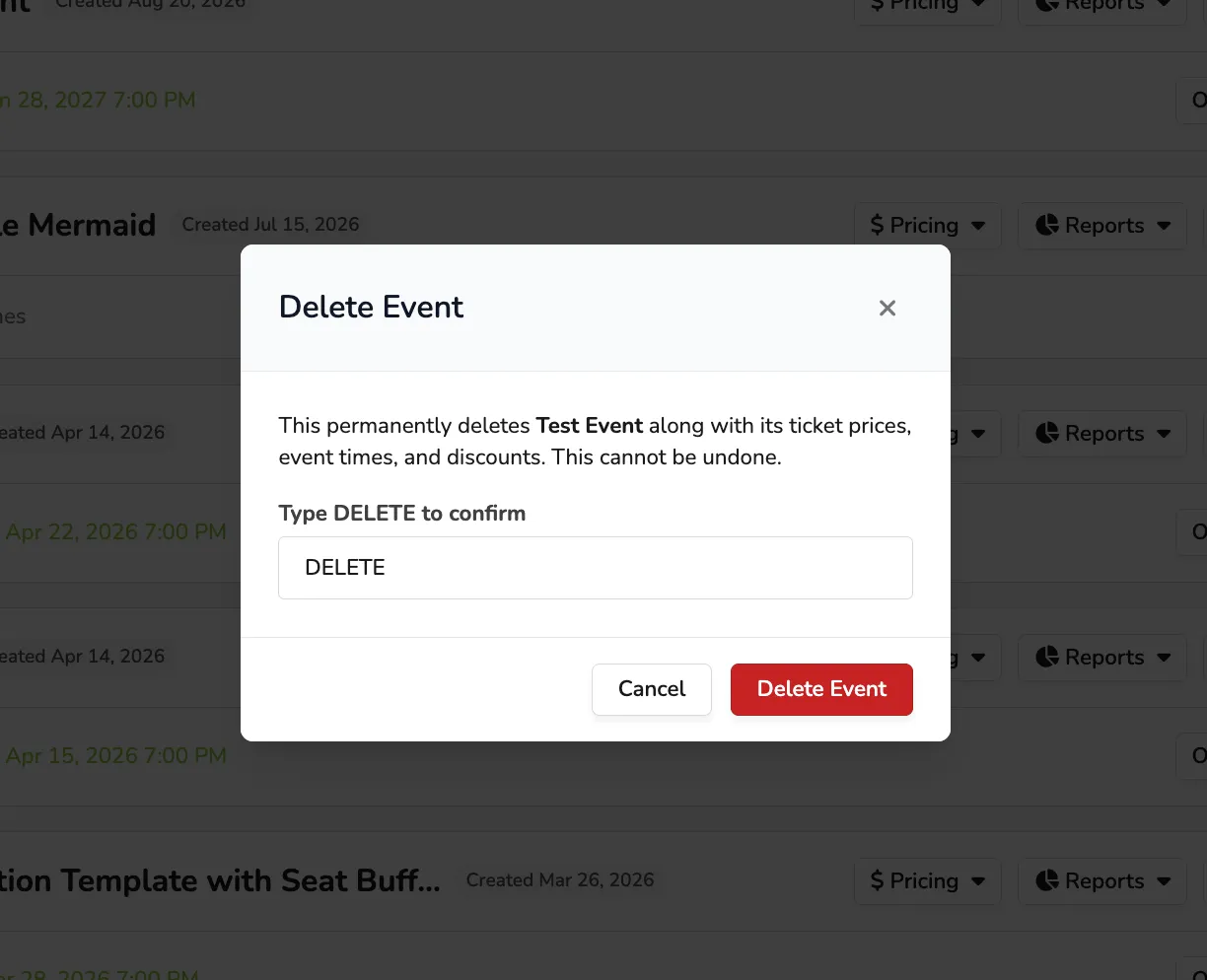
From here, you will either be prompted to enter DELETE if no data is associated with it:
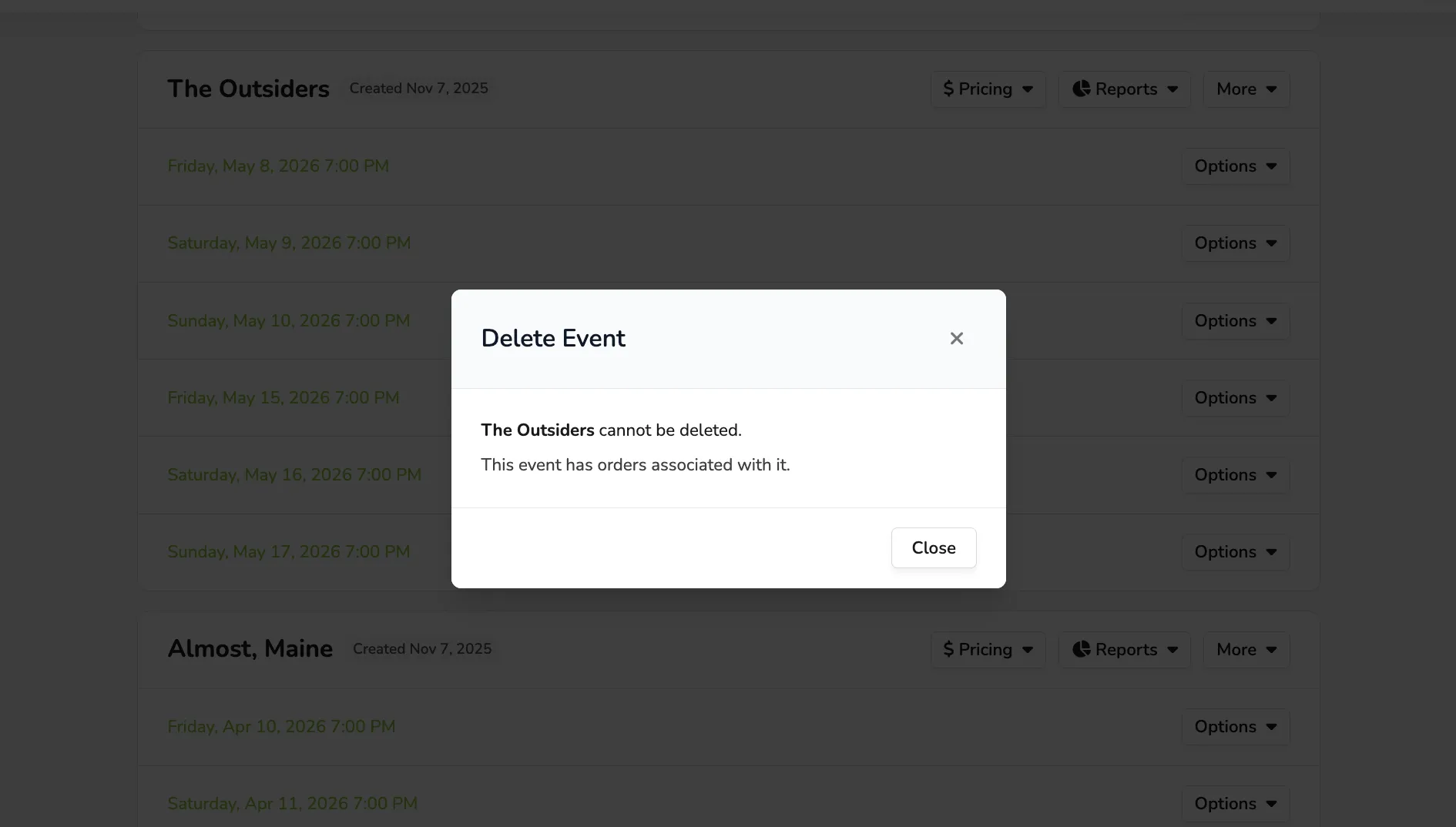
Or, if there is data associated with the event, you will receive the following message:
Once deleted, this event will be removed from your Archived Events.