Donations Report
The Donations Report shows all donations made to your Ludus account. These could be donations independent of a purchase or ones added to ticket orders or class registrations. Each row on the report represents a different donation. Recurring donations will appear as a new line item each time they are renewed.
View the Donations Report
To view a donations report for your account, click Reports -> Donations from the top navigation bar.
Navigating the Donations Report
You can set a date range from the top of the donations report to view a specified time range. To do so, click the boxes next to "Start" and "End" and select your dates.
Additionally, you can filter your results by a variety of other data points.
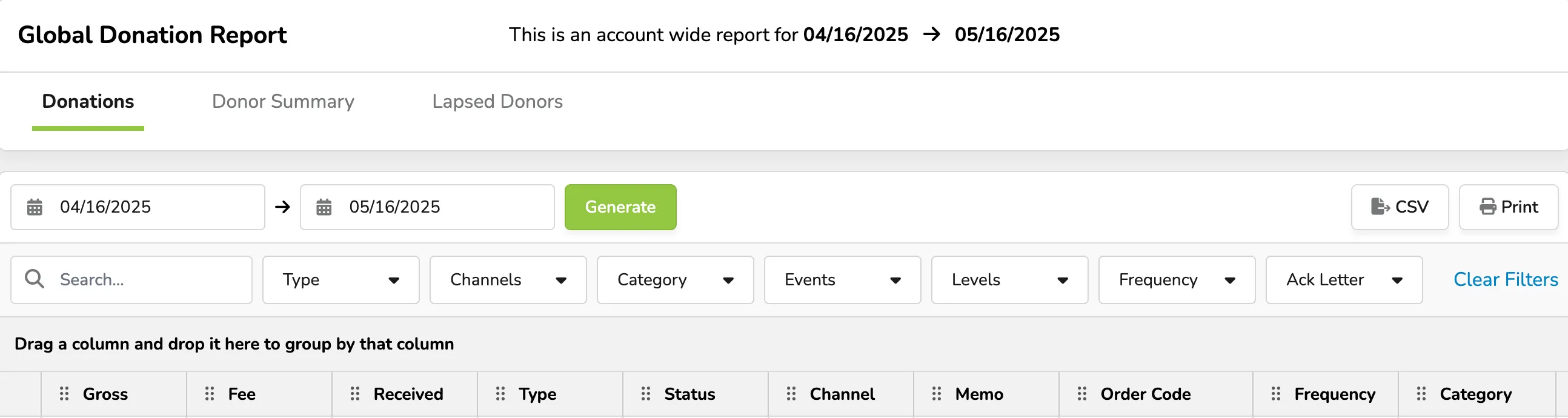
Filters for a Donation Report
- Search bar - Enter a name, order code, or email to look for a specific entity.
- Type - Sort between the different payment methods. (Credit, cash, comp, donated ticket, etc.)
- Category - Sort based on the category or Fundraiser with which the donation is associated.
- Suggested Article: Donation Categories
- Events - Sort based on the event, collection, or class the donation was made in.
- Levels - Which of your created levels did the patron donate to (IE - Gold, Silver, levels
- Frequency - Whether the donation was "One-Time" or recurring (Monthly/Yearly).
- Acknowledgment - Whether or not "Acknowledgment" has been sent. By default, a confirmation email will be sent. This acknowledgment field is for your organization to track any additional acknowledgment, such as a handwritten letter or adding a name to the program. is
Terms and Definitions for the Donations Report
While each row is a different donation made to your account, each column represents a different data point about that donation. Check out the definitions for each column below.
- ℹ️ - The icon on the far left of the row is a direct link to open the full summary for the order.
- Order Code - The order code is attached to the donation. For internal use. Only donations attached to a purchase such as tickets, registrations, or classes will have an order code.
- Status - Whether the donation is "Paid" or "Refunded".
- Type - The payment method for the donation. (Credit, cash, comp, etc.)
- Donated - The dollar amount that was donated
- Fees - Any fees that were absorbed for the donation.
- Received - The end amount collected after fees is considered.
- Frequency - Whether the donation was "One-Time" or recurring (Monthly/Yearly).
- Category - The Category or Fundraiser with which the donation is associated.
- Suggested Article: Donation Categories
- Level - Sort based on the Level the donation is associated with.
- Suggested Article: Donor Levels
- Corporate - Whether the donation was a "Corporate" donation. (True/False)
- Suggested Article: Enable corporate donations
- Events - The event, collection, or class on which the donation was made.
- First Name, Last Name, Email, Street Address, City, State, Zip Code, Phone Number, Company - The contact information for the patron who made the donation.
- Memo - The memo the patron left with the donation.
- Private Notes - Internal notes associated with the donation.
- Acknowledgment - Whether or not "Acknowledgment" has been sent. By default, a confirmation email will be sent. This acknowledgment field is for your organization to track any additional acknowledgment, such as a handwritten letter or adding a name to the program.
- Acknowledgment Date - The date on which the additional acknowledgment was sent.
- Date - The date and time the donation was made.
- Form Questions - If you have attached a form to your general donation settings, each question will appear as a column at the end of your donation report.
- Suggested Article: Attach a Form to donations