DYMO Setup on Mac
DYMO Setup on Mac
The following will walk you through enabling DYMO 450 printing on Ludus, including how to set up a custom form size on a Mac. Unfortunately, macOS doesn't make the custom form size part easy, but we'll try to make it as simple as possible with the following steps.
DYMO printers are not ticket printers, but we have created custom ticket stock and settings to print thermal tickets. You will need to snap the top lid off your DYMO for easy printing.
If you are looking for a new thermal printer, please consider a Boca for professional ticket printing, as we do not recommend DYMO printers.
Only DYMO 450 printers are supported — DYMO has removed 3rd party label support for all new devices (550+).
Create The Custom Form Size
You must install the Dymo printer drivers before setting up the custom forms for the printer.
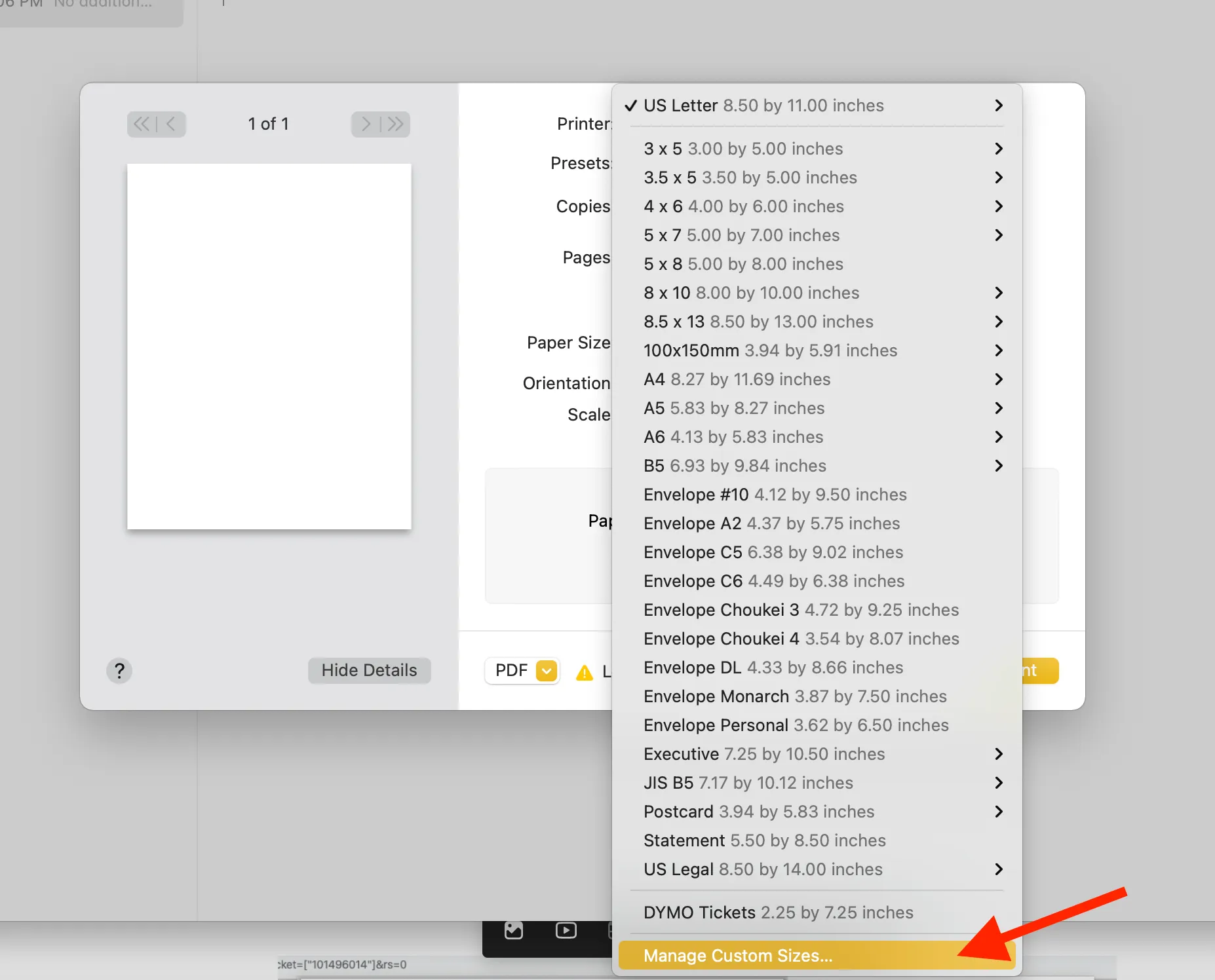
- In the print dialog, open the custom paper sizes window.
- Click the Paper Size dropdown.
- Scroll down to Manage Custom Sizes and click this option.
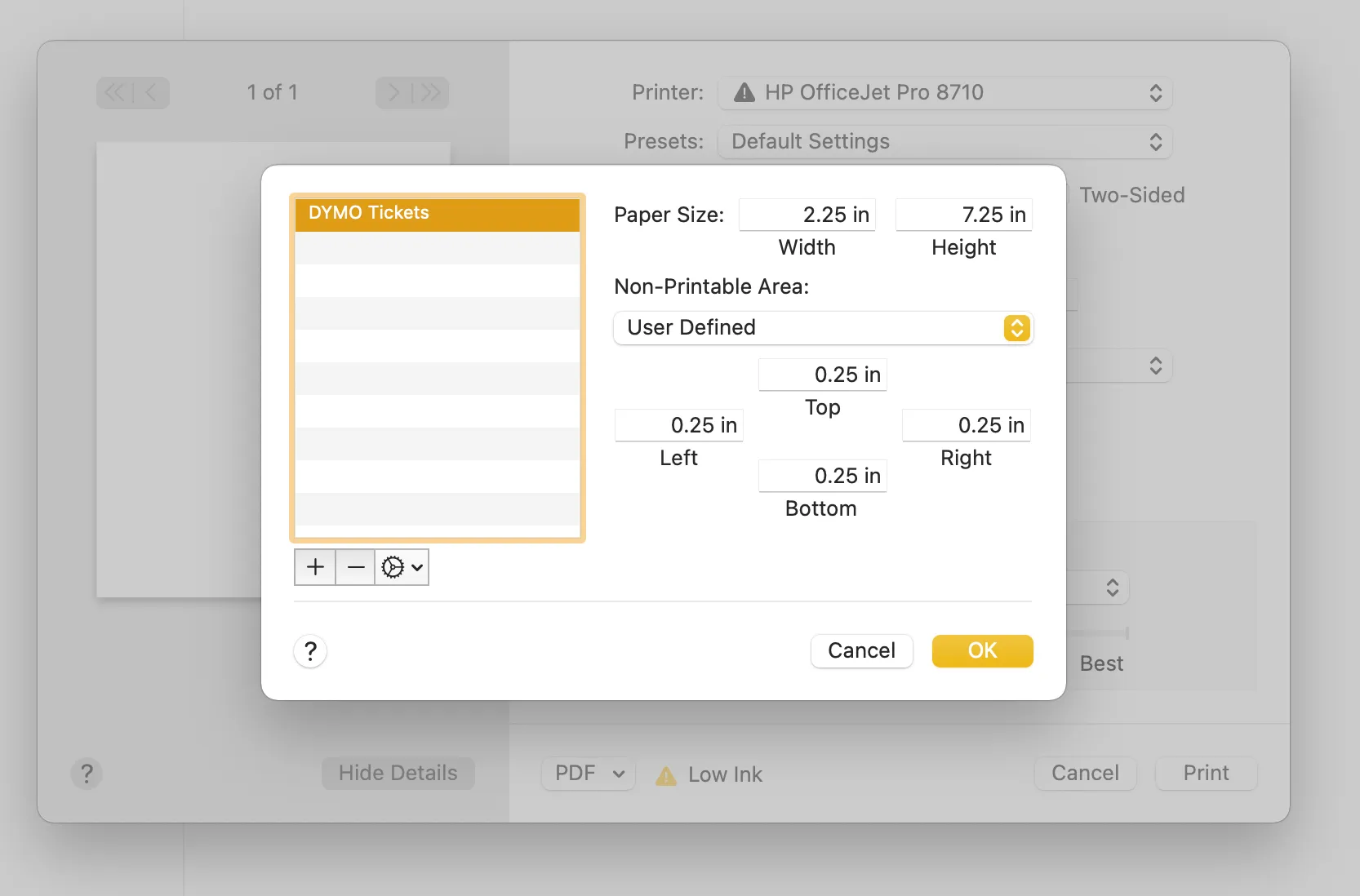
- Create a new custom paper size.
- Set "Paper Size" to: 2.25in X 7.25in.
- Set all margins (top, left, right, bottom) to: 0.25in.
- Name your new paper size something you'll recognize like "DYMO Tickets".
- In your Ludus admin panel, click More → Settings → Advanced and switch "DYMO Printing" to On.
Now, when you go to print tickets, you’ll see an additional option under "PRINT selected" → choose your DYMO. Be sure to plug the DYMO into your computer.
You may have to refresh your browser multiple times before it picks up the newly created paper size. Once it appears, it'll always be available to select from.
We recommend using Google Chrome to print tickets as it remembers your print preferences. The first time you print, you may have to select the DYMO printer, the newly created paper size (aka Custom Paper Size), and disable the "Headers and footers" option. Chrome will remember your selection, so you are ready to print.
Testing
Now that the custom paper size is created and DYMO printing is enabled, you can test DYMO printing by either completing a test order in your admin panel or by pulling up an existing order.