How do I share my Console Logs with Customer Support?
Ludus Customer Support may ask for your Console Logs while troubleshooting an issue with you. If this happens, the instructions below will walk you through how to access them on both Mac and PC.
Mac Console Logs
Make sure you are on the page on Ludus where you are experiencing an error.
While on that page, you will want to either take a screenshot before and after the action you are experiencing issues with, or screen record it.
We ask that you get a screenshot before the action causing issues, as well as after you perform the action causing issues for you. This will clearly help show where the issue may be occurring.
To access Console Logs:
- Right-click -> Select "Inspect" in the dropdown.

- Once selected, you will see the logs appear on the right side of your screen. Be sure to select "Console". This is what you will want to have open when making your screenshots or screen recording.
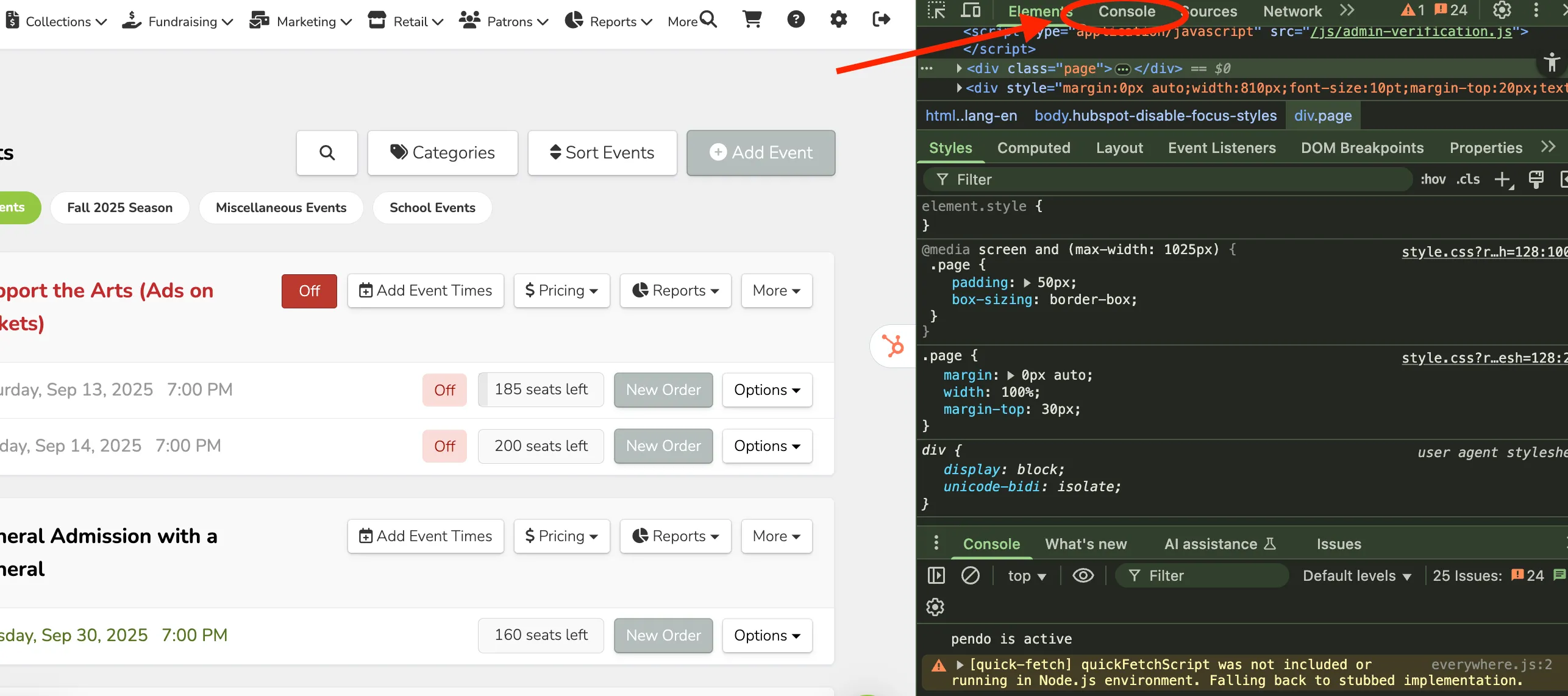
Once you have completed the above steps, please share that information with the Customer Support team member requesting it.
Want to see this done?
PC Console Logs
Make sure you are on the page on Ludus where you are experiencing an error.
While on that page, you will want to either take a screenshot before and after the action you are experiencing issues with, or screen record it.
We ask that you get a screenshot before the action causing issues, as well as after you perform the action causing issues for you. This will clearly help show where the issue may be occurring.
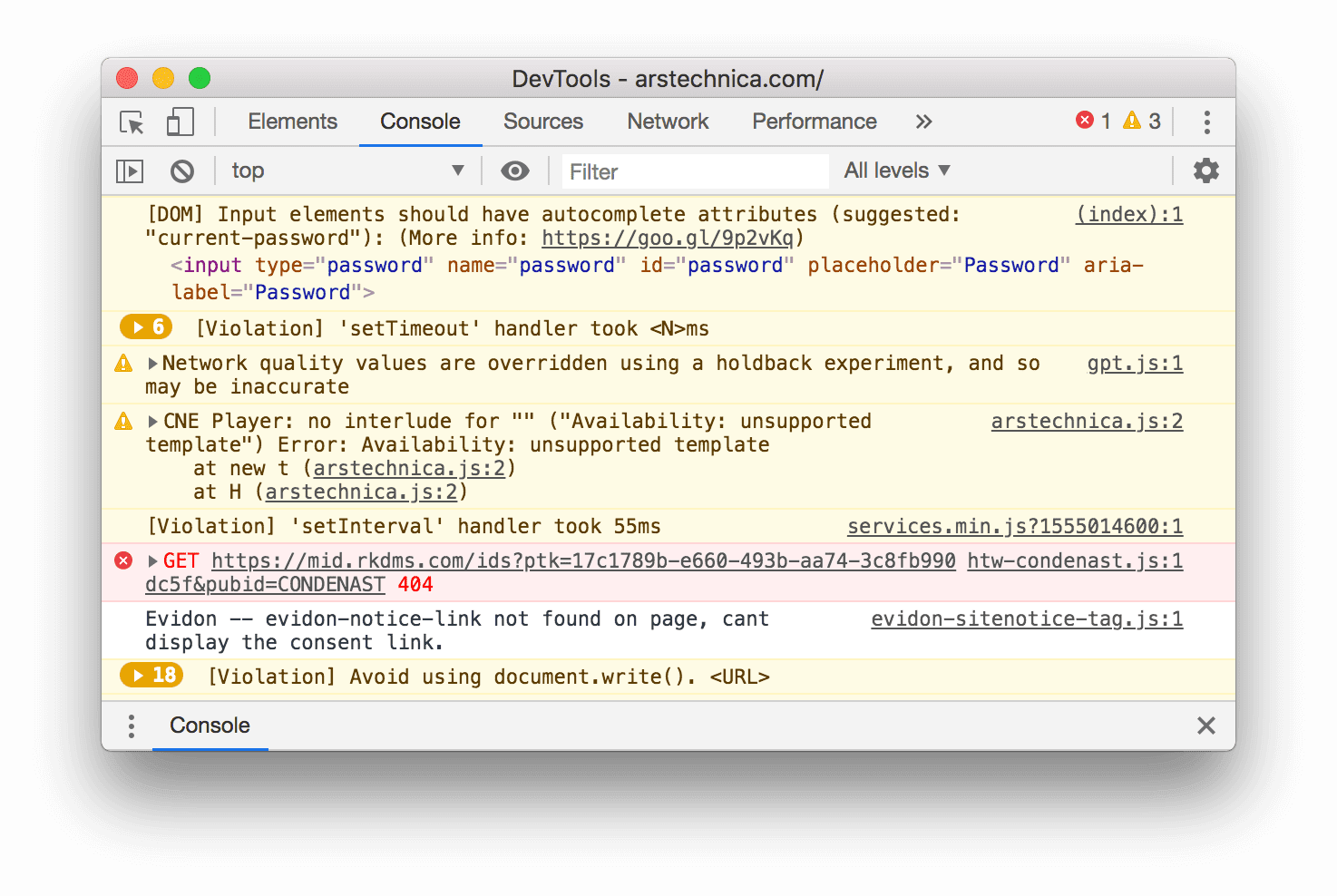
To access Console Logs, select Ctrl+Shift+J on your keyboard. That should look something like this.
Be sure to select "Console" to view the correct logs. It will look similar to the one below.
Once you have completed the above steps, please share that information with the Customer Support team member requesting it.