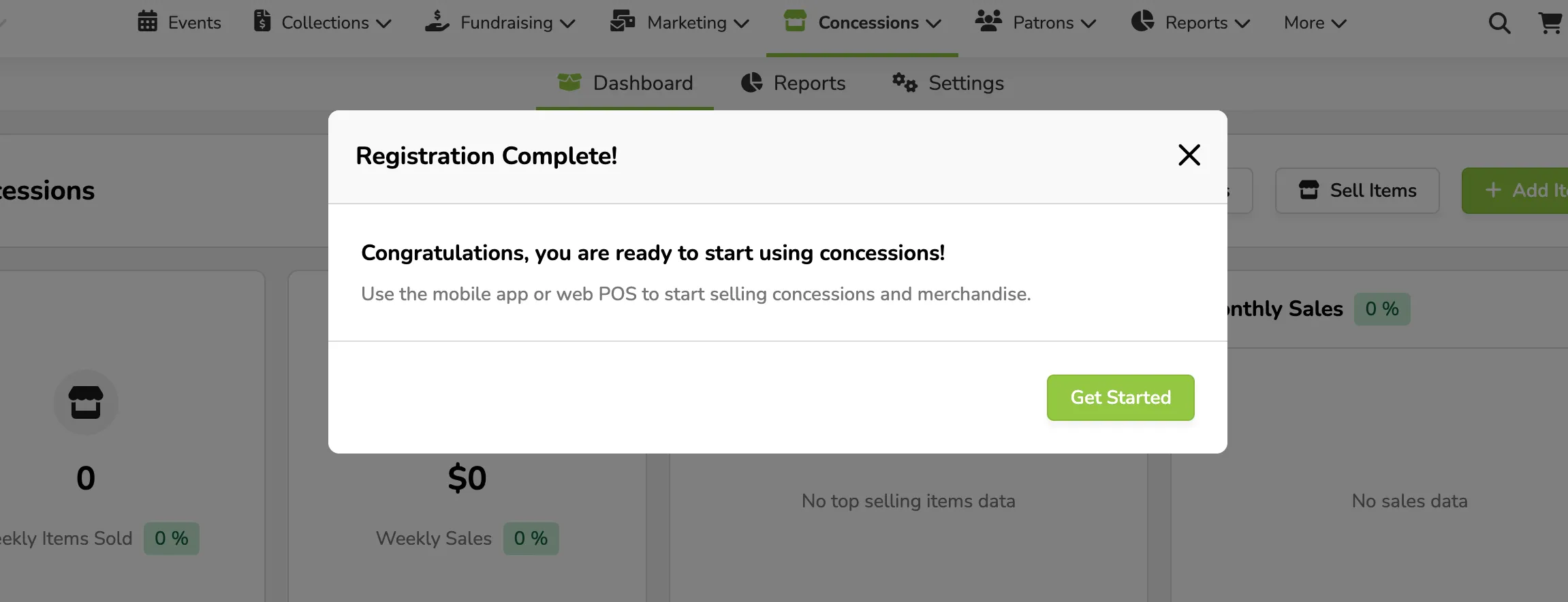
Initial Setup of Concessions
1 min
When you first go to Concessions (at the top of your account) -> Dashboard, you will be brought through the initial setup process for Retail.
First, you will be brought to the Get Started page. If you select Get Started here, you will go through the following setup steps.
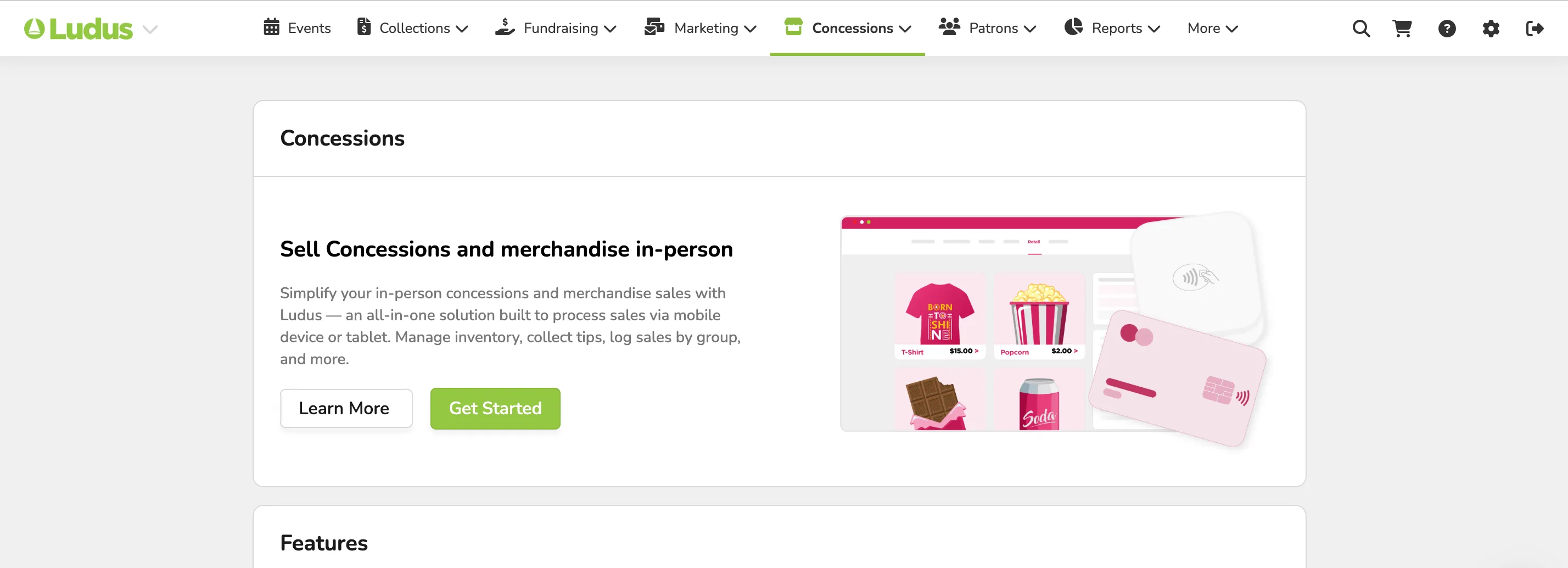
Once selected, you will be brought through the Tax Setup screen.
If you select YES, you will be accepting Taxes. Depending on your payout method, a pop-up will appear below.
Currently, tax can ONLY be turned on and used with Concessions if you are on Direct Deposits.

If you select NO for Tax, you will see the following screen:

Once you select the Tax option, you will click Next.
From this page, you can select Get Started.