Manage an Opportunity
Manage an Opportunity
In addition to setting up your volunteer opportunities, you can manage them from the Opportunities tab.
Each Opportunity has its own dashboard, which provides the following information:
- Number of Volunteer Slots Filled for all shifts of this opportunity
- Number of upcoming shifts
- Required Roles, and the ability to edit the roles
- Ability to add a shift.
- Report on the opportunity
- The ability to sign up new volunteers for the opportunity, as well as remove volunteers from a shift.

Under the More Dropdown (next to the Opportunity and on the dashboard), you can access:
- Turn On/Off (enable and disable the opportunity)
- Messages (send a message to the volunteers)
- Requests (review sign-up requests for the opportunity)
- Roster (view all volunteers)
- Share (link and QR code to sign up)
- Notices (additional information for the opportunity)
- Edit (adjust the settings)
- Archive (remove from the Opportunities live page)
Each of these items can also be accessed through the Options dropdown next to each available Volunteer time and the overall volunteer event under More.

Turn the Opportunity On/Off
This simple button lets you turn the Opportunity On and Off at any time.

Messages include the ability to message all volunteers.
Messages and Automated Reminders
Messages include the ability to message all volunteers.

Automated Reminders can be set up under the Opportunity Settings.
This can be found under More (next to the Opportunity) -> Edit -> Additional Options. This can also be accessed when setting up the Opportunity initially.
You can add multiple reminders (for example, 10 days, 5 days, and 1 day before the event). Additionally, you can include a custom message that will go out with that!
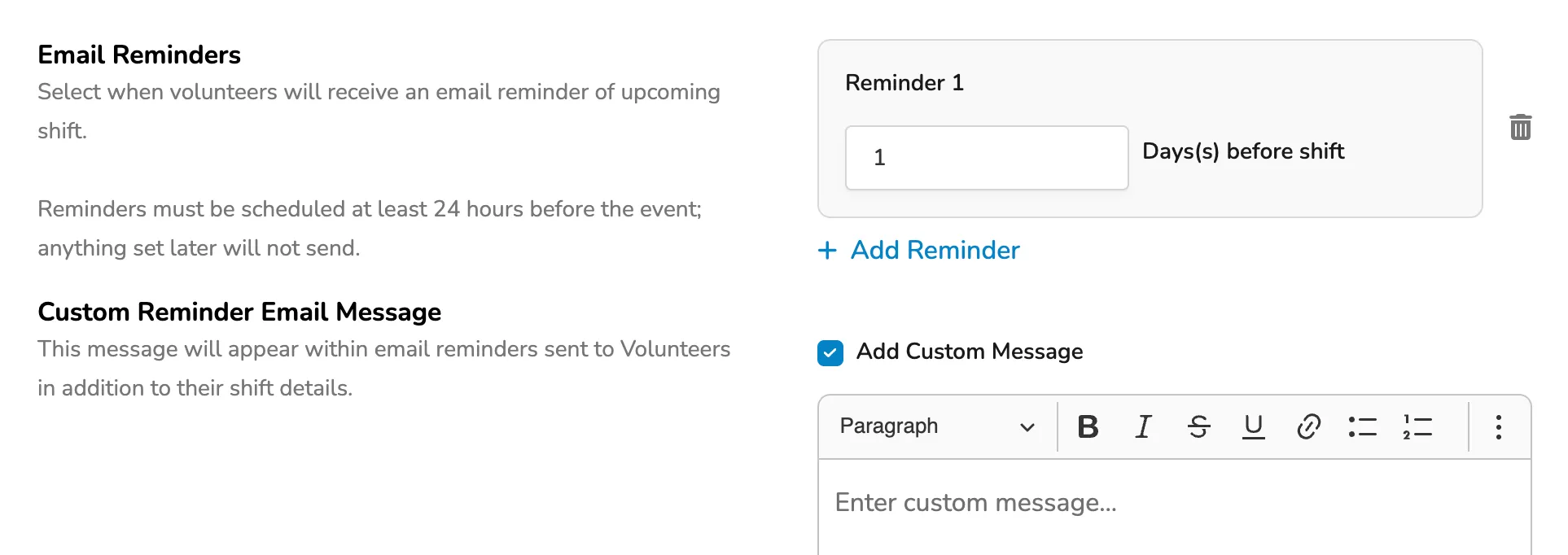
If a reminder has already been sent and you need to update it, you will receive the following pop-up in that section:
Requests
Requests will show any pending volunteer requests (anyone who has signed up to volunteer and needs approval).

Roster
The Roster will show all the volunteers who are signed up for the opportunity.

Share
If you wish to Share the opportunity via link or QR code, you can do so via this tab.

Notices
Notices are used to share additional information with your volunteers about the event or opportunity they are signing up for.
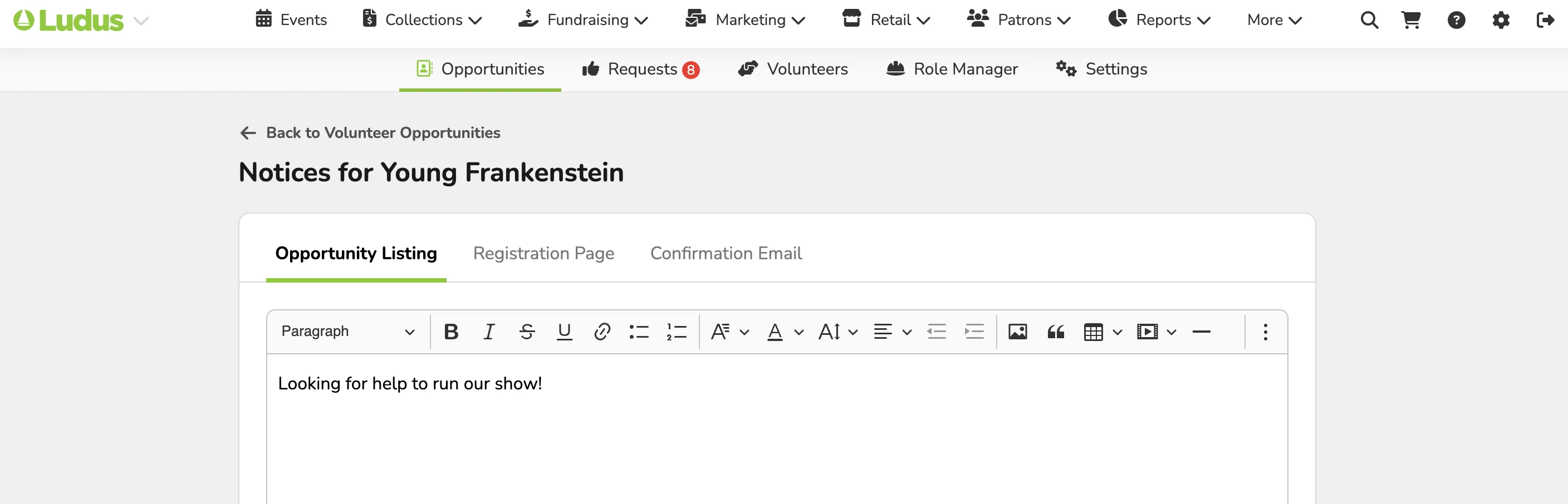
Edit
When you open the Edit tab, you can adjust the settings for the opportunity.
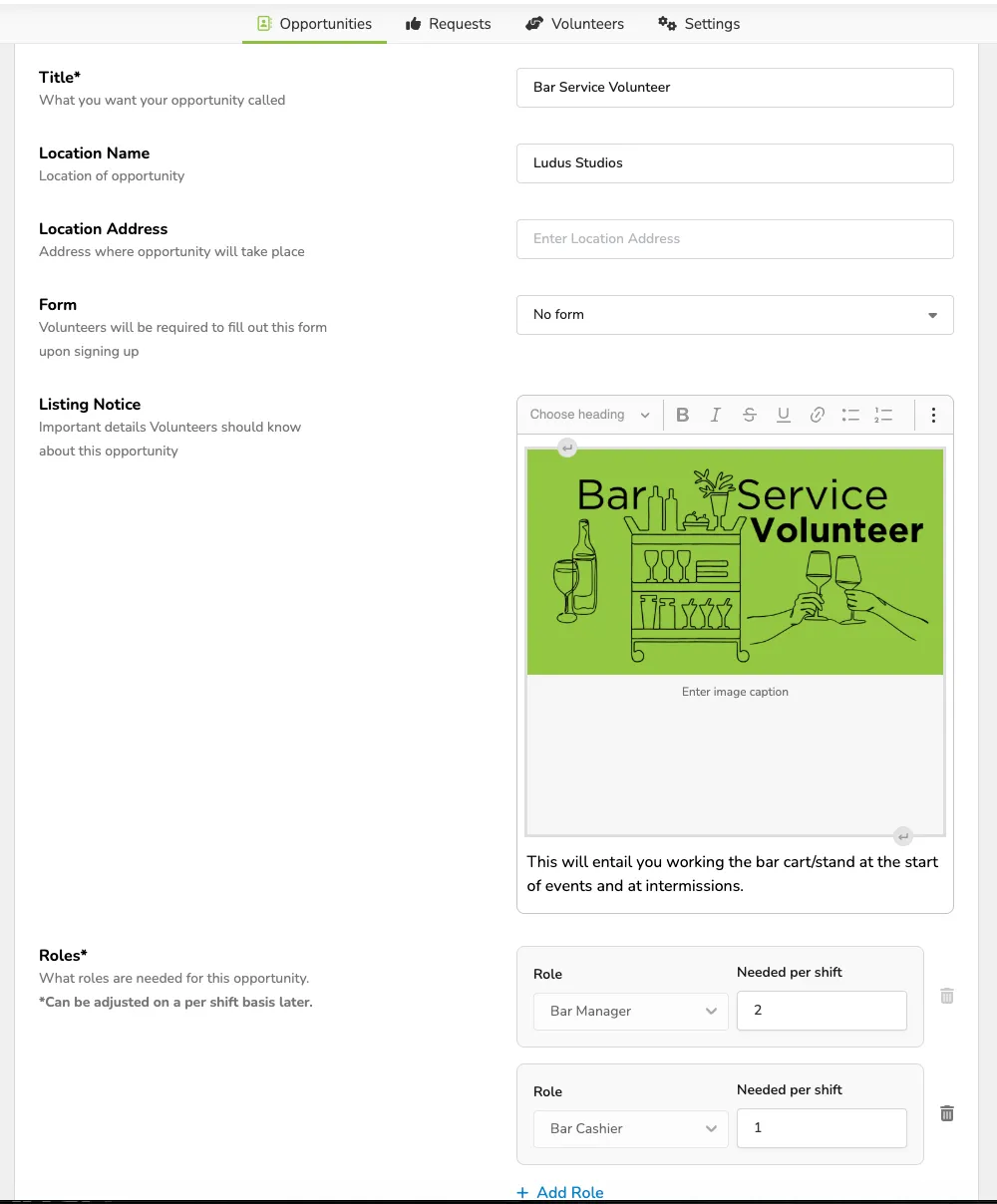
Archive
When choosing to Archive an Opportunity, this will remove it from the "live" opportunities page. You can still access the information, but it will not be live for sign-ups.
