Passes Report
The Passes Report provides an overview of all passes sold through your Ludus patron site and admin account.
There are two types of pass reports:
- All - Shows each pass sold as a separate line item.
- Summary - Shows the total sales for each pass type.
Regardless of the type of Pass report, you can sort by date range and check the "Status" (Paid, Past Due, Expired, Refunded, Disabled), "Archived", and "Credit Only" options to display data accordingly. "Archived" will show data from Archived Passes, and "Credit Only" will show only purchases made via credit.
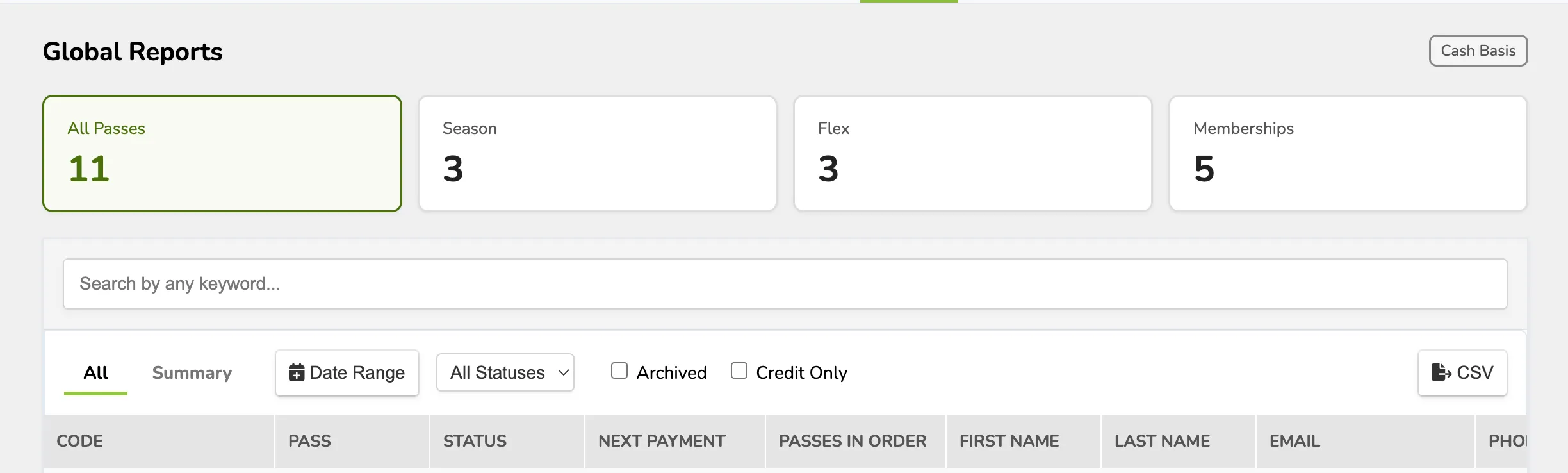
"All" Passes Report
The "All" Passes report treats each pass order as a separate line item. This report is best for viewing statistics on an order level, such as the patron who made the purchase and the number of tickets remaining on the pass.
View an "All" Passes Report
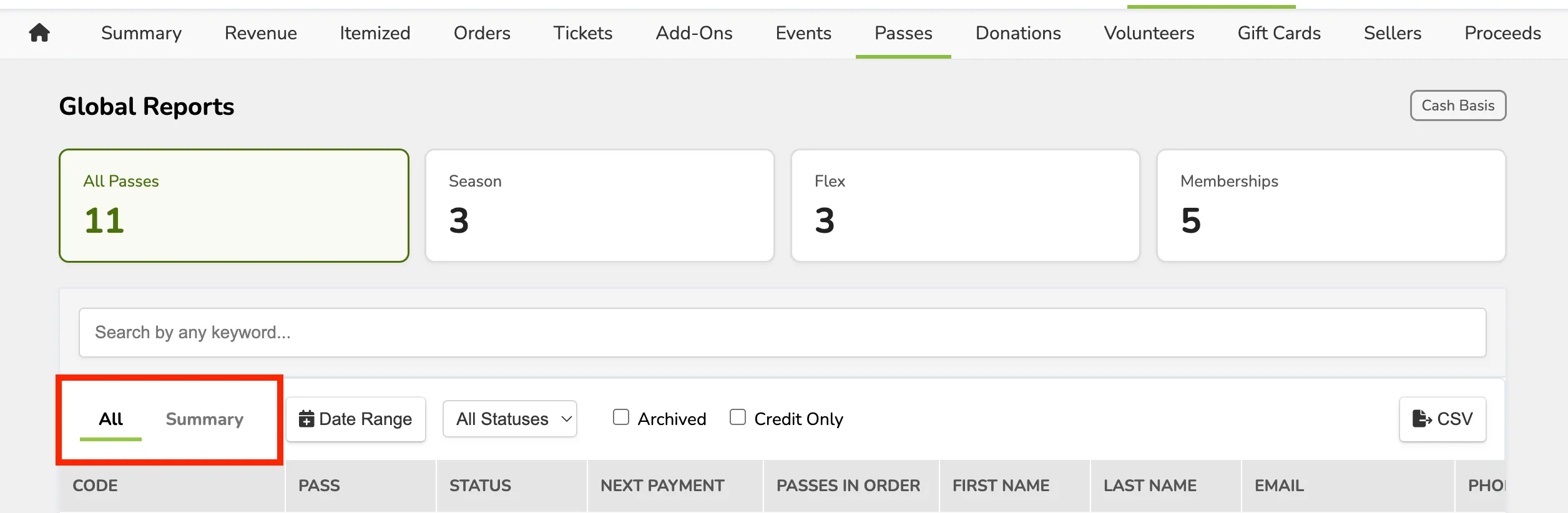
To view, click Reports from the top navigation bar. Then, click Passes. By default, your view will be the "All" report. To return or toggle between reports, click the titles in the report's upper left-hand corner.
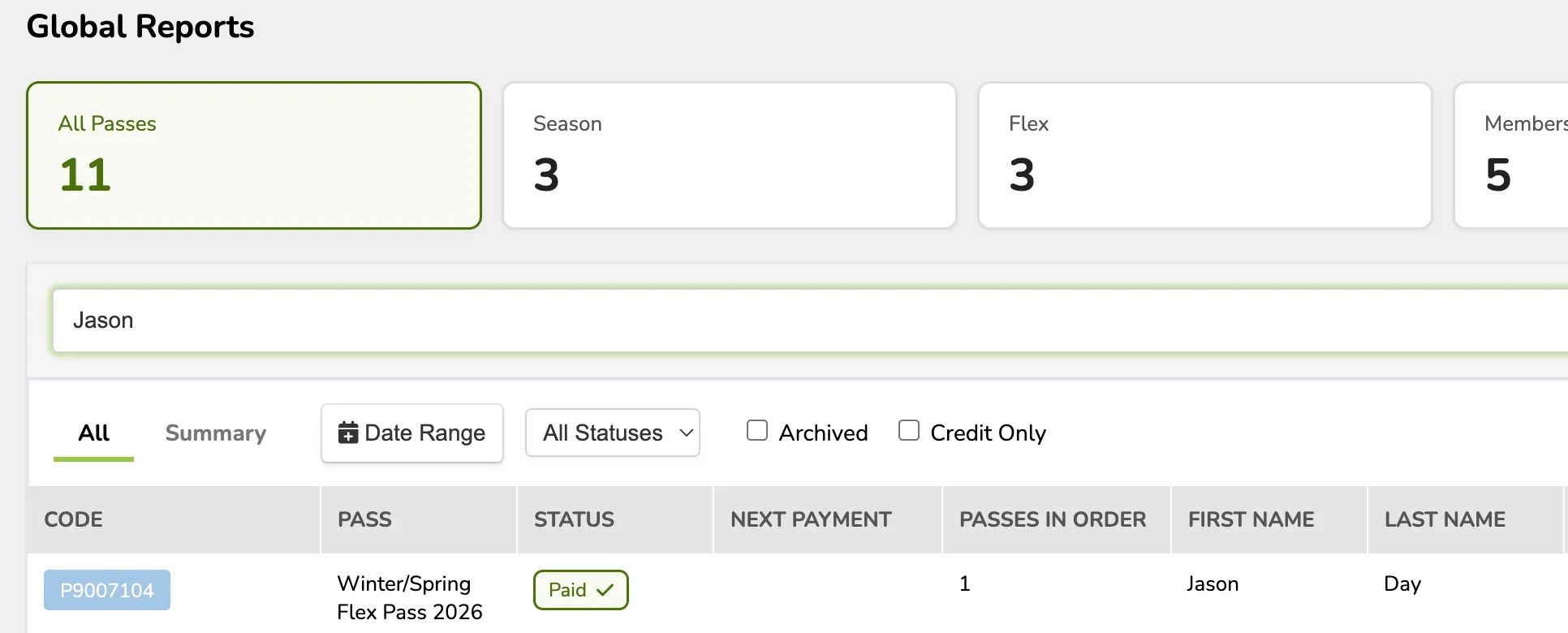
Use the search bar at the top of the report to easily look up a specific pass purchase. When viewing a line item, you can click "Code" to open the pass order summary.
Definitions and Terminology
Check out the descriptions below for an understanding of each column in the "All" Passes Report.
- Code - The pass holder code for the pass. Used to redeem tickets and perks. (Flex Pass and Memberships only)
- Pass - The name of the pass type that was sold.
- Status - Whether the order is "Paid" or "Refunded"
- Passes in Order - The number of passes purchased in the order. E.g., if a patron is buying a pair of Season Tickets in the same order, there would be 2 passes in the order.
- First Name, Last Name, Email, Phone, Address - The patron information attached to the pass purchase.
- Type - Payment type for the order, such as credit, cash, etc.
- Channel - Whether the pass was sold via "Self Serve" (purchased online by a patron) or "Box Office" (sold by an admin from the Admin Panel).
- Discount Code - The name of the discount used on the pass.
- Tickets Left - Tickets remaining for redemption on the pass (Flex Pass only).
- Order Date - The date and time the pass order was completed
- Gross - The total value of the passes sold.
- Discounts - The total amount in dollars received in discounts for the pass purchase.
- Gift Cards -The total amount paid using a gift card.
- Refunded - The total dollars refunded on a pass purchase.
- Fees - The total amount of fees that were absorbed on the pass purchase. This does not display the fees that were passed on to patrons. To have this reflected in your reporting, please contact Ludus Support.
- Revenue - The total income after fees, refunds, discounts, and gift cards are considered.
"Summary" Passes Report
The "Summary" Passes report provides a sales overview of each pass on your account. Similar to how the Events report breaks down sales for each event.
View a "Summary" Passes Report
To view, click Reports from the top navigation bar. Then, click Passes. In the top left of the report, click Summary to navigate to the Summary view.
Definitions and Terminology
Check out the descriptions below for an understanding of each column in the "Summary" Passes Report.
- Pass Name - The name of the pass.
- Sold - The number of that specific pass that has been sold.
- Gross - The total value of the pass sold.
- Discounts - The total amount in dollars received in discounts for the pass purchase.
- Gift Cards -The total amount paid using a gift card.
- Refunded - The total dollars refunded on a pass purchase.
- Fees - The total amount of fees that were absorbed on the pass purchase. This does not display fees that were passed on to patrons. To have this reflected in your reporting, please contact Ludus Support.
- Revenue - The total income after fees, refunds, discounts, and gift cards are considered.