Selling Concessions Items on Ludus
If you wish to sell Concessions Items on the Ludus Platform, there are 2 ways to accomplish this.
First, you can sell these items as Add-Ons through Collections, Classes, and Events: Global Add-Ons
The second way to accomplish this is to sell the items directly from the Ludus Retail tab in your Ludus admin panel.
To do this:
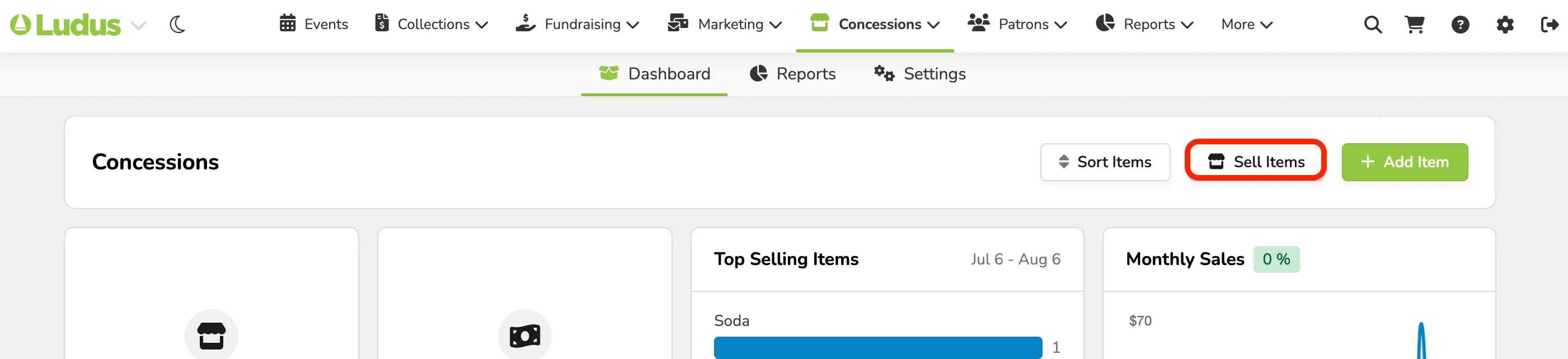
Go to Concessions (at the top of your account) -> Select Dashboard.
From here, you will select Sell Items (at the top right of the page).
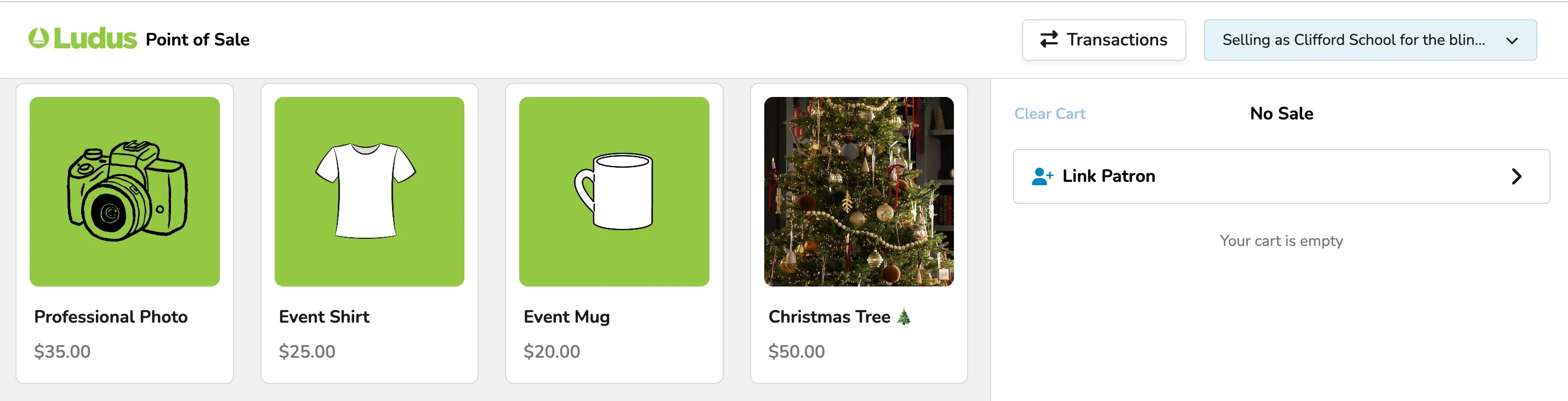
This will bring up all of your available Retail Items.
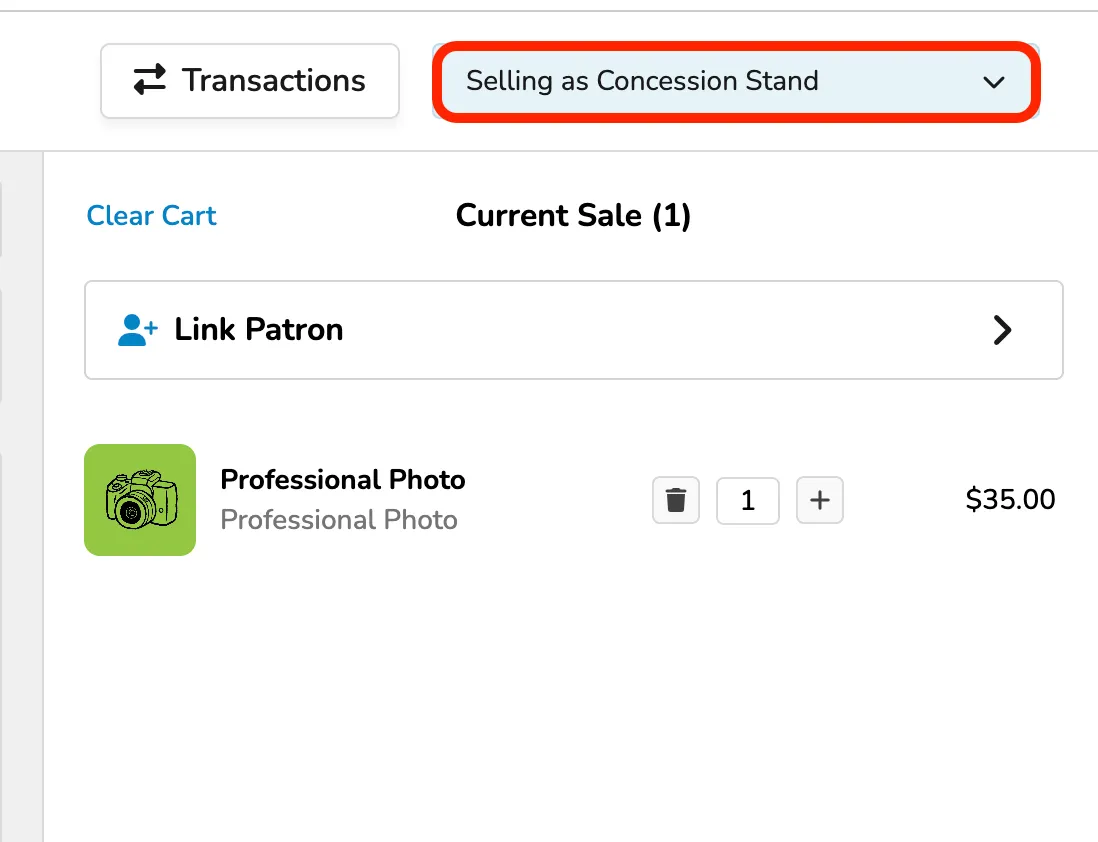
Before adding items to the cart, if you have Groups set up, you can select the group you are selling as in the top-right corner.
See Concessions Settings for more information on Groups.
From here, you can select the item(s) you wish to add to the cart by selecting that item, and then choosing how many and, if needed, what variants.
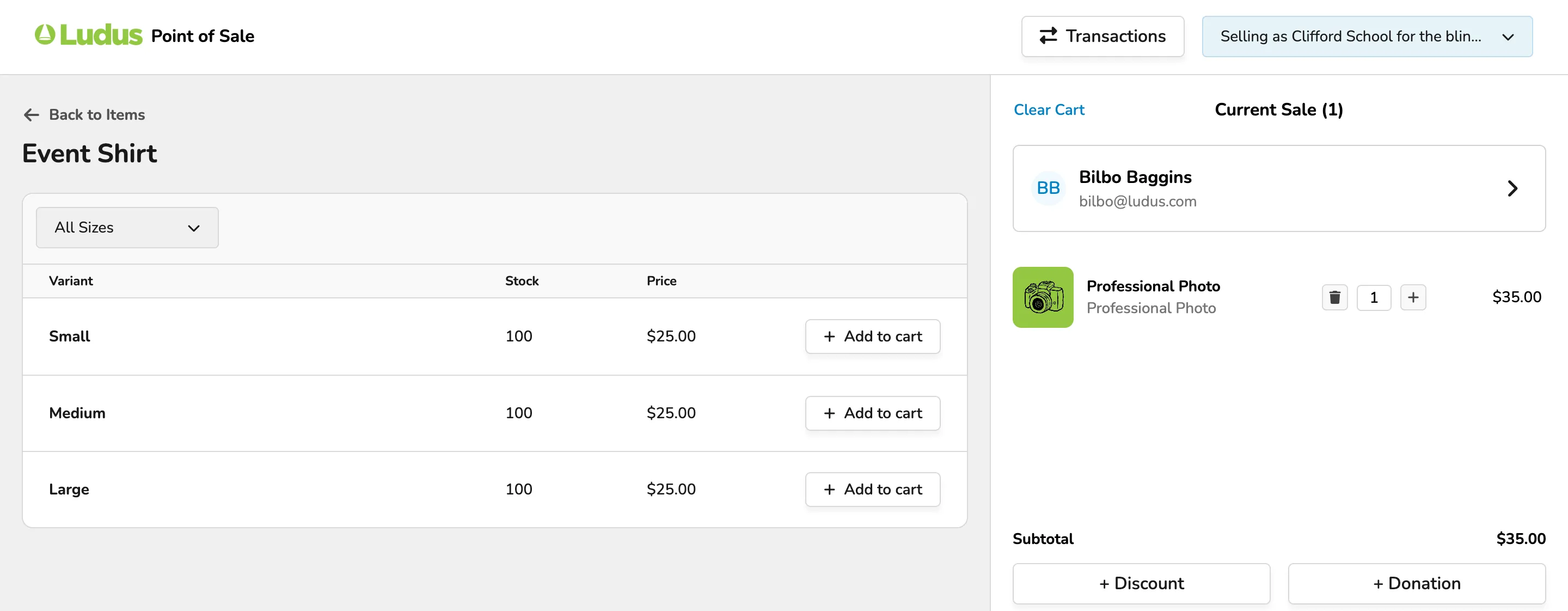
Once items are added to the cart, you can select to link an existing patron to the order or add a new patron.
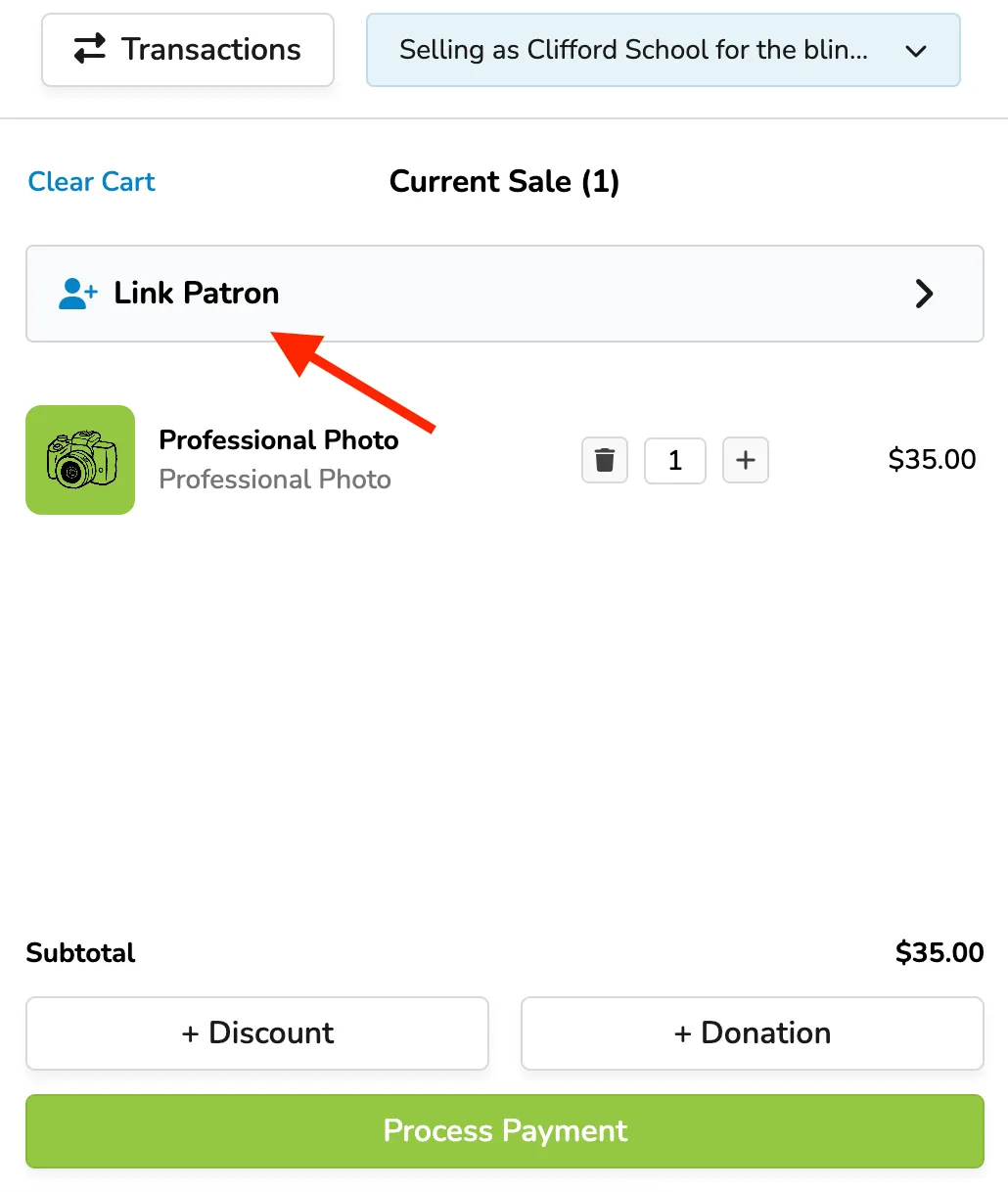
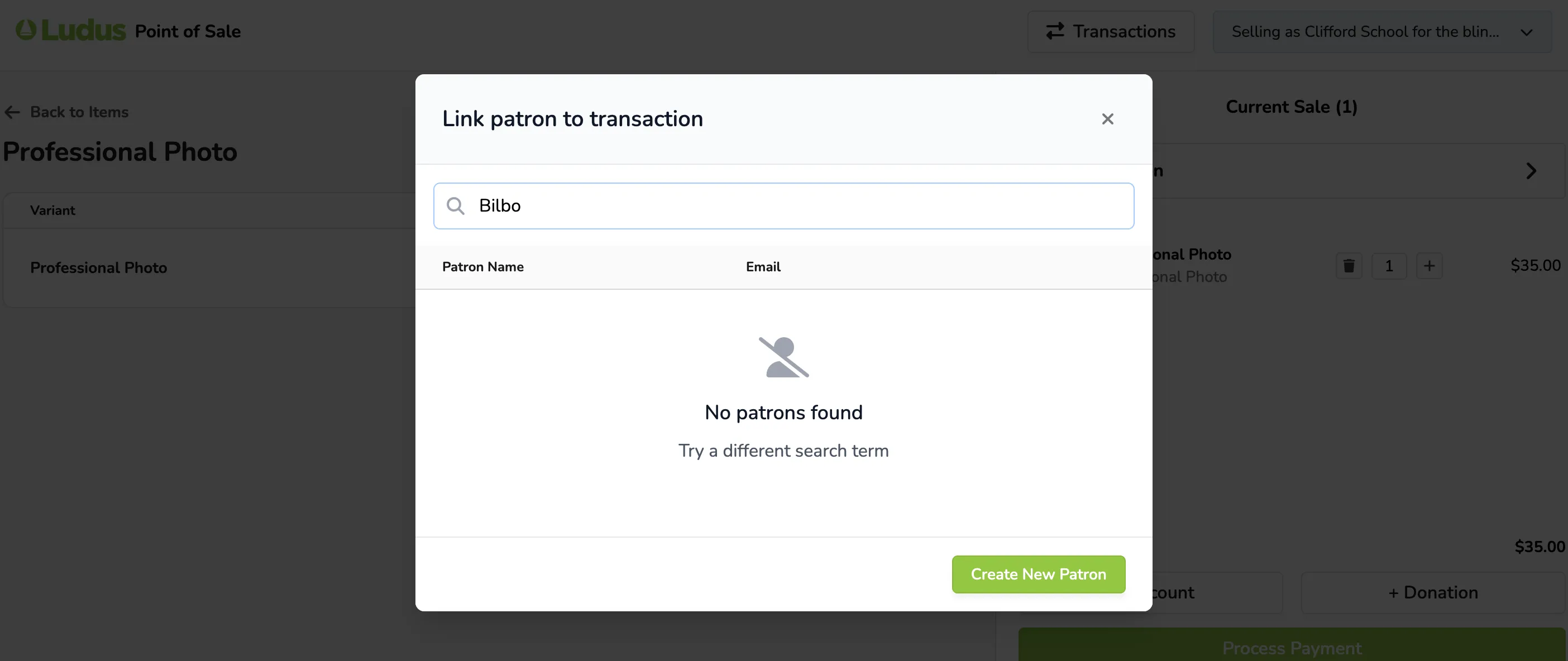
If linking a patron, you can search for and select them, or select "Create New Patron" if they are not yet in your system.
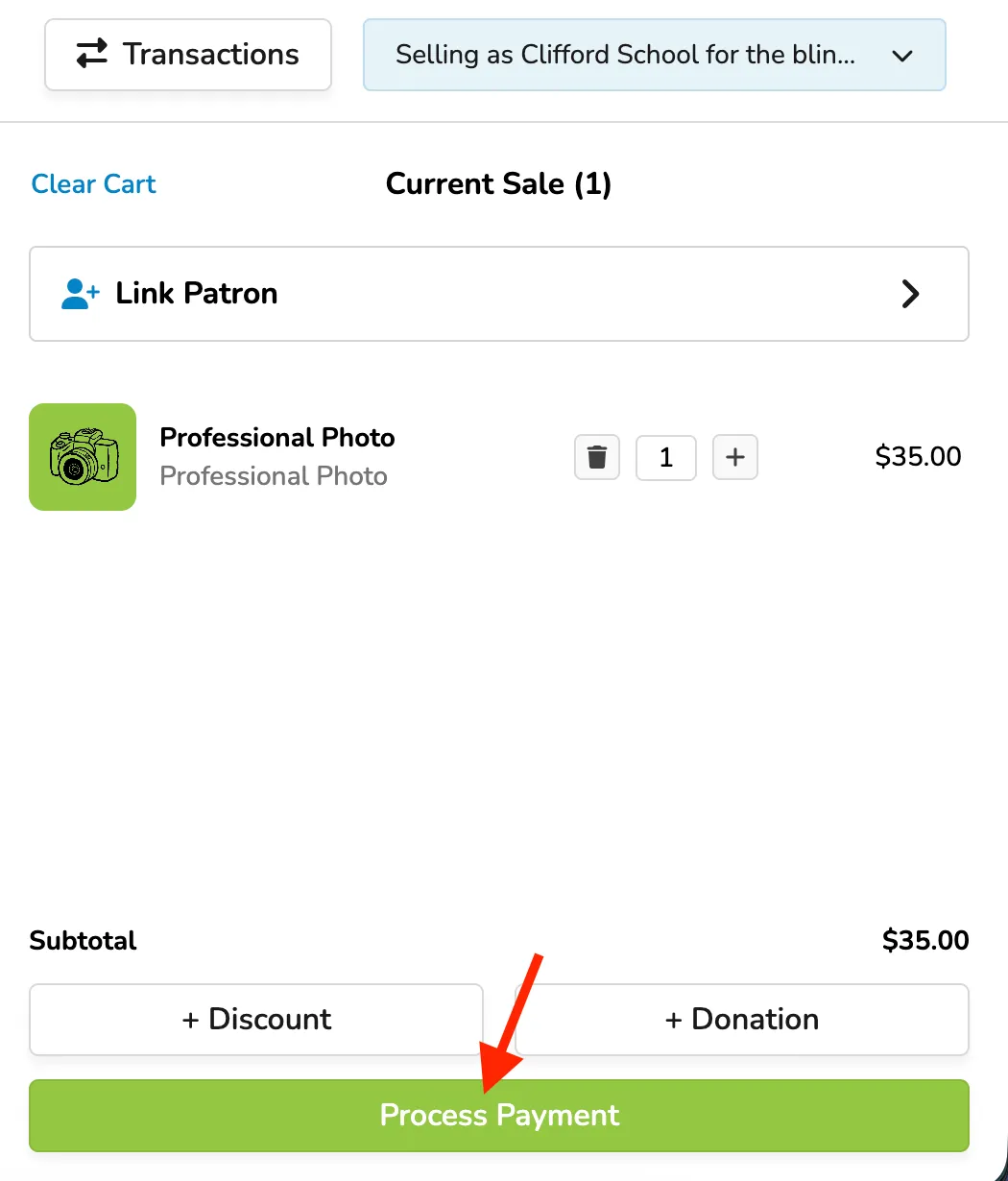
Additionally, if you wish to bypass that, you can simply select Process Payment at the bottom of the order.
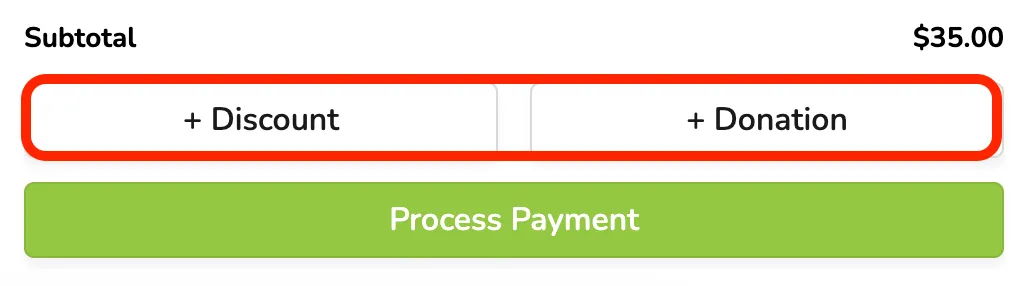
Before processing the payment, you can also select to add a discount code or a donation if requested by the patron.
Finally, when you select Process Payment, you will be taken to the Point of Sale page, where you can process the sale and items.
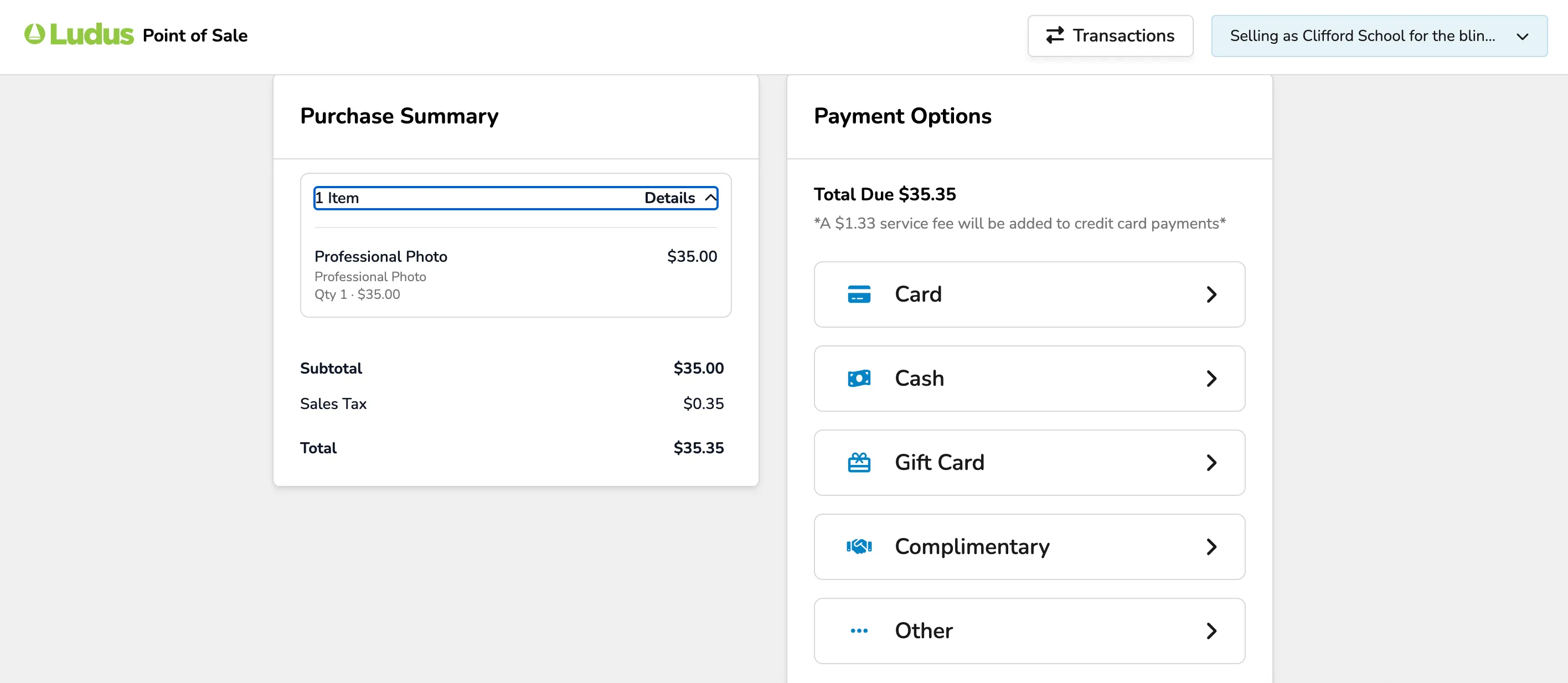
You can still switch the group you are selling to before the sale goes through.
For example, if you are selling as the choir but meant to select the band, simply select the dropdown (top right) and click the correct group.