Send an Email to Ticket Holders
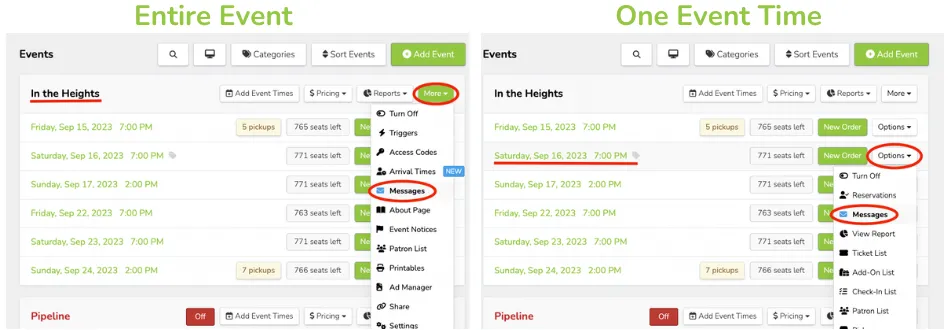
When messaging ticket holders, first you will decide who you'd like to message. You can send a mass message to ticket holders for the entire event or just one specific event time.
To message ticket holders for all event times, click More (next to the event title) --> Messages.
For just one specific event time, click Options (next to the event time) --> Messages.
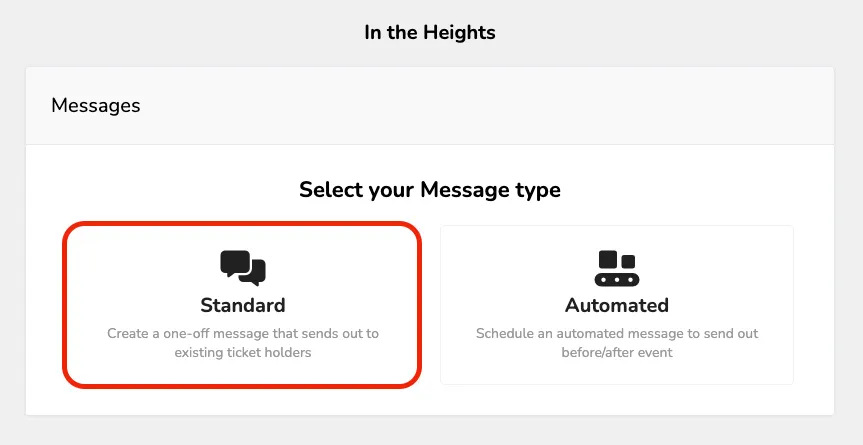
Once you've chosen the group you're sending to, click the green +Message button. Then, select Standard. To learn more about our automated messaging, check out this article here.
Suggested Article: Schedule an Automated Email for Ticket Holders
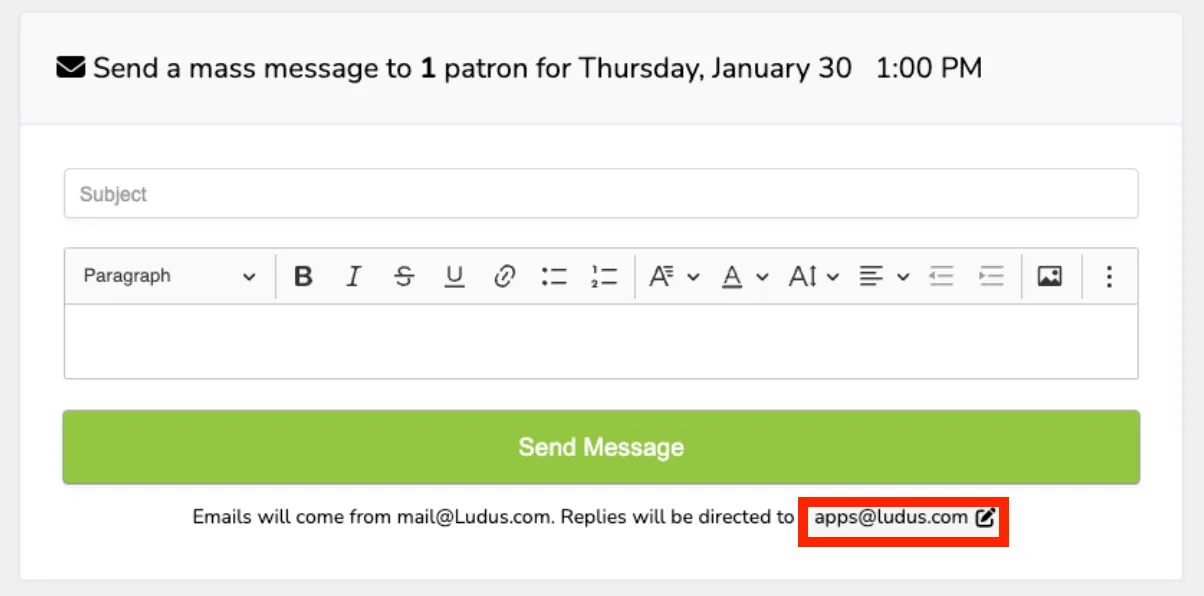
Then, type in your subject line and body for the email. Click Send Message to finish.
The "from" email can be changed to:
- Events
- Eventimes
- Volunteer Opportunities (individual times and full opportunities)
- Classes
- Class times
- Collections
There is a pencil next to the email address when sending a mass message, where this can be adjusted: