View/Save/Print PDF Invoice
If you or your organization prefers to mail physical copies of invoices or simply needs to print them out, you can easily save/print a copy of the invoice from the details page.
To view, save, and or print a PDF copy of your invoice:
From the top navigation bar, click More --> Invoicing.
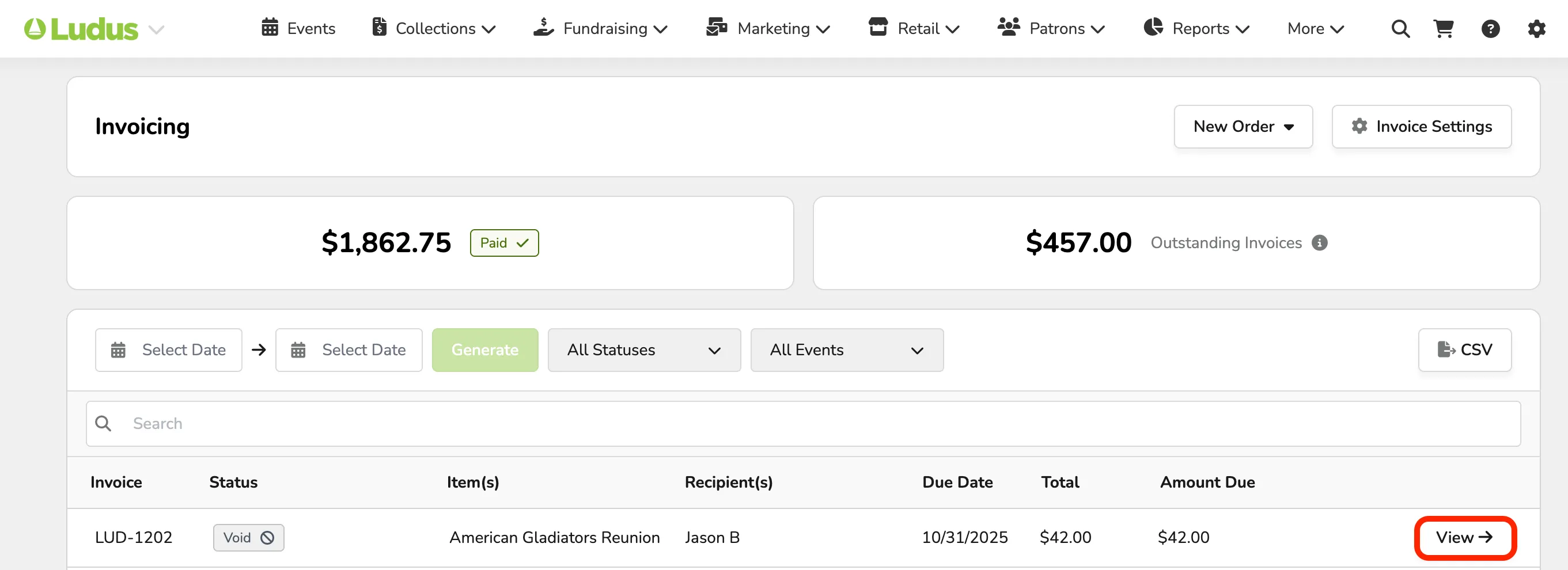
On the main Invoicing page, locate the invoice for which you'd like to collect payment and click "View".
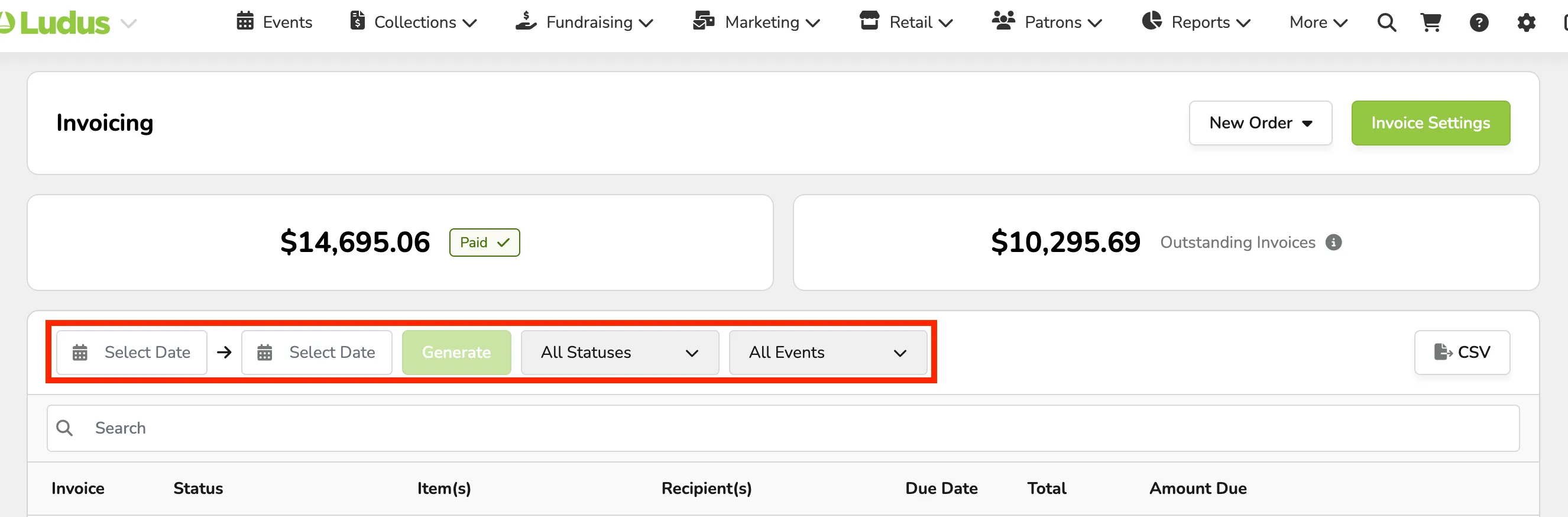
You can sort invoices by status from the top bar or use the search bar to search by name, email, or invoice number.
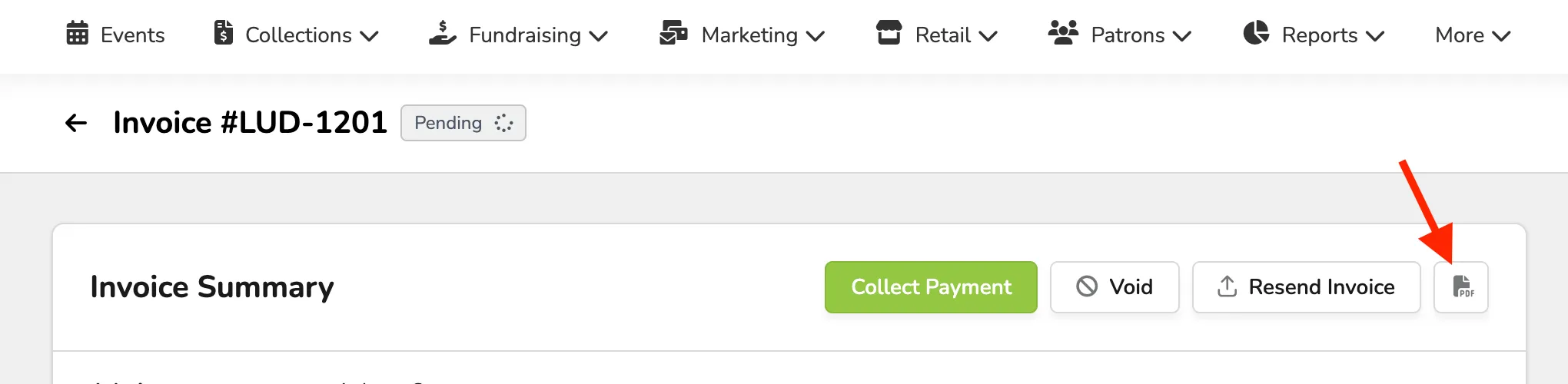
At the top of the page, click the PDF Page symbol.
The invoice will open in a new tab. You can then use your browser to print, download, or view it.
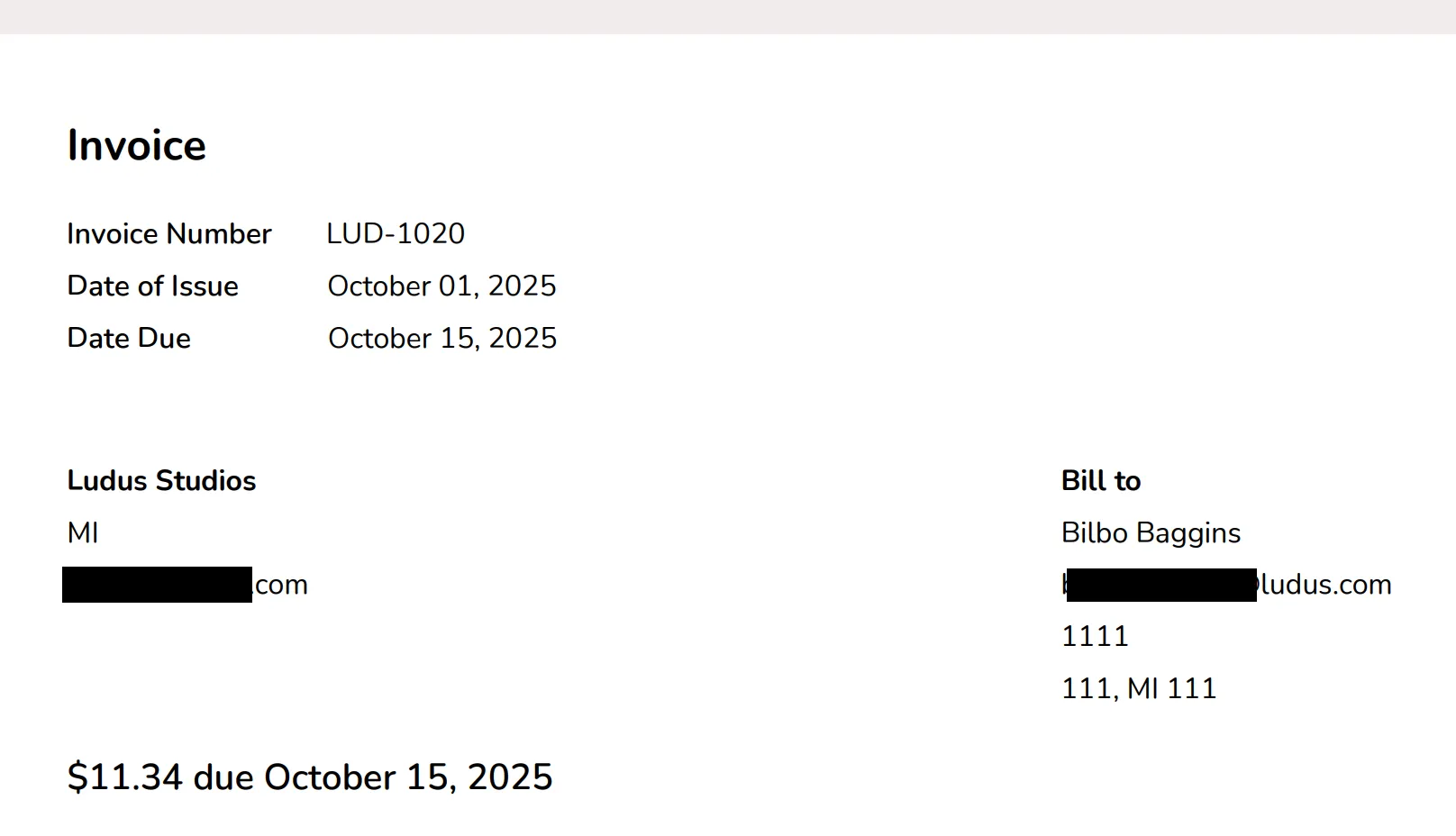
Once an invoice has been paid, you can still view, save, and print a PDF version. After payment, the invoice will display a zero-dollar balance and reflect a paid status.