Add a Concessions Item
To add a Retail item to your inventory, go to Concessions (at the top of your panel) -> Dashboard -> +Add Item.
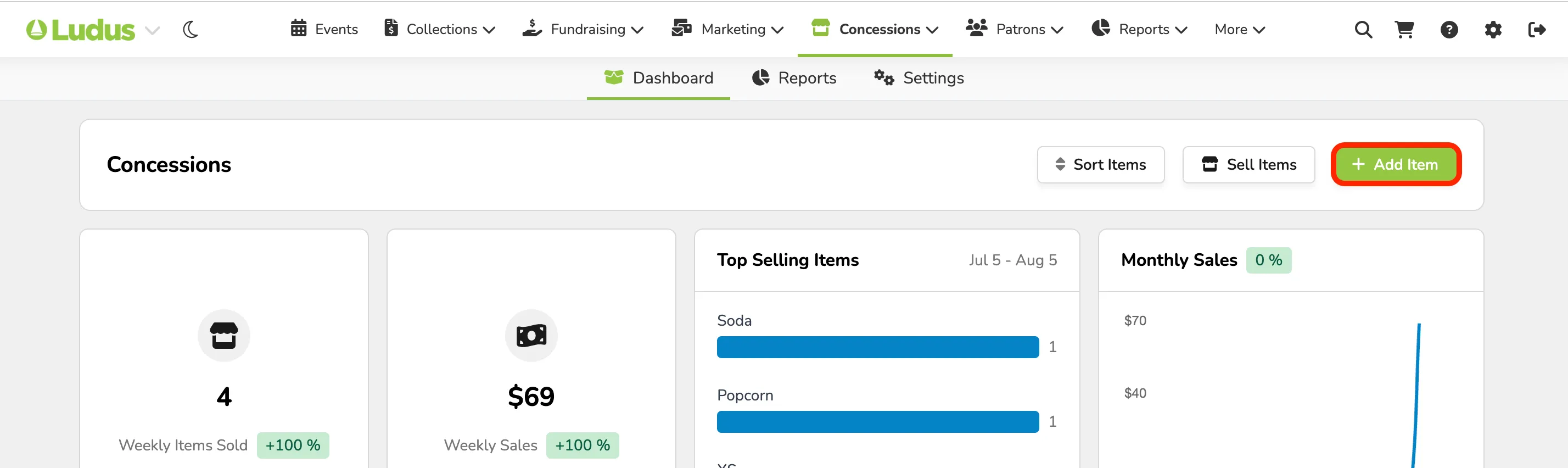
Add a Concession Item
When adding a retail item, Ludus will walk you through the setup.
Once you select +Add Item, you will then be prompted to fill out the Basic Info:
- Item name (required)
- Tags (optional)
- Description (optional)
- Image (optional)

Once Basic Info is filled in, you can then add the Tax Category:
- If tax-exempt, select that.
- If a tax code is needed, select it or create a new one.
- When creating a code, you will want to give it a Name and a percentage (%).

After the Tax Category is finished, you can fill out the Inventory.
- You can choose to Track Inventory.
- Additionally, you can set a Low Stock number to be notified when stock reaches a specific level.
- While you might not use Stock tracking for something like popcorn, it can be used for sweaters, mugs, etc.

If you are NOT tracking inventory, there will not be an option to add stock below when creating Variants.
The next step will be to add Options to your items.
- If your item has multiple options (color, size, etc.), you can specify that here.
- For example, an Option for a sweatshirt would be its "size".
- The Value for that would be the size, IE, Small.
- Another example would be an Option for the "Color" of a mug.
- The Values for those could be the various available colors, i.e., Blue.
- Be sure to select Done to save your options!

After setting up Options, you can verify the Variants.
- Variants can be edited to show the price and quantity of each item.
- For example, if you have varying types of mugs, you can adjust stock and price for each.

By selecting the box next to "Variant Name" at the top, you can bulk-edit the prices and quantities for each.
Finally, you can adjust the Settings for that item. Under this final section, you will be able to adjust:
- Sales Channels - Where this item can be sold.
- Order Limits - Limit the number of these items that can be sold per order.
- Refundable - The admin can issue a refund to the patron after purchase.

Once finished with all of the above, save (at the top right of the form).

You can also set the item to Active (and ready to sell) in the top-right corner of the setup.