Auto-apply discounts
Overview
Bulk discounts will automatically apply to a patron the minute their cart fulfills the requirements. Additionally, there are two ways that Code discounts can automatically apply for patrons without them ever having to enter a discount code.
When a discount is auto-applied, the actual code will be hidden to prevent unwanted sharing.
Auto-Apply based on Email Domain
An email domain is the section that comes after the "@" in an email. For example, in [email protected], the domain is ludus.com.
Before a patron reviews their cart, they will have to enter their name and email. When they do this, the system can recognize their email domain and automatically apply a discount if it matches the one you set the discount code to work with.
Any email with this domain will have the discount applied. Limits you set otherwise will still apply.
To set this up:
Create a discount code for an event, collection, or class as you normally would.
Suggested Article: Create a discount
Scroll to the section titled Auto-Apply and check the box for Auto-Apply based on Email Domain.
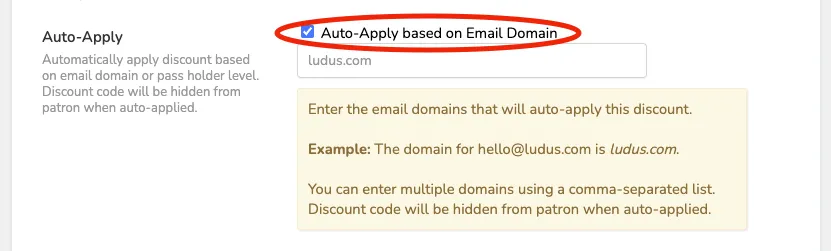
Type in the email domain that should automatically unlock the discount. To enter multiple domains, separate each with a comma.
Click +Add discount to save.
Auto-Apply based on Pass Holder
One of the great features of it is that you can automatically unlock discounts and special ticket prices once they log in with their passholder code. This avoids the need for them to juggle multiple codes and creates a smooth process for both you and your patrons.
To set this up:
Create a discount code for an event, collection, or class as you normally would.
Suggested Article: Create a discount
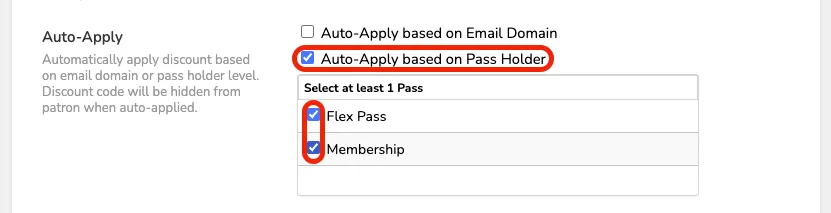
Scroll to the section titled Auto-Apply and check the box for Auto-Apply based on Pass Holder.
From the list of active passes, check the box for each pass that should automatically unlock this discount.
Click +Add discount to save.