Check-In/Scan Tickets for an Event
The number one recommended way to scan and check in patrons on the day of the event is with our mobile app (Ludus Mobile). In the app, you can use the device's camera to scan ticket codes. We also know that patrons might misplace their tickets or be unable to connect to the internet to view their mobile tickets. The app also comes with a searchable patron list. This allows you to quickly search for a patron and manually check them in.
App-Based Check-In
You can easily check in patrons via the Ludus Mobile .
Suggested Article: Check-In Tab (Ludus Mobile)
Log in to your Ludus app and navigate to the Check-In tab at the bottom.
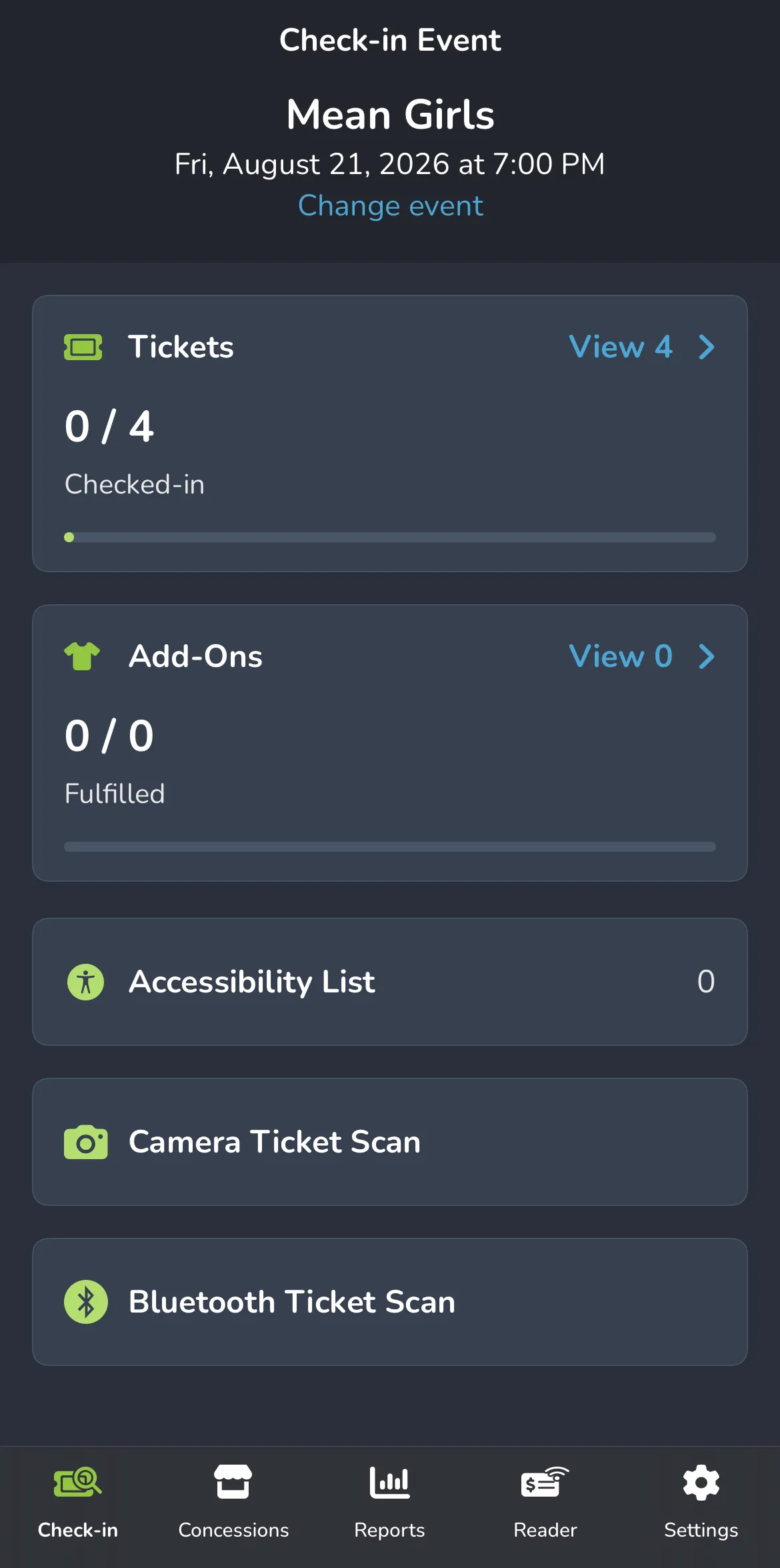
Once there, you have 2 options to check in tickets.
You can select Tickets to start checking in tickets for your event.
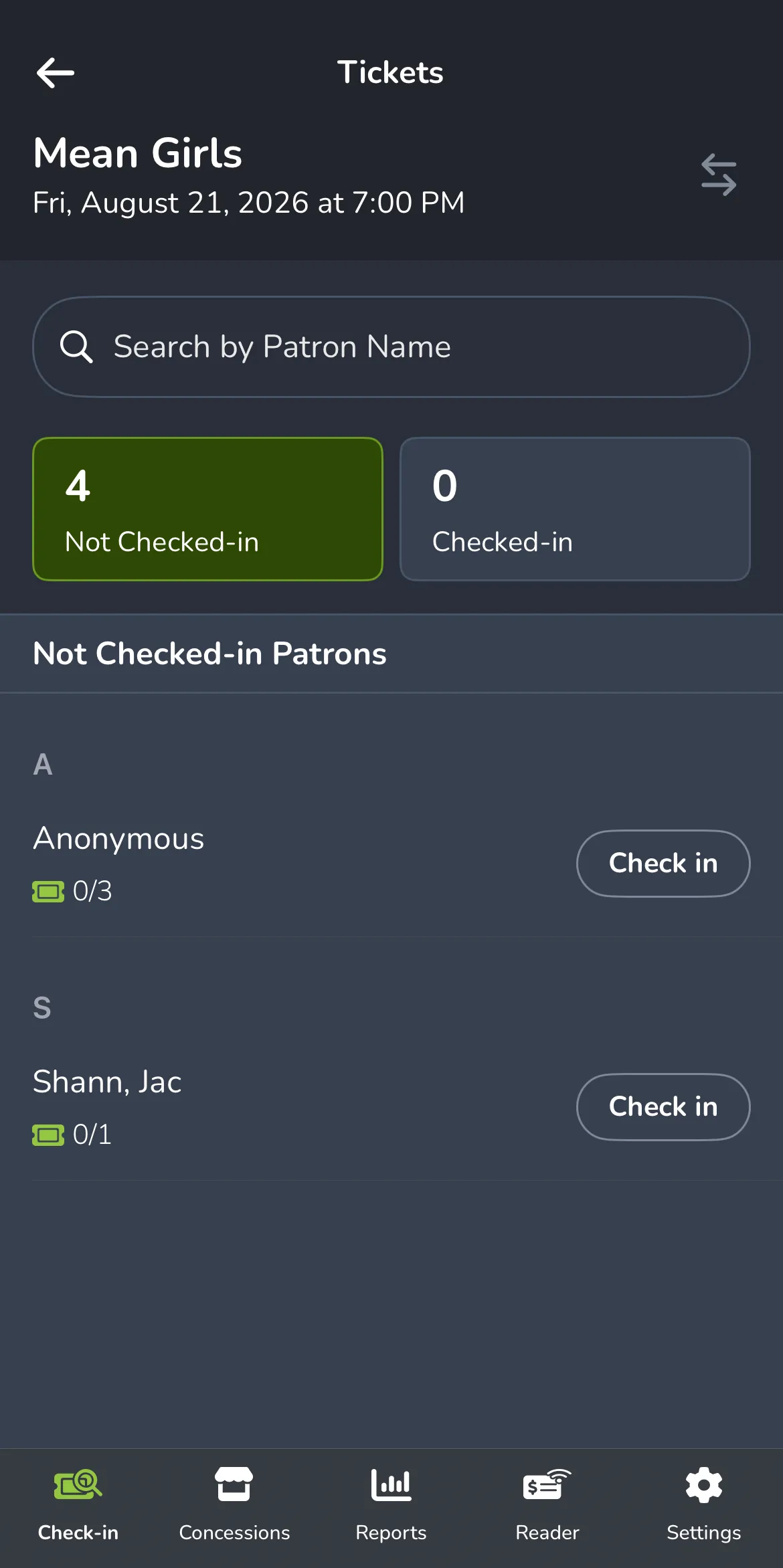
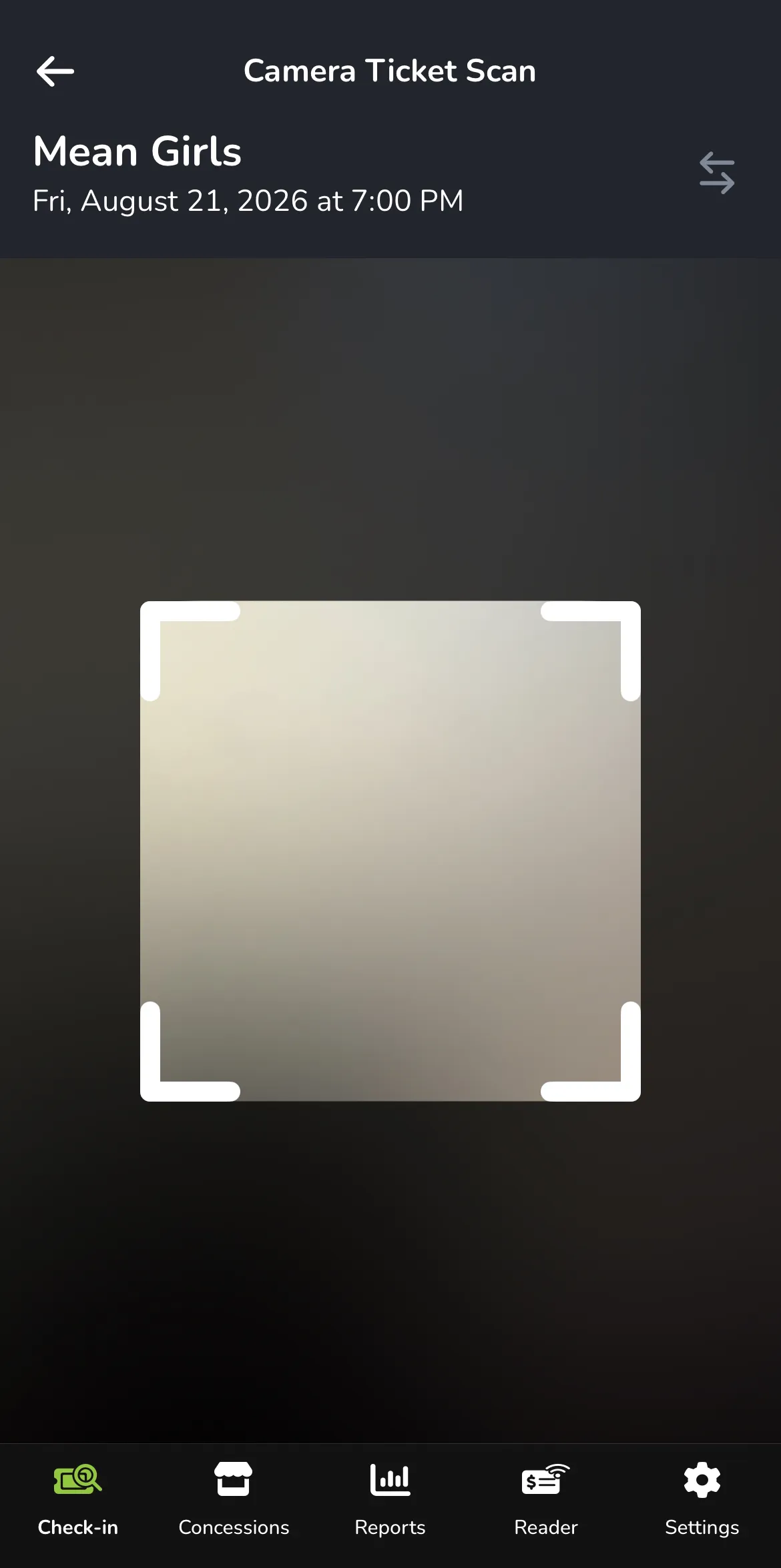
Additionally, you can select Camera Ticket Scan (further down the page) to scan the ticket barcodes.
If you need to change the Event, select Change Event at the top of the screen (beneath the current event).
From these locations, you can continue scanning and checking in tickets as needed!
Web-Based Check-In List
You can manually check in patrons using the web-based Check-In List on your computer. To do so:
On the main Events tab, find the event time you'd like to scan, then click Options --> Check-Ins.

You can search for the patron by name using the search bar or scroll through the list to find their tickets. Check the line for the ticket(s) you'd like to check in and click Check-In at the bottom of the screen..
Reverse a Checked-in Ticket
If you accidentally check in a ticket that should not have been checked in, you can easily reverse it.
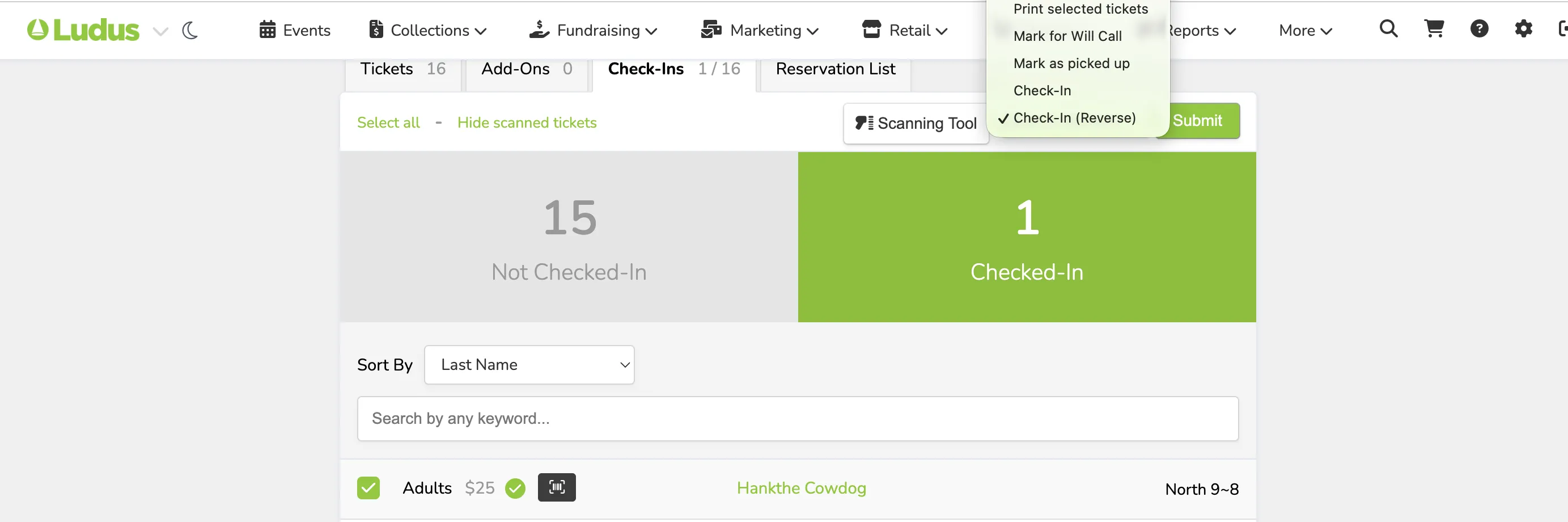
On the Patron Check-in screen, locate the checked-in patron's ticket. It will show with a green checkmark. Check the box next to the ticket to reverse the check-in.

Scroll to the top of the page and using the drop-down menu select Check-in (Reverse). Then click Submit to restore the selected tickets as Not Checked in.
Reservation List
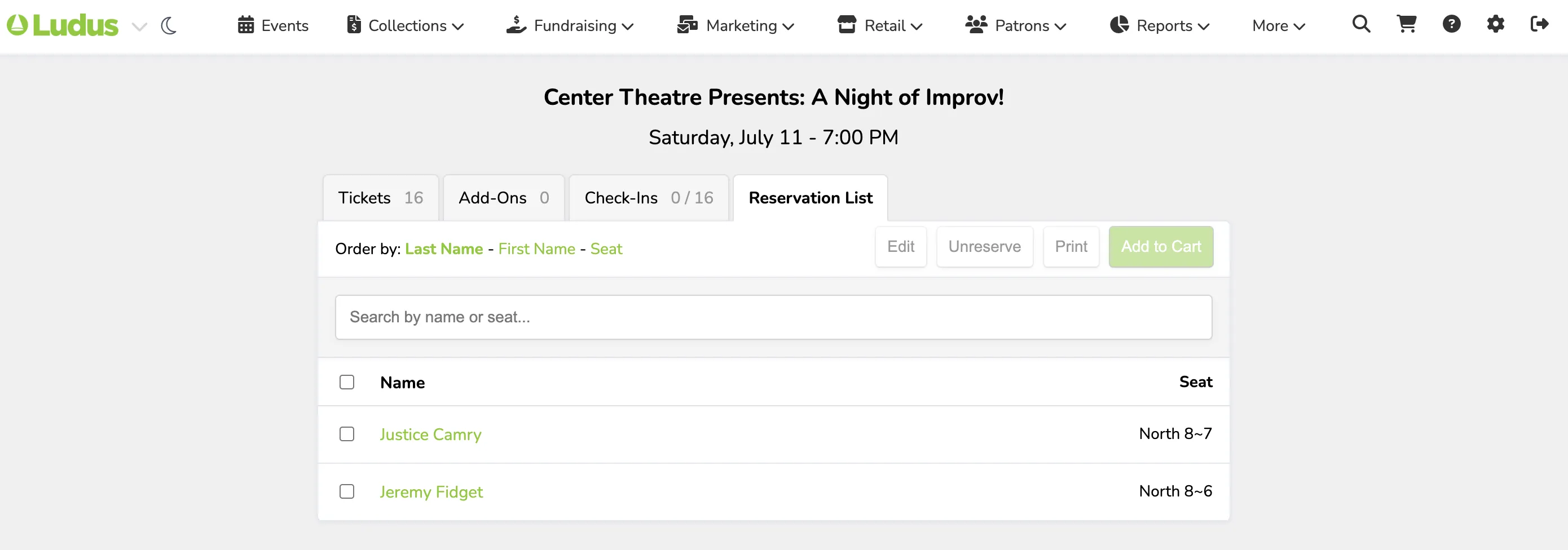
From the Reservation List tab (under Options -> Check-In List), you are able to select reservations and either sell those via the cart function or un-reserve those.
Handheld Scanners
The purchase of additional devices, such as a scanning gun, is not needed to manage ticket scanning within Ludus. Both the mobile app and check-in list can be used at no additional cost to your organization.
For high-speed, high-quality scanning you see at major venues, we recommend Zebra scanners, specifically the Zebra TC22 models with Android built in. These are standalone and don't require separate devices — you will simply download the Ludus Box Office app to the Zebra scanner and enable "Zebra" mode when scanning.
For other scanners, Amazon offers a wide selection. You'll want to ensure the scanner is Bluetooth-enabled (so it can work with the app still installed on a mobile device), can read QR codes, and is camera-based so it can scan codes on digital screens. If the scanner has USB capabilities, you can also use our web-based scanning tool without the app, but you will need a web browser open with the scanning tool pulled up.
How to Use the Scanning Gun with the App
- Pair the Scanning Gun with your mobile device using Bluetooth, following the steps in the Scanning Gun's instruction manual.
- Log in to the app and go to the scanning screen.
- In the top-right corner of the screen, tap the Bluetooth icon.
- If your Bluetooth scanner is paired successfully, you can begin scanning tickets.
How to use a web-based Scanning Tool in the admin panel
- Plug the Scanning Gun into your laptop/Chromebook via USB (Bluetooth is also possible, but a wired connection reduces the risk of issues).
- Select the Options button next to your event time → click Scanning Tool in the dropdown.
- Click Enable Scanning Tool, then wait for the screen to say "Ready to Scan".
- Now you can start scanning your tickets into the system; they will appear on the screen as "Checked-In" once scanned.
FAQ's
Can multiple people be signed in to scan tickets?
Yes! You can create accounts and have volunteers sign in on multiple devices to scan tickets. To add another user, go to Settings -> Users → +User. Suggested Article: Add a User
Am I required to scan/verify tickets?
Scanning and verifying tickets within the Ludus system is not required. This is an optional tool for you and your program.