Check-In Tab (Ludus Mobile)
In the Ludus Mobile app, the tabs at the bottom of the screen let you navigate the app's functions. To manage check-in for your event, use the Check-In tab.
What does the Check-In tab do?
The Check-In tab is where you can manage all of the check-ins for your event.
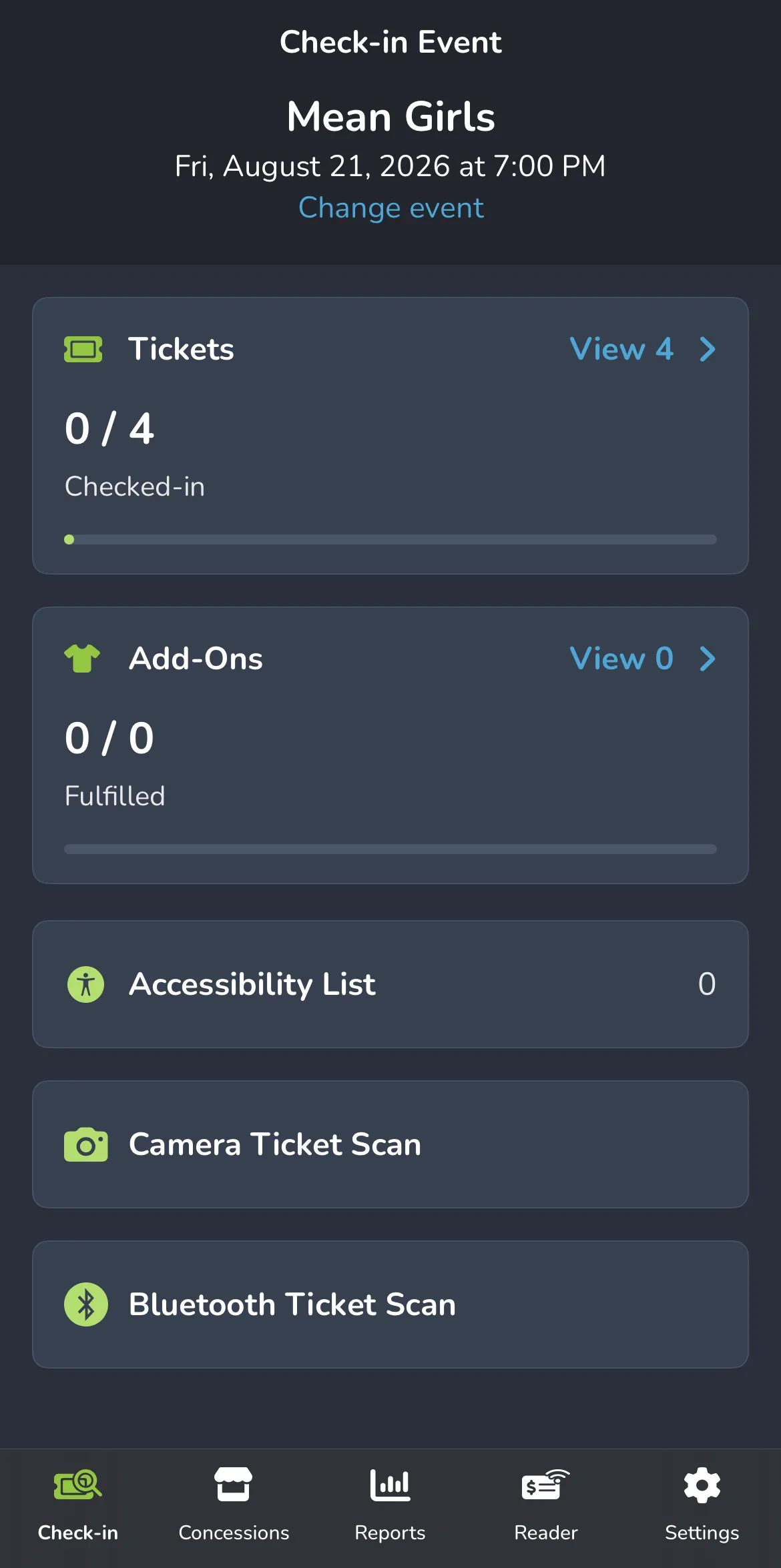
This tab includes:
- Tickets - View which patrons have been checked in and how many have not.
- Add-Ons - Manage the fulfillment of Add-Ons for your event.
- Camera Ticket Scan - The ability to scan in tickets with your phone's camera.
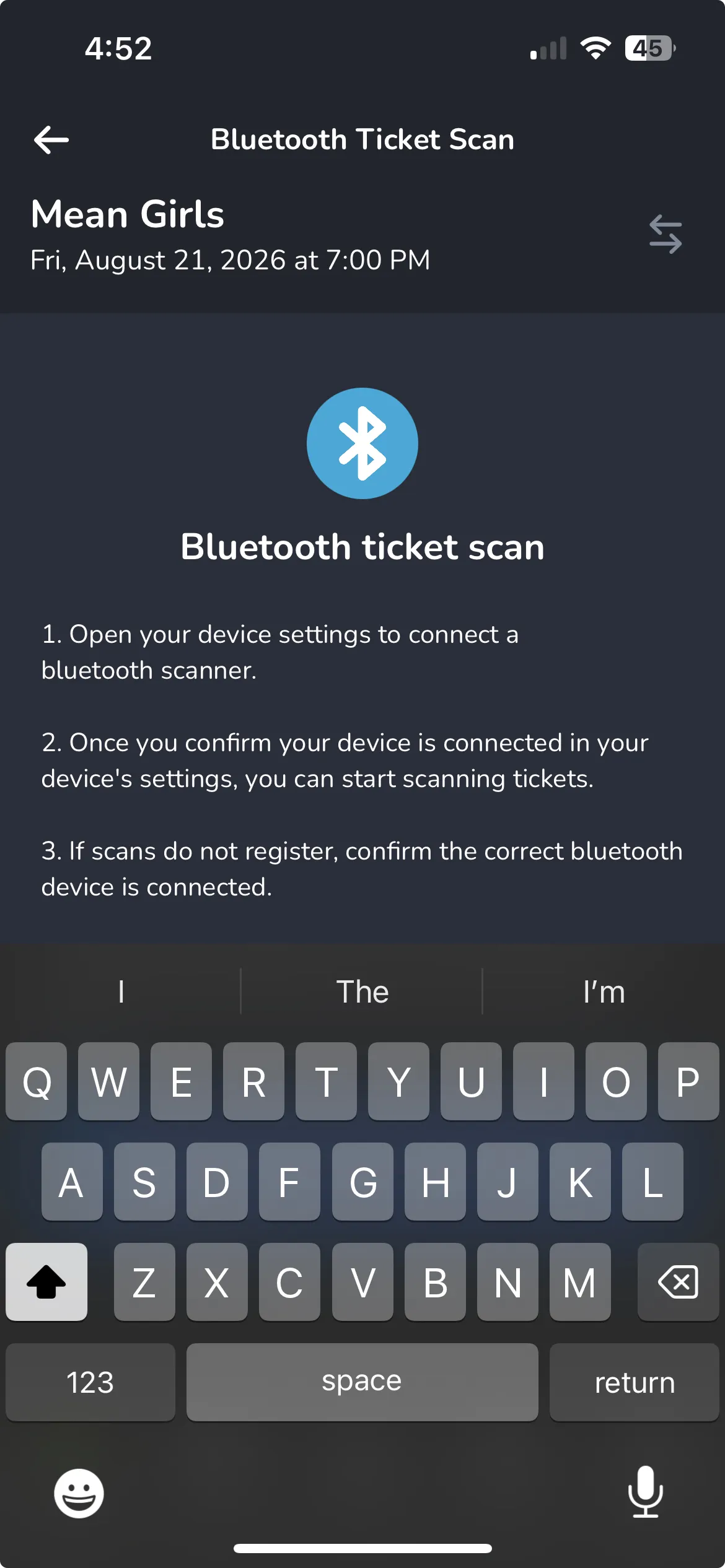
- Bluetooth Ticket Scan - If you wish to use a Bluetooth Device to scan, you can do that here.
- View Ticket List - View patrons who have or have not been checked in and search by their name if needed.
- View Accessibility List - From here you can view any accessibility notes that were added during checkout -> Collect accessibility notes during checkout
Check out the drop-down menus below to learn more about each section.
Tickets
The Tickets section is the best way to quickly see who has checked in for that event time, who has not, and to search for a patron by name if needed.
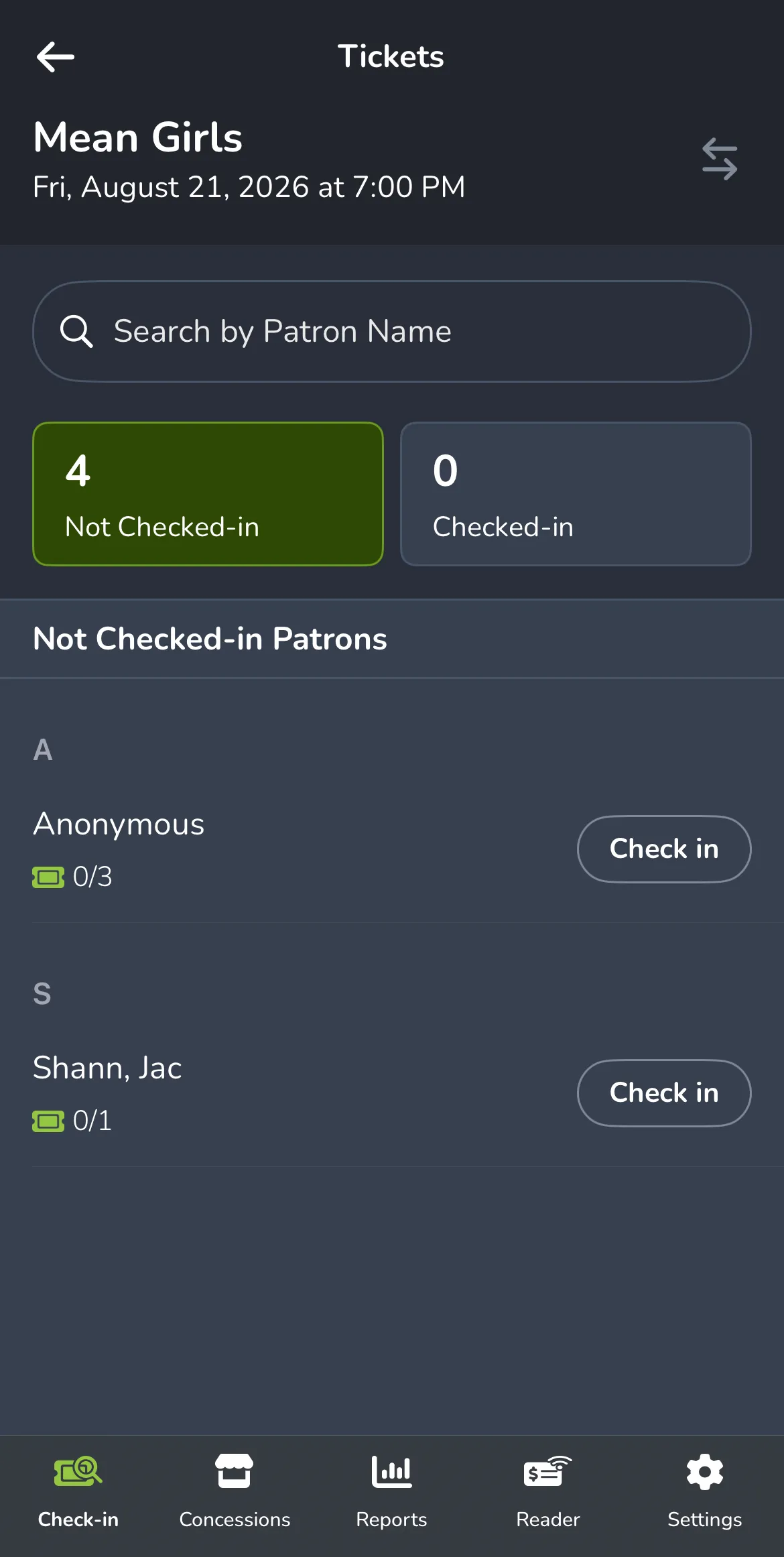
Additionally, by selecting the arrows in the top-right corner, you can switch events and event times as needed to check patrons in.
Add-Ons
The Add-Ons tab is where you can view and verify if an Add-On has been fulfilled for a patron.
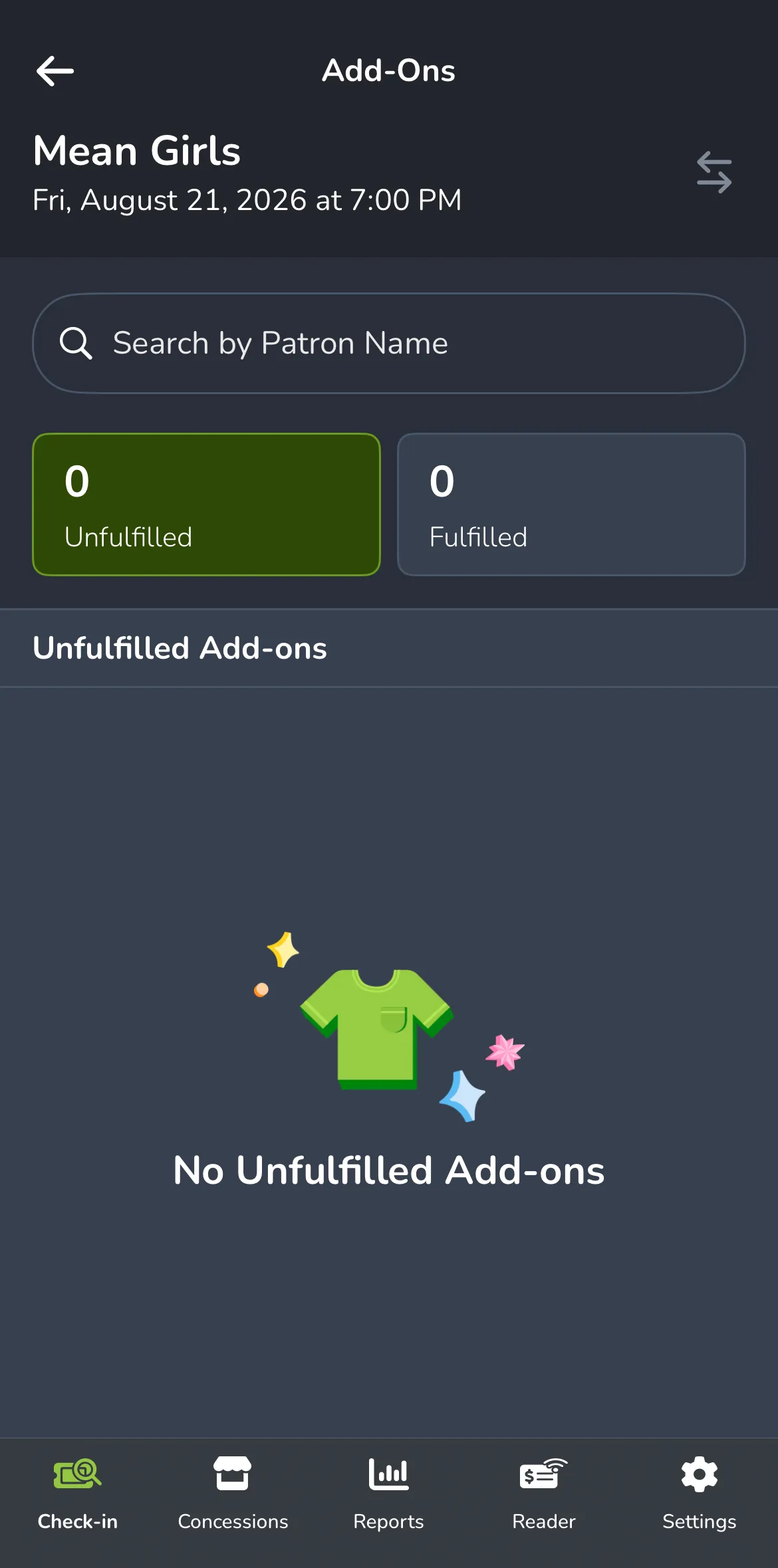
If it has not yet been fulfilled, similar to checking in tickets, that can be handled here.
View Accessibility List
If you have set up accessibility notes for patrons, they can be easily viewed in this section.
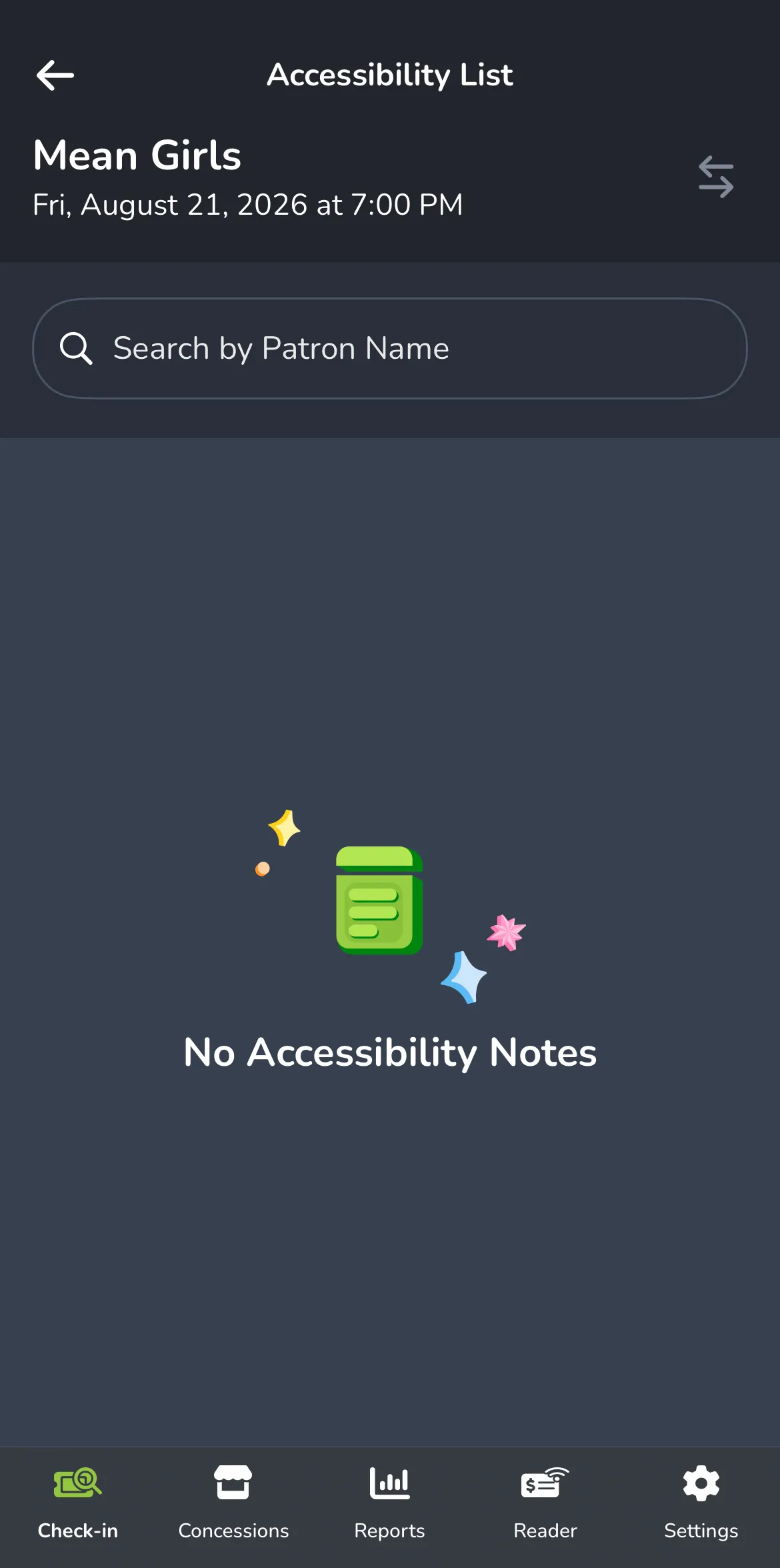
Be sure to check out Collect accessibility notes during checkout if you have not used this feature before!
Camera Ticket Scan
When opened, you will be able to scan in tickets using the camera on your phone. This makes the check-in process quick and painless, especially when the patrons are streaming through your doors!
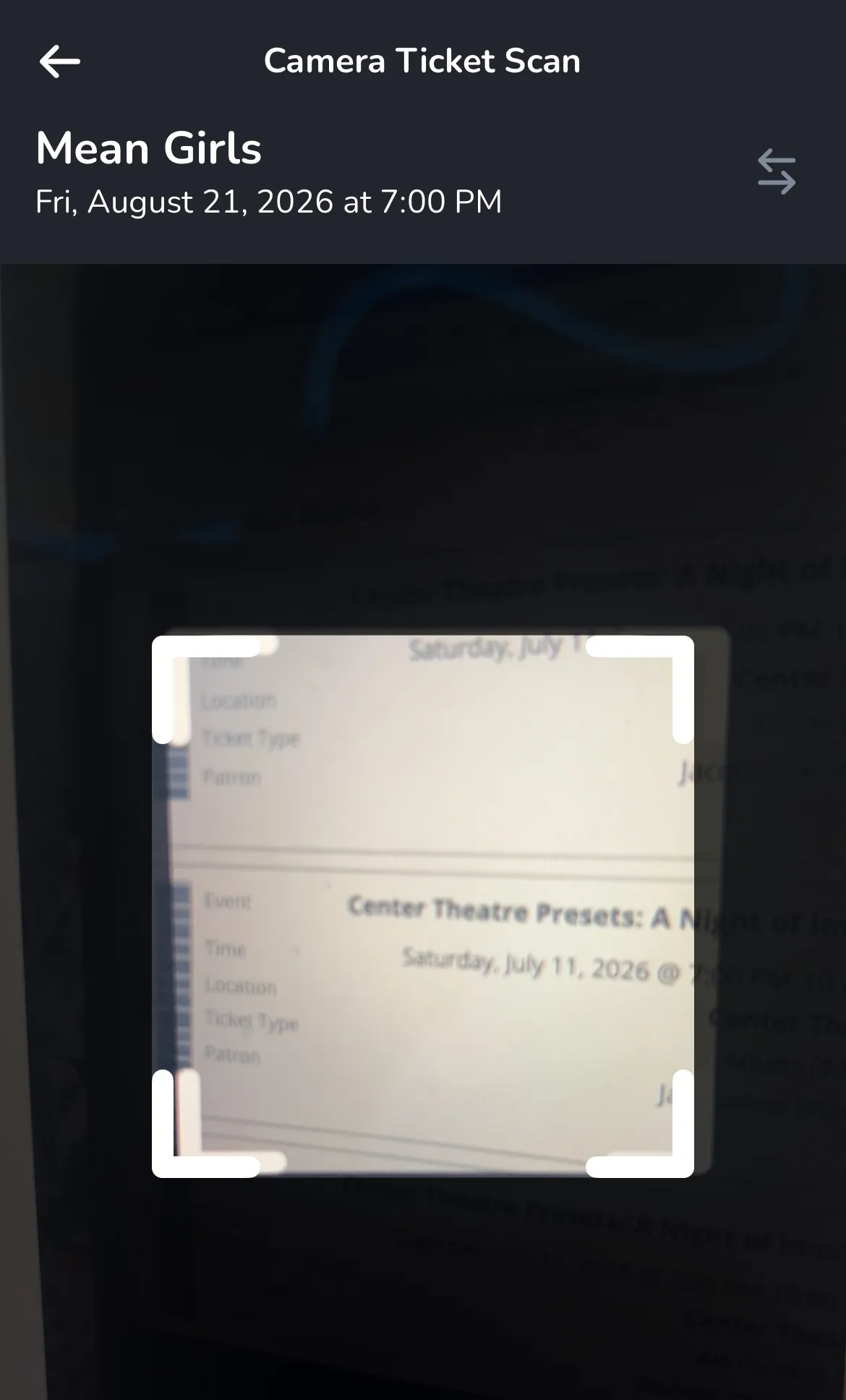
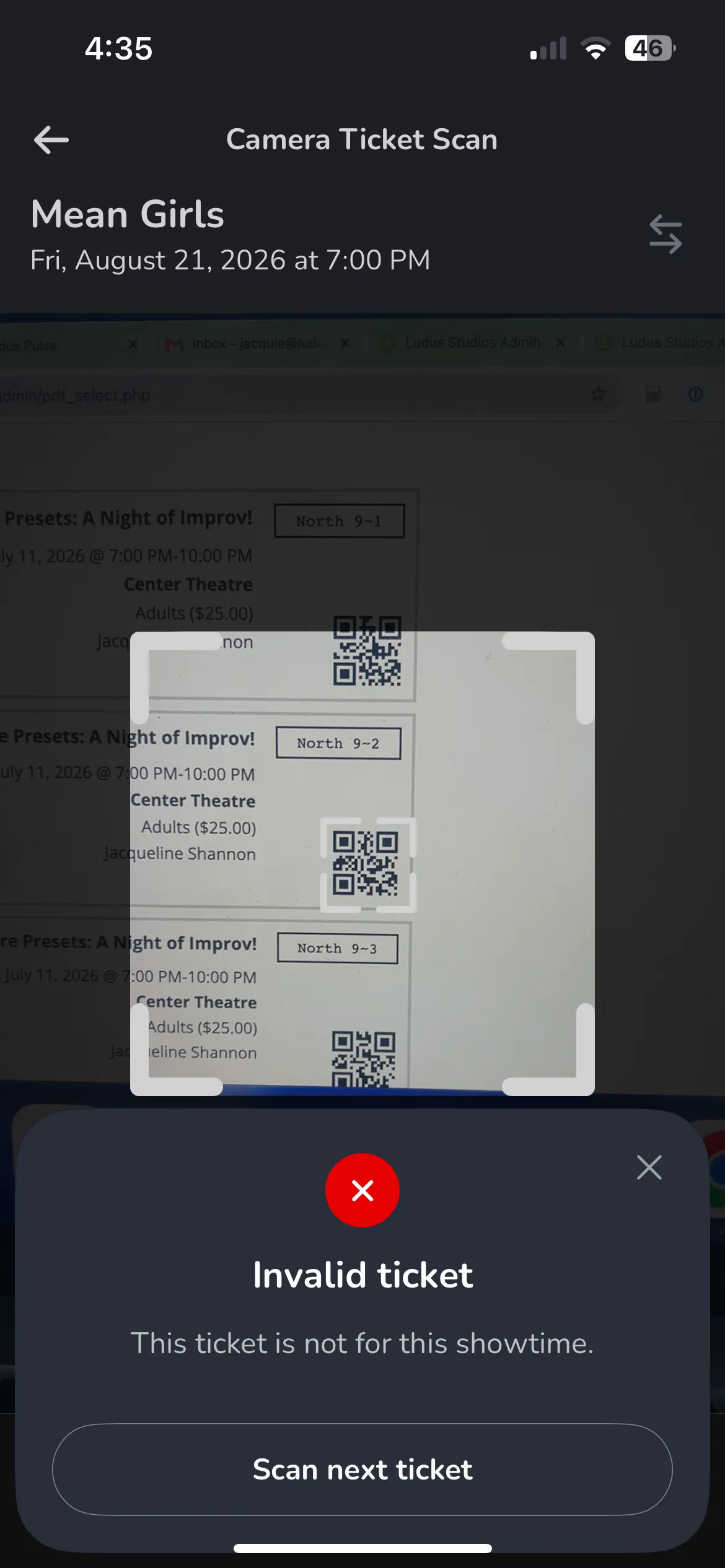
If you try to scan a ticket that's not available for this event, a pop-up will appear to let you know!
Bluetooth Ticket Scan
If you are pairing and will be using a Bluetooth Ticket Scanner, use this section to guide you through pairing, then proceed to scan tickets here with that scanner.