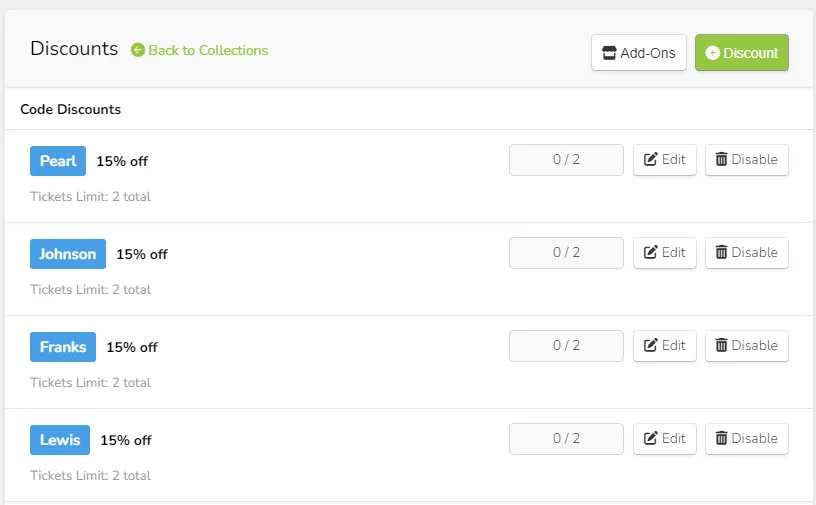
Create a discount
Discounts can be attached to any Event, Collection, Class, or Pass. To create a discount, first navigate to the entity it will be attached to. Check out the fields below for more specifics.
Discount codes are not case-sensitive.
Create a discount for an Event
On the main Events tab, find the event for which you'd like to add a discount.
Next to the event title, click Pricing --> Discounts.
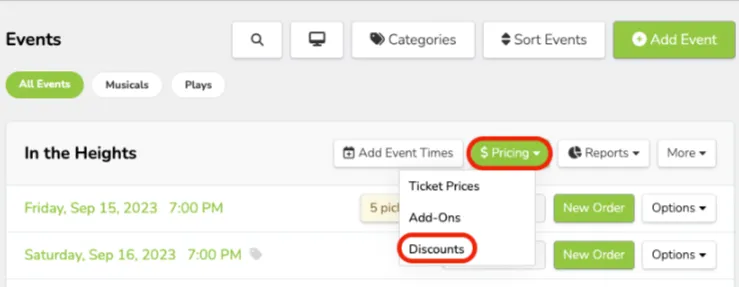
Click the green +Discount button.
Choose whether to set up a Code discount or a Bulk discount using the tabs at the top of the page.
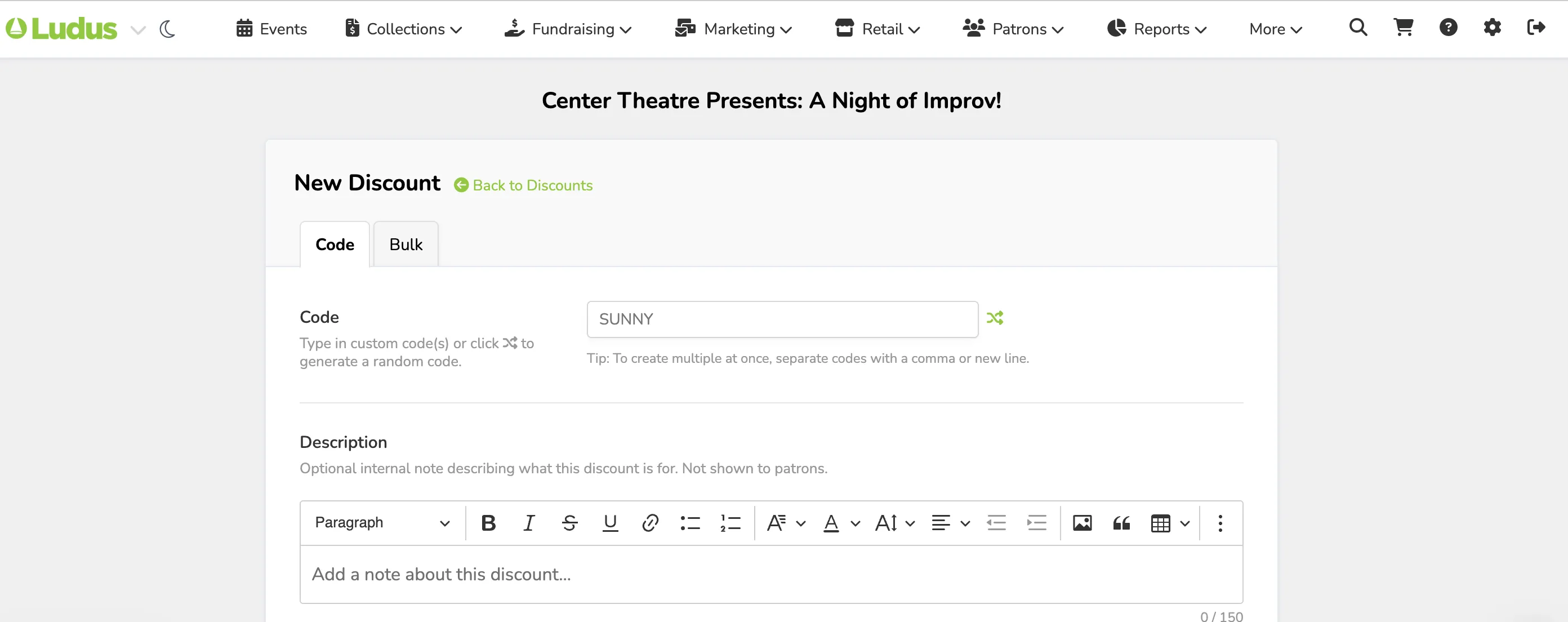
Fill out the applicable discount settings. Suggested Article: Settings for Code and Bulk Discounts
Click +Add discount to finish.
Create a discount for a Collection/Class
Navigate to Collections --> All Collections from the top navigation bar.
Find the collection/class you'd like to add a discount to.
Next to the title, click Pricing --> Discounts.
Click the green +Discount button.
Choose whether to set up a Code discount or a Bulk discount using the tabs at the top of the page.
Fill out the applicable settings for the discount. To learn more about the settings and terms for each type of discount, check out this article.
Suggested Article: Settings for Code and Bulk Discounts
Click +Add Discount to finish.
Create a discount for a Pass
From the top navigation bar, click More --> Passes.
Find the Pass for which you'd like to add a discount and click Options --> Discounts.
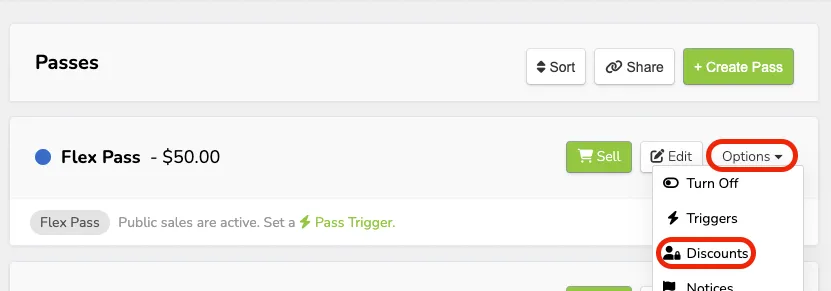
Click the green +Discount button.
Fill out the applicable settings for the discount.
Suggested Article: Settings for Code and Bulk Discounts
Bulk discounts are not available for pass purchases.
Click +Add discount to finish.
Create multiple discount codes with the same settings for Events, or Collections/Classes
If you need to make many discount codes with the same settings, you can do so easily by entering all the codes into the Code field under Discounts, either comma-separated or by pasting each code on one line.
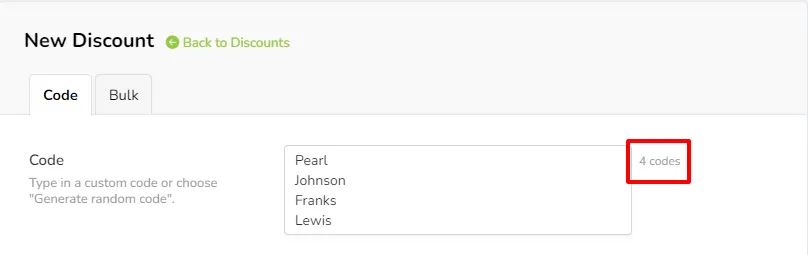
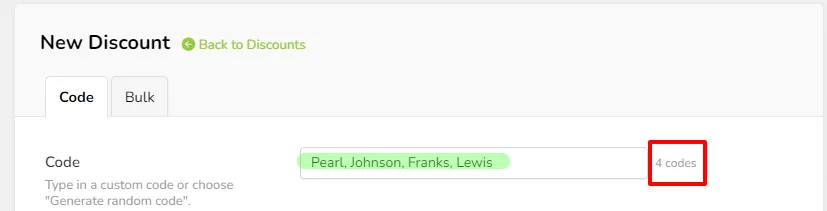
Once you create the settings and click Submit, each code will be generated with the same settings.