Selling a Concessions Item on the App
You must have the Ludus Mobile App on your device to sell a Concession Item.
Head over to Ludus Mobile to learn more about the app and how to download and sign into that.
Sell an Item in the App
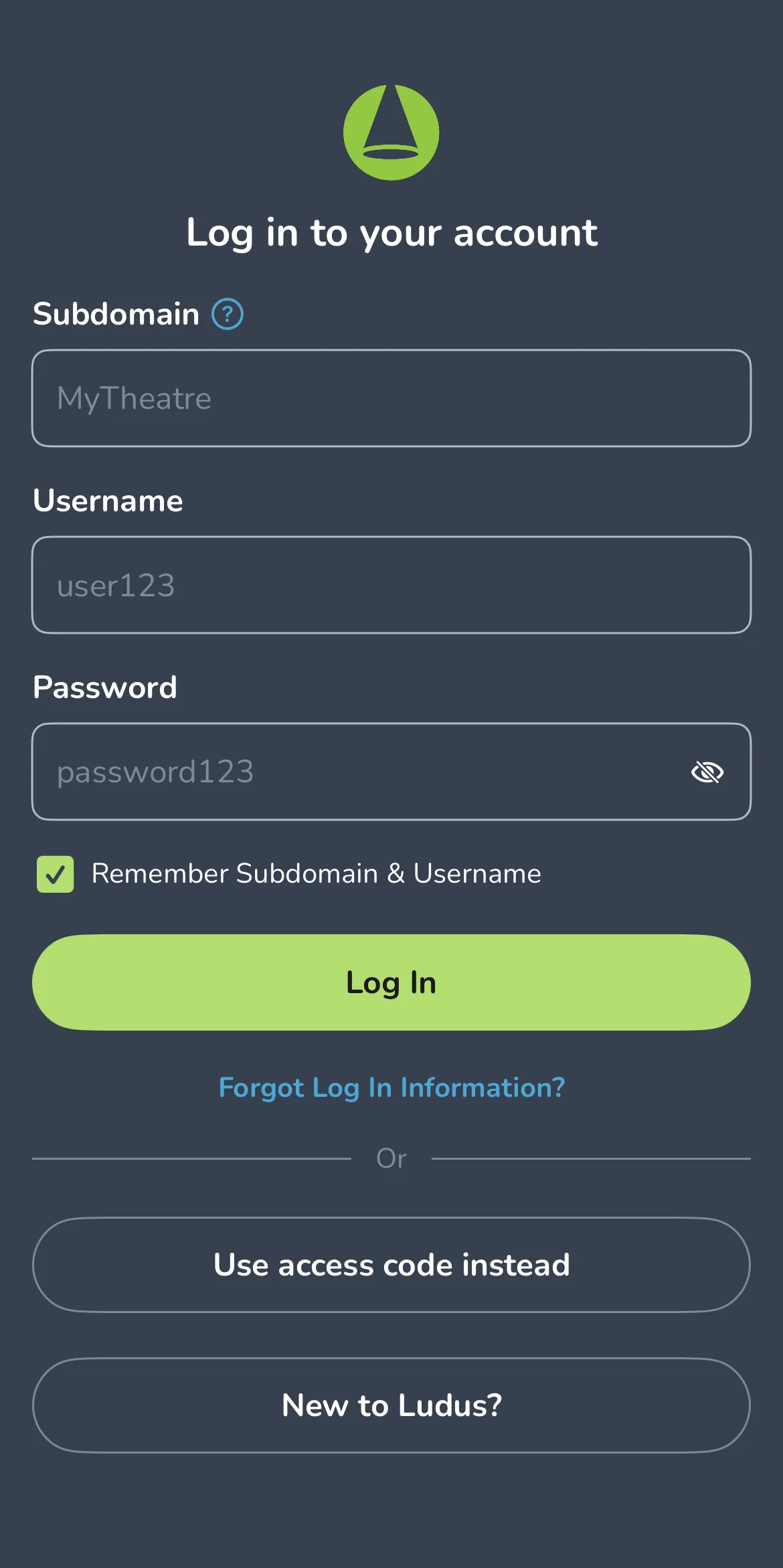
Start by logging into your Ludus Box Office App.
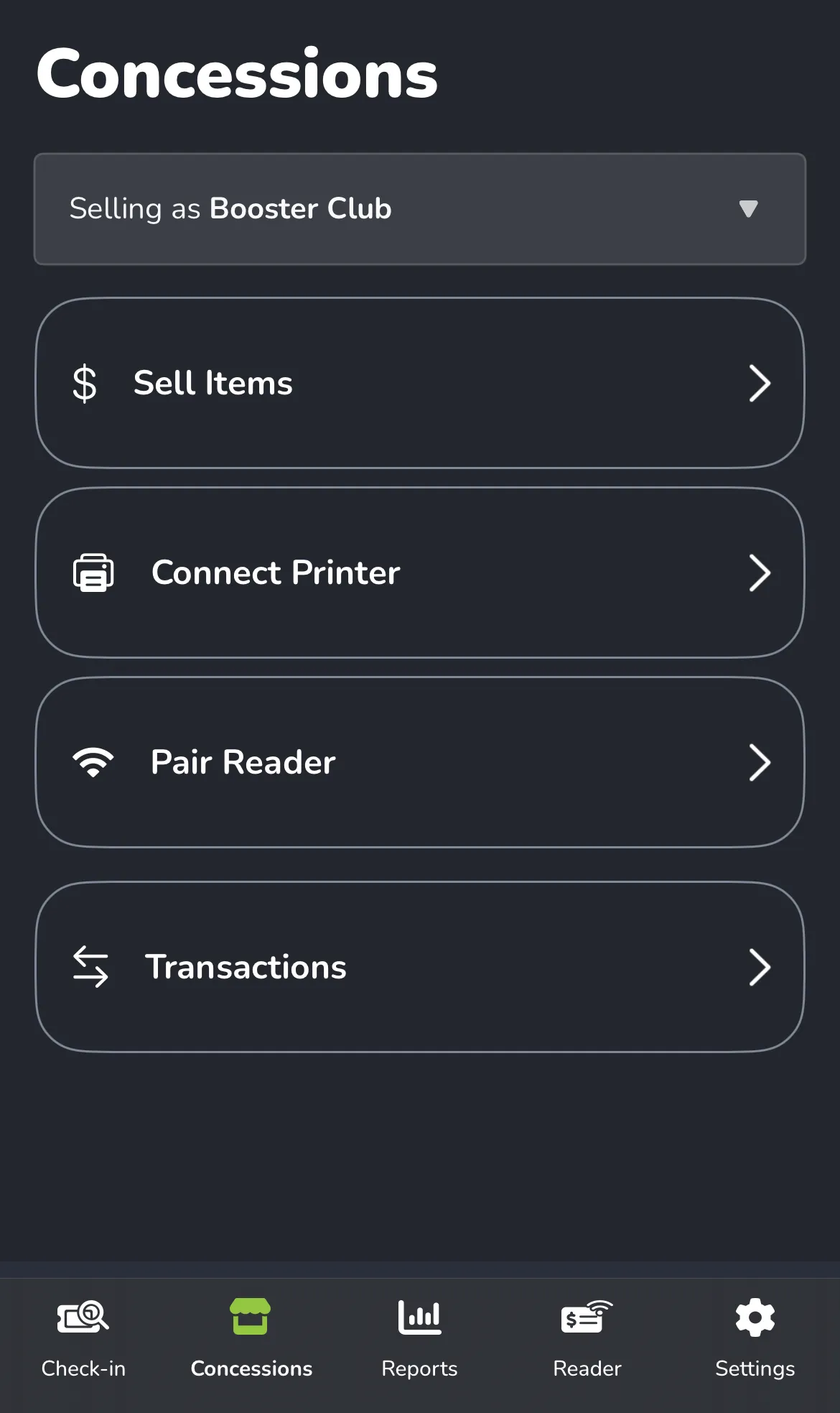
Once logged in, select Concessions at the bottom of your app (along the menu bar).
On the Concessions Tab, you will be able to:
- Select the Group you are selling to
- Sell Items
- Connect to a Printer (if needed)
- Connect to the Mobile Reader (if using - Mobile Readers )
- View Transactions
To sell an Item, select Sell Items.
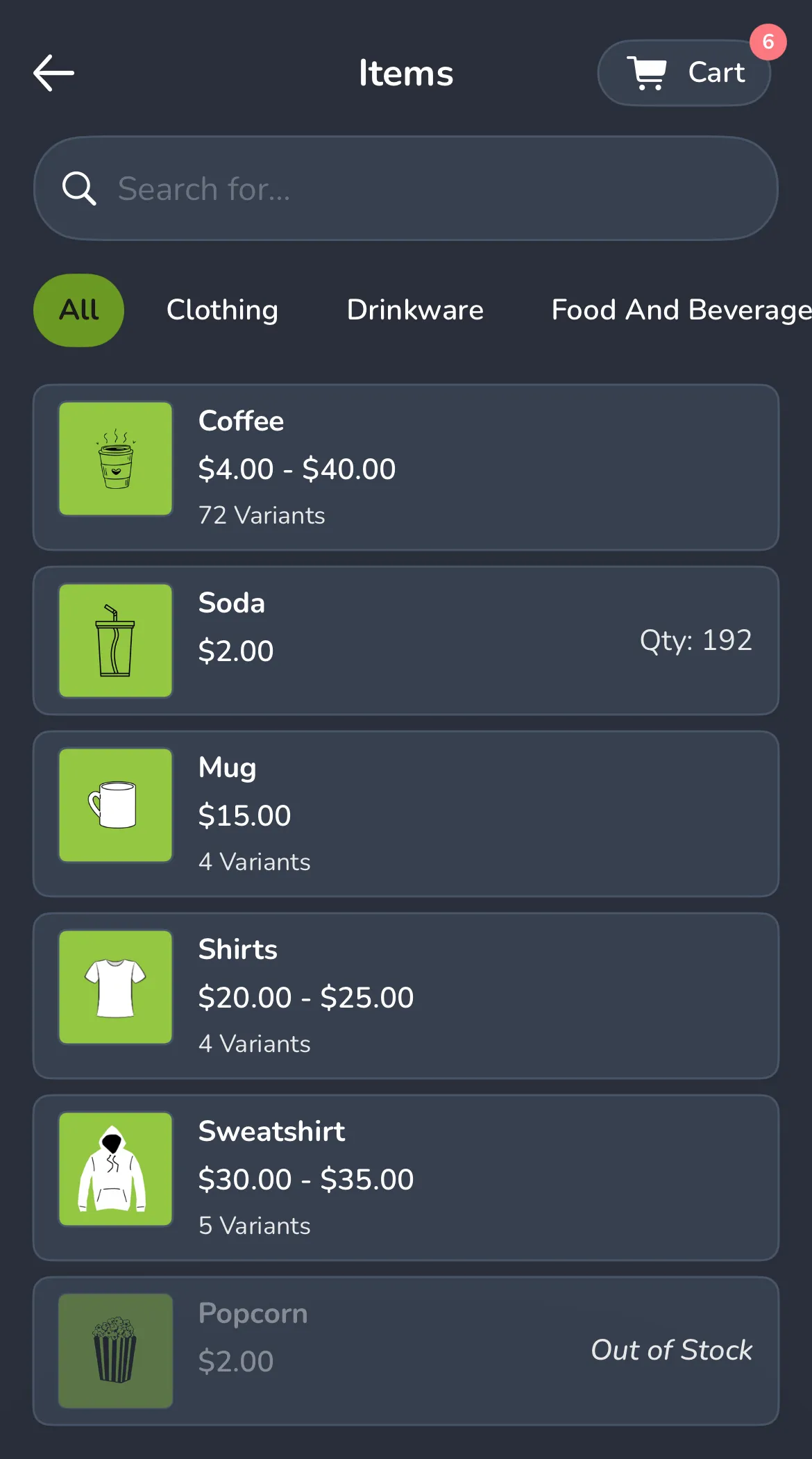
From here, you can filter by the Tags you set up under Concessions Settings (along the top) or search for the item you need.
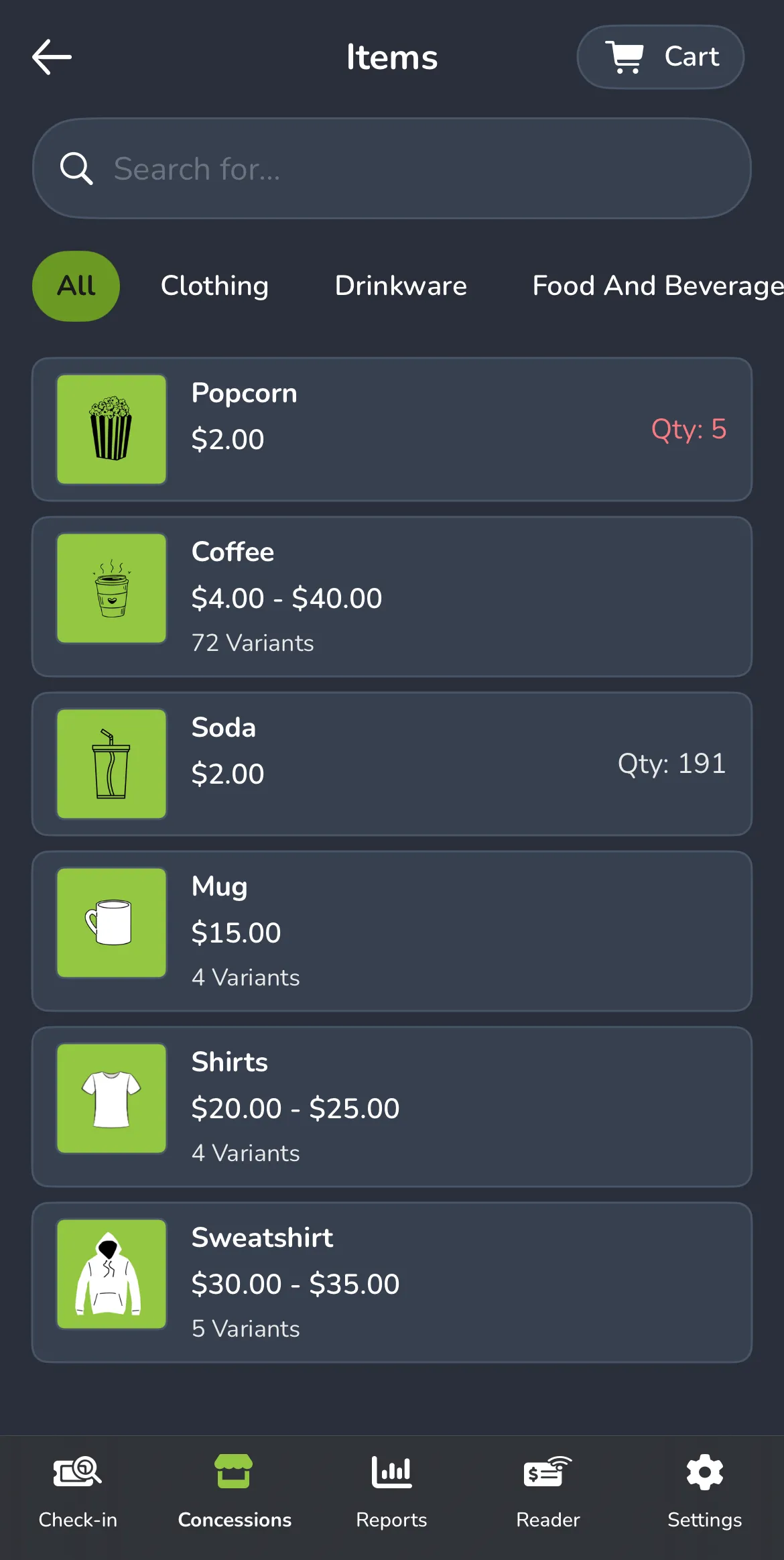
When selecting an item, if there are no variants, you can tap the item to add it to your cart (tap it as many times as needed).
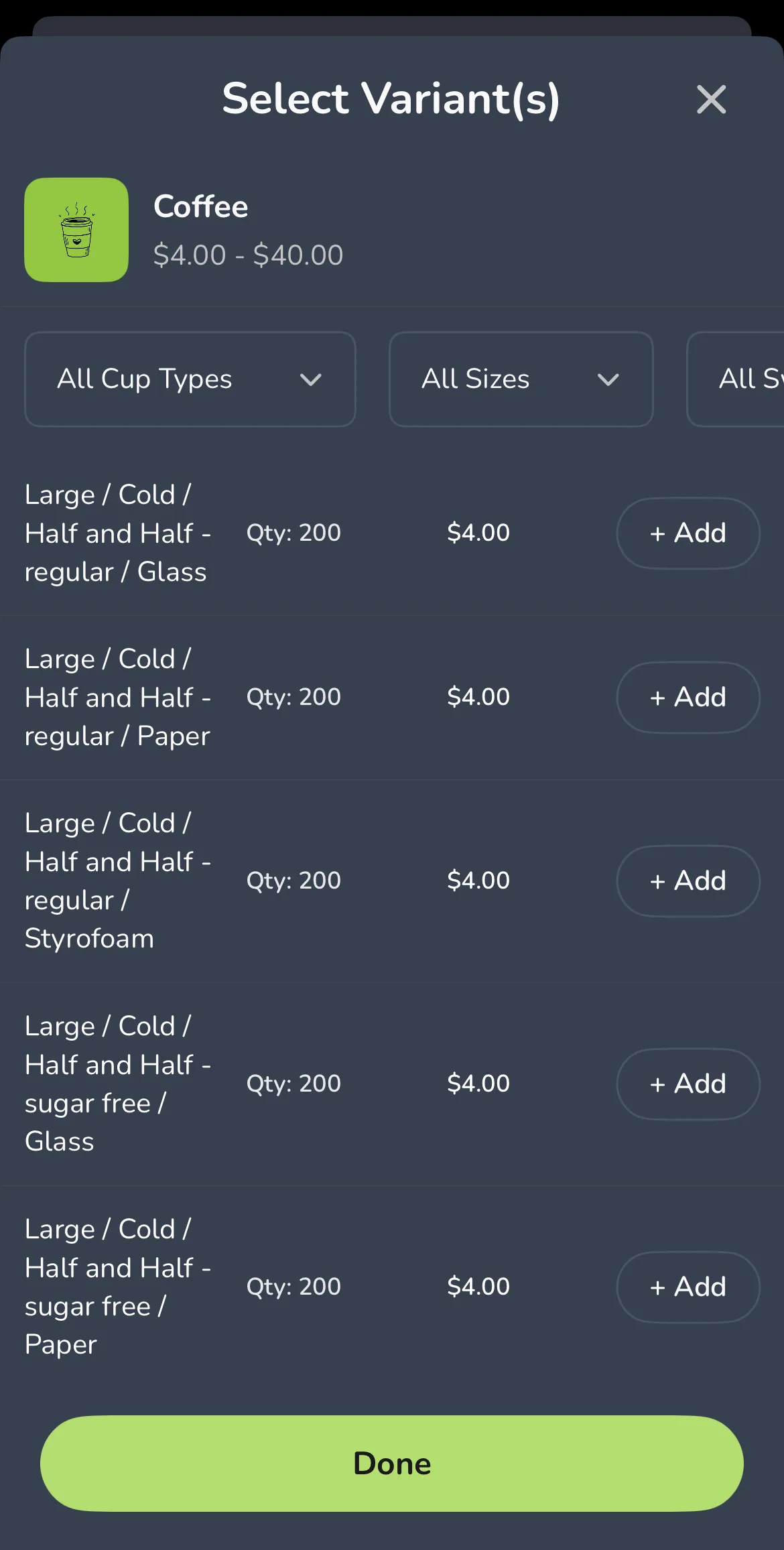
If the item has variants, tap the item to select a variant, then use the "+" next to it to add as many as needed to the cart.
If any items are sold out, you will see "Out of Stock" listed by the item(s) on the app (like with the Popcorn below):
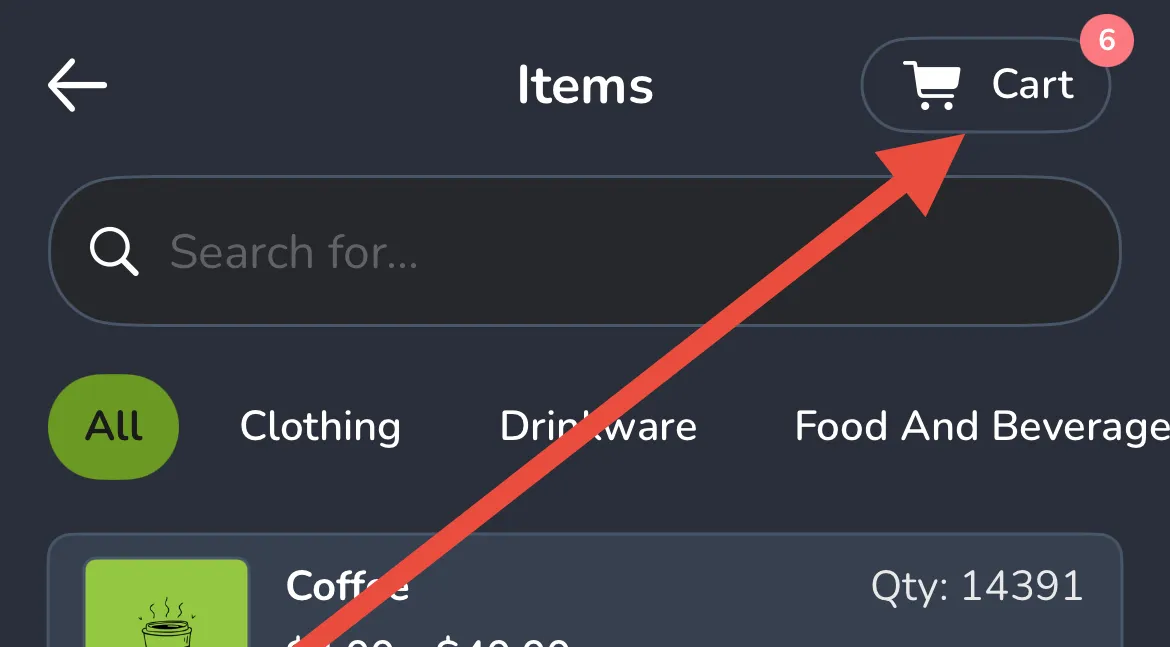
Once you have selected the items (including any Options or Variations of the Items), you can choose the cart icon (top right corner).
When in the cart, you can:
- Add (Link) a Patron
- Add A Discount
- Add A Donation
Select Process Order to bring up the payment screen.
On the Payment Screen, you will see the final numbers for the sale, and you can run the sale as:
- Card (with the Mobile Reader or Manually)
- Cash
- Gift Card
- Comp
- Other (If those are set up on your account - Other Payment Options)
If your Mobile Reader is not connected or you do not have one, you can enter the Credit Card information manually via the text at the bottom.

If a purchase is over $15, the patron will be asked to provide a signature.