Tasks
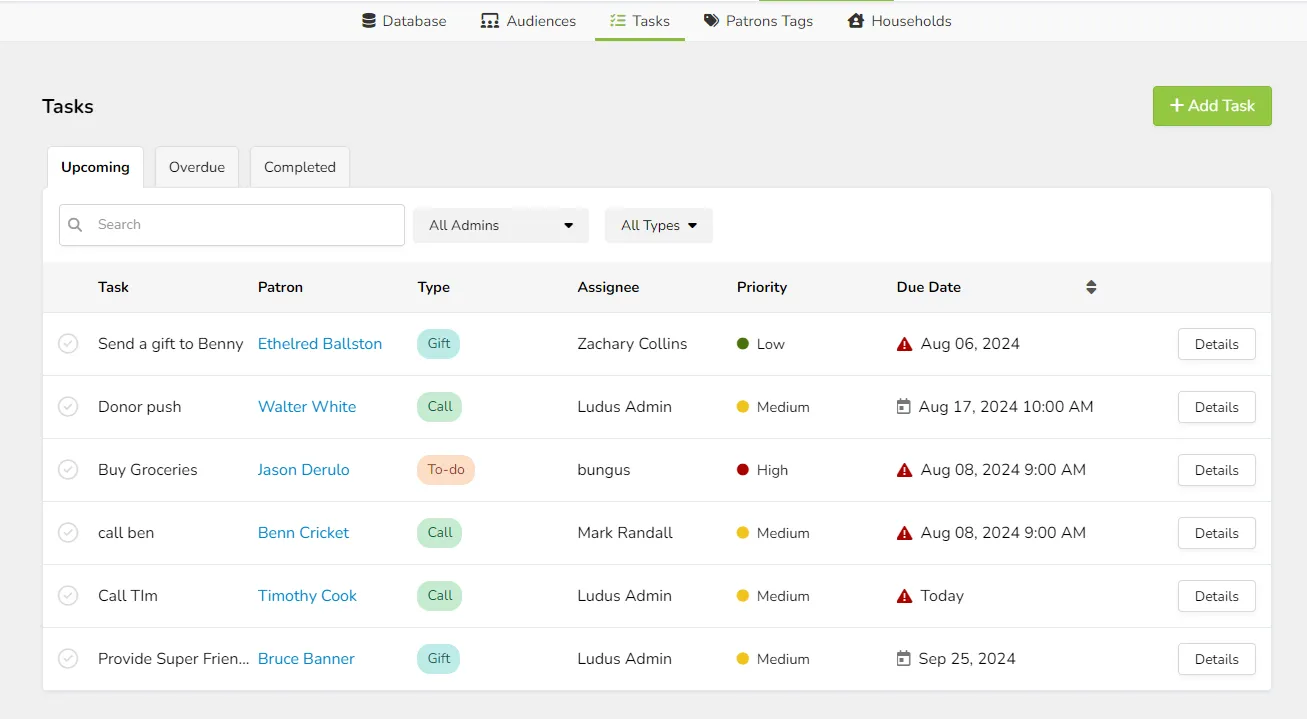
Tasks is a CRM tool that allows you to create and assign interactions with your patrons. Perhaps you are conducting a donations drive and need to make a personal, one-on-one contact with a patron. You can create a task for that and assign it to the appropriate admin with a priority and due date.
Within Tasks, you can create and assign the following to your admins:
- To-Do
- Call
- Meeting
- Gift
- Letter
Create a Scheduled Task
There are two methods for creating a task to be scheduled for the future.
Method 1 - Tasks Panel
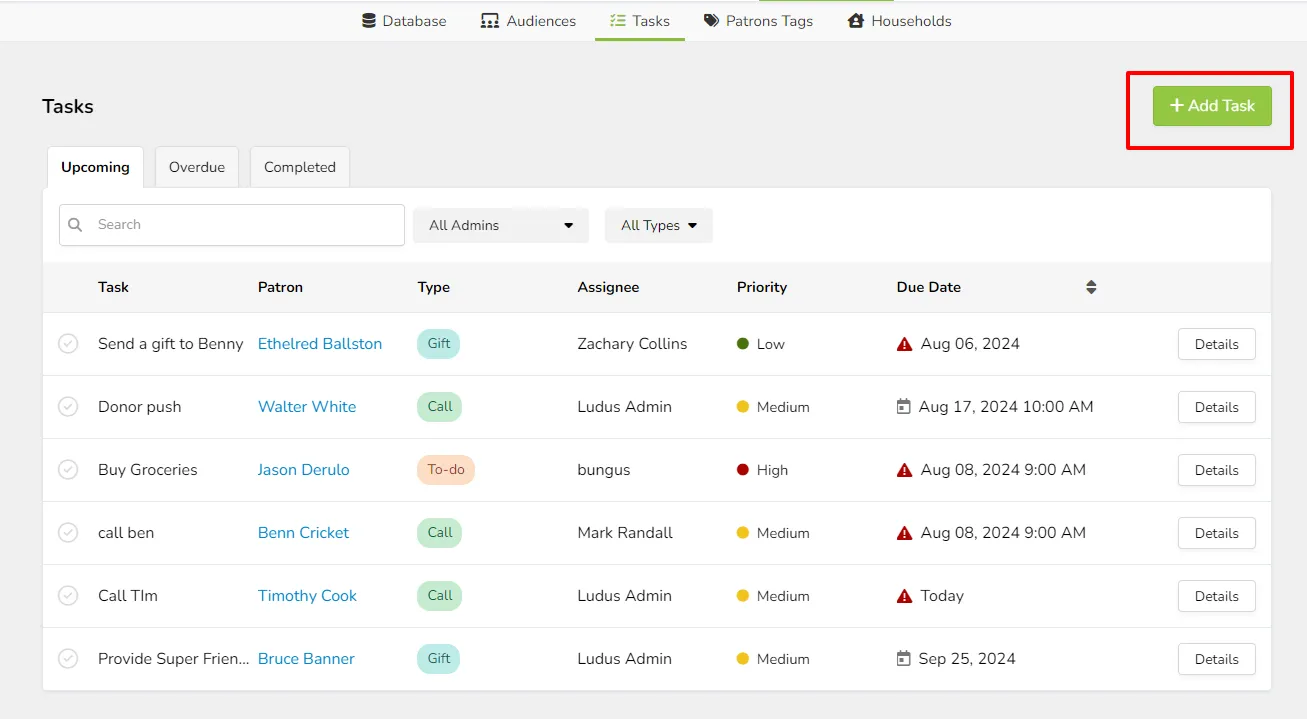
Navigate to Patrons, then select Tasks from the menu to open the Tasks panel.
Click Add Task to create and assign a new task.
A pop-up will appear in which you can create the new task. You have the option to assign it to a specific admin or leave it open to all admins to complete. You can also set the date and time the task is due to be completed, and a reminder.
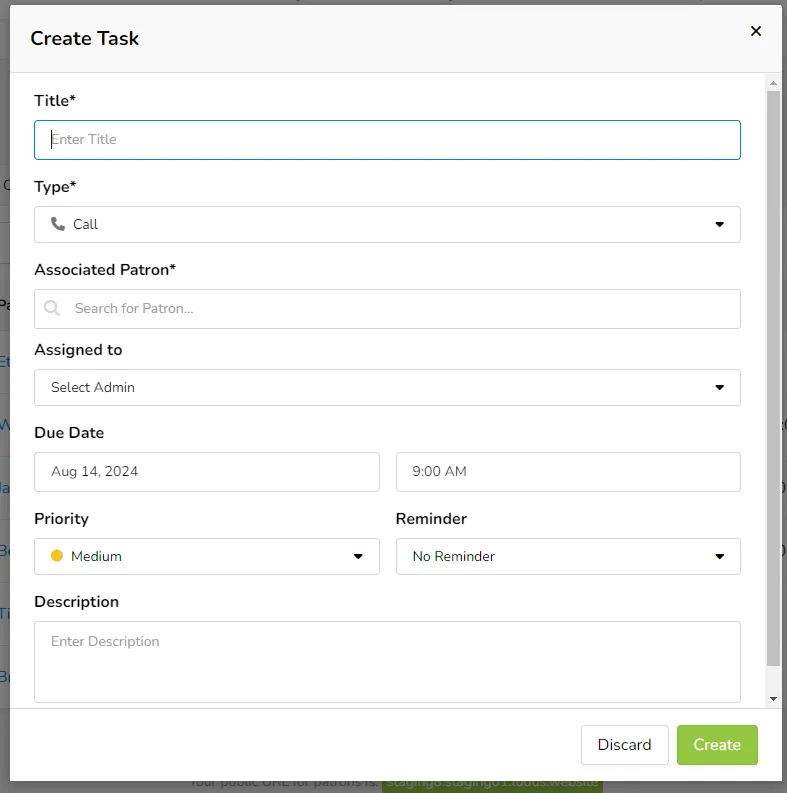
Click Create to save the task and assignment.
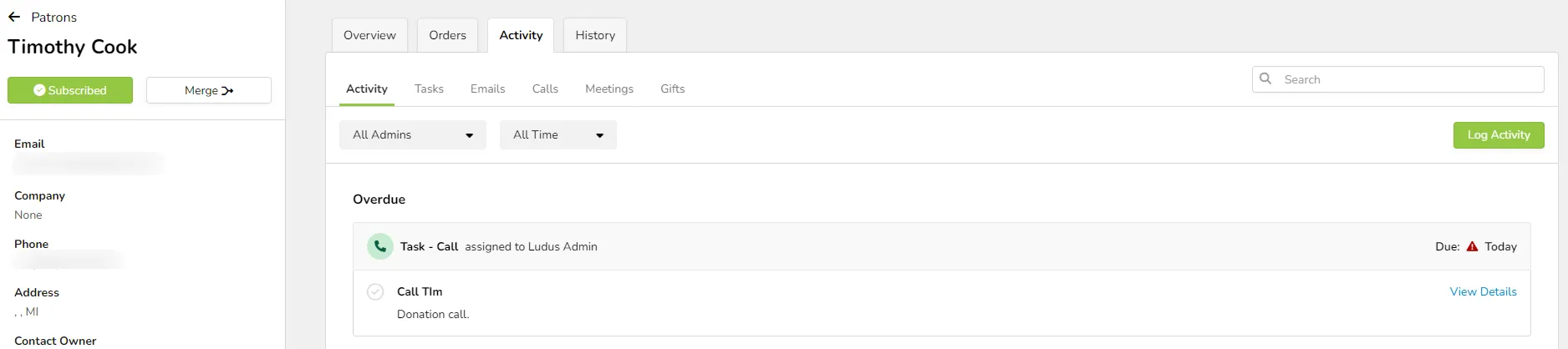
The task will now appear on the tasks screen, as well as the patron's profile on the Activity tab.
Method 2 - The Patron Profile
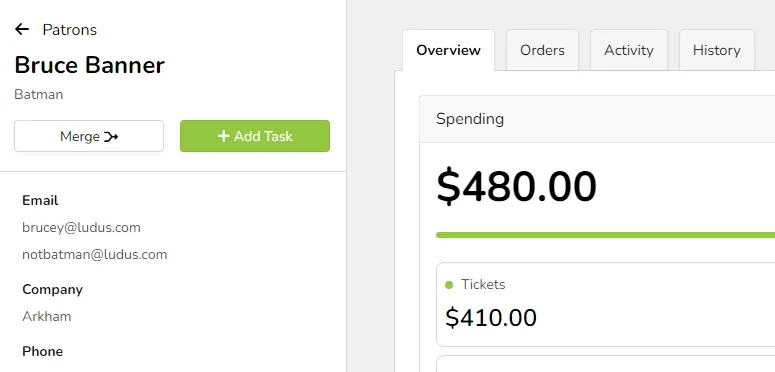
To create a task that is scheduled for the future, you can navigate to the patron's profile from
Patrons-> Database and select the Create Task button.
Log a Current Activity
If you need to log an Activity such as a phone call, email, or gift that is happening in real time, you can do so on the patron's profile on the Activities tab.
Suggested Article: Patron Profiles in the Notes section.
Viewing Tasks
You can see all tasks by navigating to Patrons, then selecting Tasks.
All non-completed tasks for all users will appear on the Upcoming tasks board. You can also view Overdue or completed tasks by selecting the appropriate tabs.
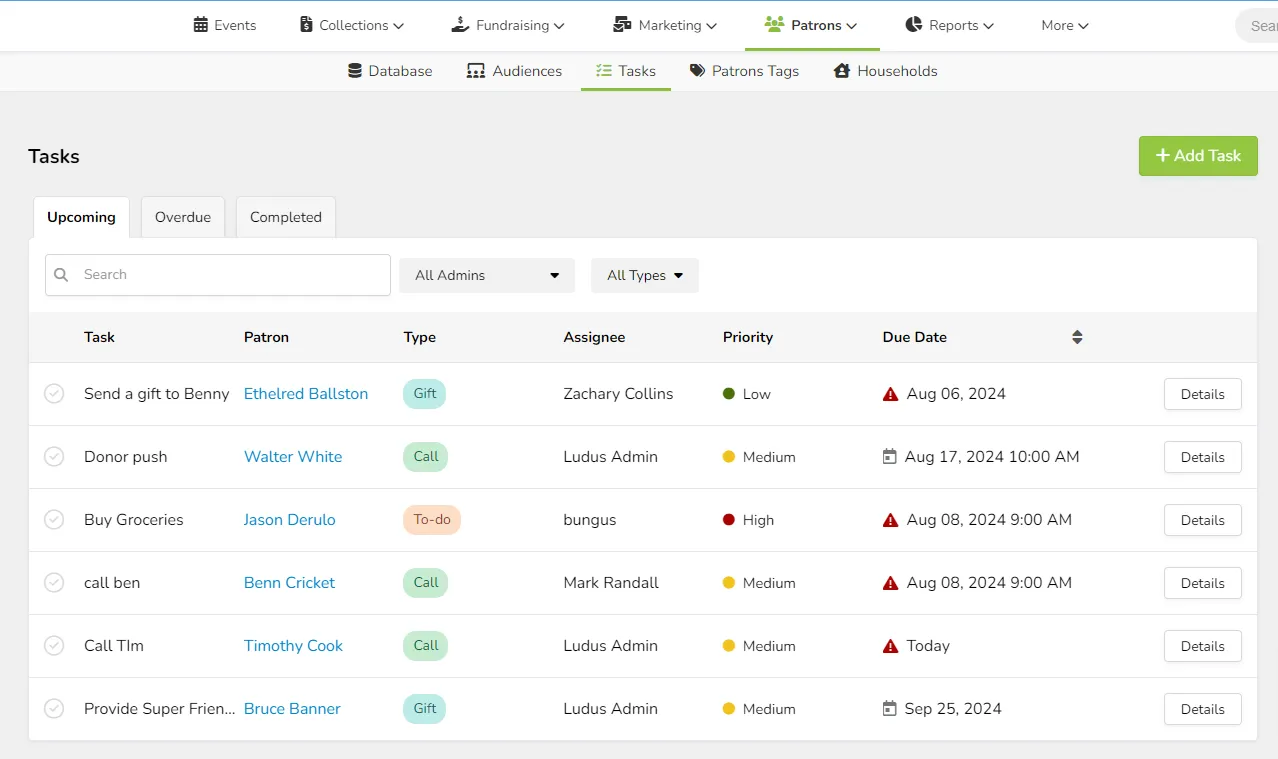
The search field allows searching for tasks by Task name, Patron Name, or Assignee.
There are also filters present that allow filtering the results by Admin or Type of task for each page.
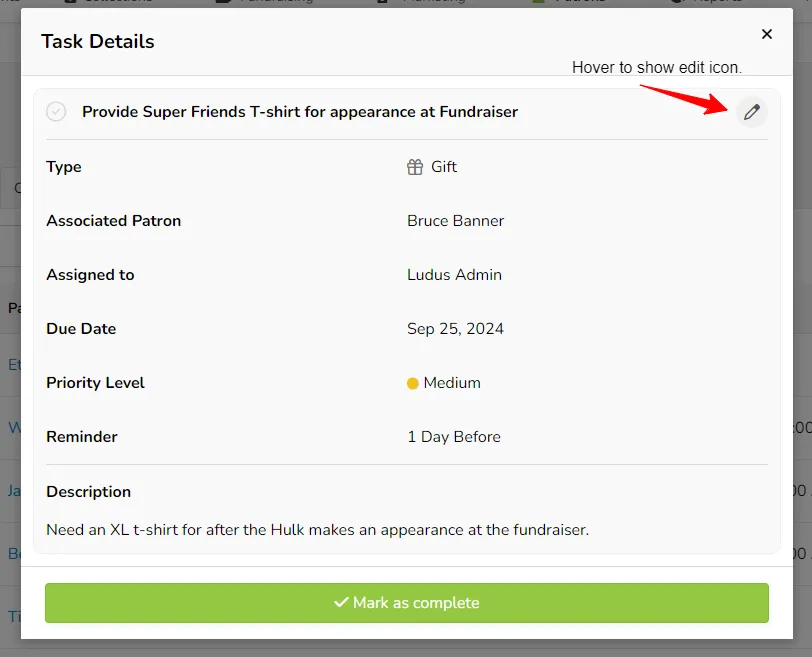
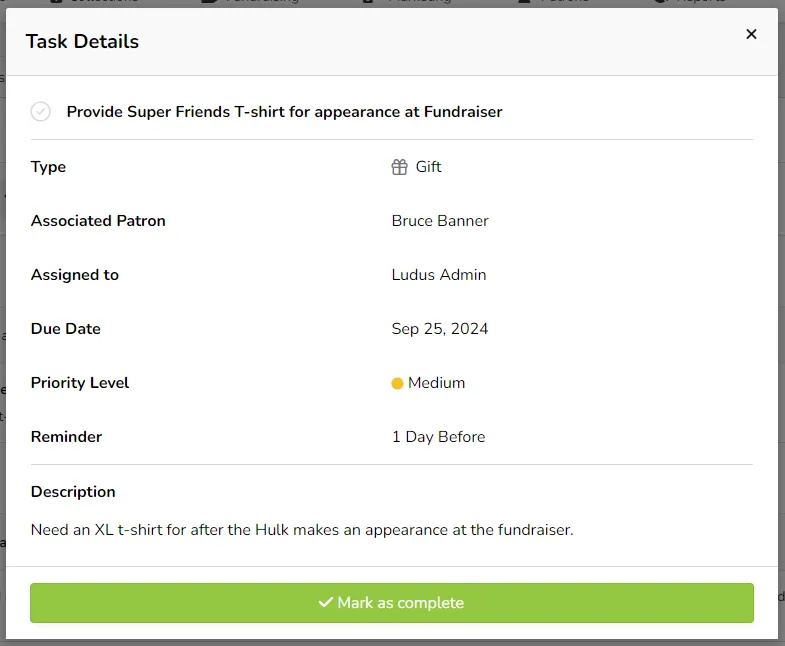
Clicking Details next to a task opens the task itself for review and editing. You can additionally mark the task as completed here.
Editing Tasks
Tasks can be edited from either the Tasks Screen or from the Patrons, Activity screen directly.
To edit via the Tasks screen:
Click Details next to the task you would like to edit.
Hover your mouse over the top right of the pop-up window to have the edit icon appear.
Click the Edit icon and make any changes needed.
Be sure to click Save Changes when done.
Deleting a Task
Occasionally, you may need to delete a task, either because it was created in error or because you no longer need it and don't wish to have it completed.
Tasks can be deleted simply by clicking the task and opening it for editing. Once open, you will see a Delete button. This can be done via the Tasks page or from a patron's profile.
Marking a Task as Completed
Tasks can be marked as completed from either the patron profile or via the tasks screen.
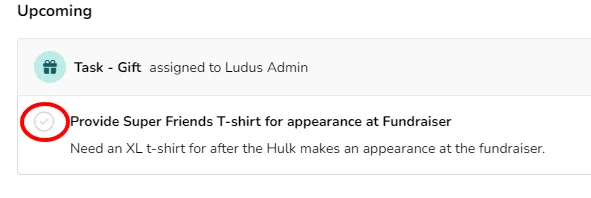
On the Tasks screen, you can click the checkmark next to the task name.
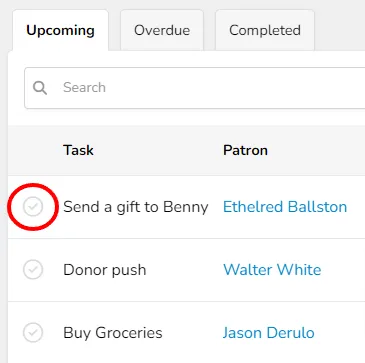
From the patron profile, you can also click the checkbox next to the Task.
Alternatively, you can click the Details button or View Details button for the task and there will be a button to mark as complete as well.
Mark a Completed Task as not Complete
Should you need to change the status of a task from Complete to Not Complete, you can do this simply by clicking on the green checkmark that appears when a task is completed. This can be done from both the Tasks page and the patron's profile in Activity.
Task Notifications & Reminders
When a task is created and assigned to an admin, an email is sent to that admin letting them know about the assignment and allowing them to view the task.
When a reminder is set for the task, an email will be sent at the set reminder time.
Below is a sample of the email for a task: