Tickets Report
The Tickets Report provides a detailed breakdown of each ticket/registration sold. This can be viewed account-wide or for one specific event.
The Tickets report is very similar to the Orders report. However, in the Tickets report, each ticket is its own row. i.e., If an order had 4 tickets, it would appear as 4 lines in the Tickets report.
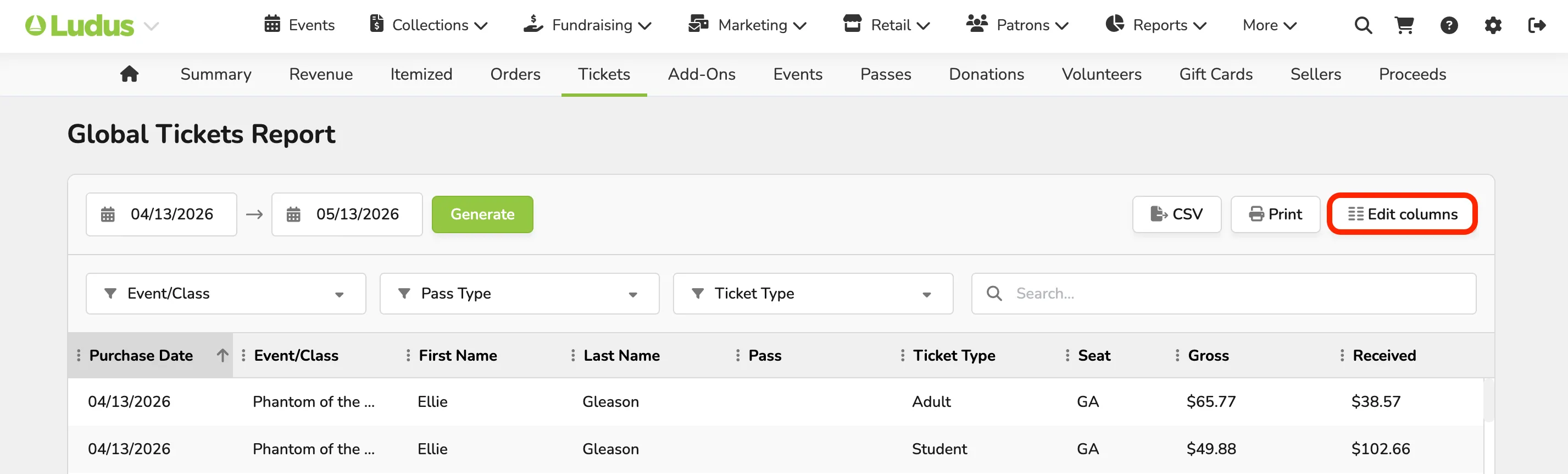
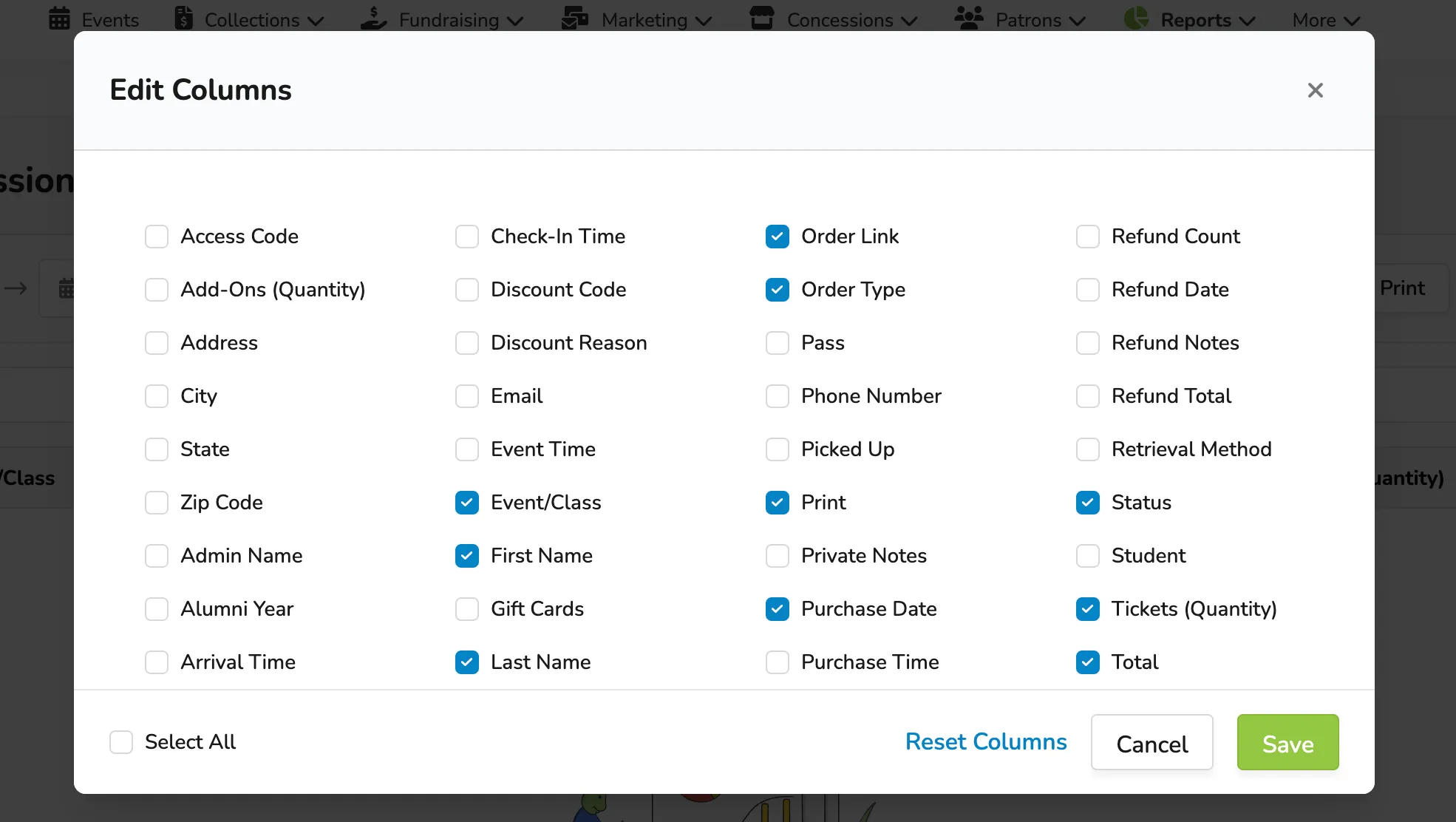
The columns on the Tickets report are customizable. At the top of the report, you can edit which columns are shown by selecting Edit Columns.
The Tickets report allows you to group your data by any column you choose. To do so, drag the column title to the bar along the top of the report. The data will then be sorted accordingly.
You can drag multiple columns into the bar to view data by means of another piece of data. For instance, you can drag "Event Time" and then "Discount Code" to view the discount applied to a specific event time rather than the overall discount.
If you choose to download the CSV or print the report after sorting the columns, the download or print will reflect the sort order you set.
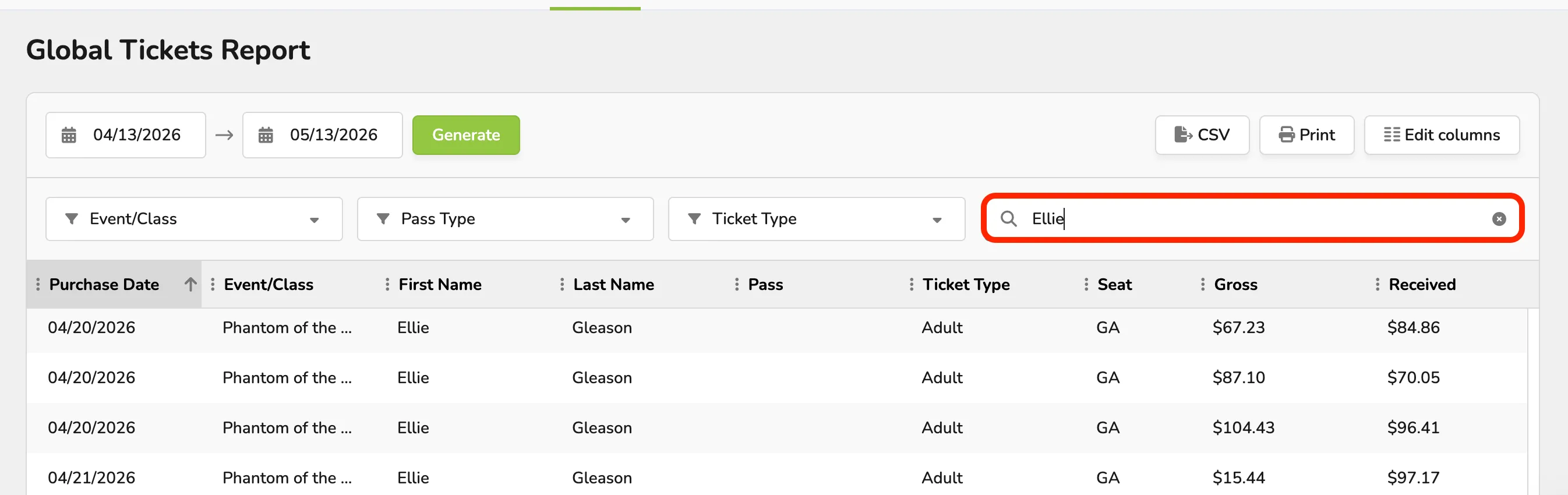
Additionally, if you wish to search the report for any keywords, you can do that using the search bar at the top right as well. For example, if you need to find a specific event or patron.
View Tickets Reports
Follow the instructions below to pull a Tickets report for the desired domain.
- Global Tickets Report - To pull an account-wide Tickets report, click Reports (from the top navigation bar) --> Tickets.
- Event Tickets Report - To pull an event-specific Tickets report, click the Events tab from the top navigation bar. Then, click Reports --> Tickets next to the desired Event.
Terms and Definitions for a Tickets Report
- Ticket I.D. - The internal reference number for the ticket.
- Order I.D. - The order number for the transaction used for internal tracking. (Click the link to open the order summary page.
- Order Type - The payment method for the order. (Credit, cash, comp, etc.)
- Status - Whether the order is paid, refunded, partially refunded, or released.
- Check-Ins - Whether or not the ticket has been checked in.
- Check-in Time - The time an order was checked in.
- Channel - Whether the order was "Self Serve" (purchased by the patron online) or "Box Office" sold by a user via your admin panel.
- First Name, Last Name, Email, Phone Number, Address, State, Zip Code - The corresponding information for the patron who made the purchase.
- Discount Code - The name of the discount code used on the order.
- Discount Reason - Shows the reason entered when a One-Off discount is completed by an admin.
- Access Code - The name of the access code used to gain early access.
- Pass - The name of the pass used to redeem/purchase tickets.
- Ticket Type - The ticket type that was purchased (Adult, Senior, Student, etc.)
- Private Notes - Any private notes attached to the order.
- Alumni Year - The alumni year for the patron making the purchase (if applicable).
- Student Ledgers - The student to whom the purchase is credited (if applicable).
- Suggested Article: Student Credit
- Admin Name - The name of the admin who made the purchase. Only for purchases made in your admin panel, not for purchases made online by patrons independently.
- Event - The name of the event, class, or collection for which the purchase is.
- Event Time - The event time or class time for the purchase.
- Gross - The true value of the ticket price before discounts, fees, etc.
- Season Value - Value of the ticket in a pass, like a $100 season pass, divided by 5 tickets would list the Season Value as $20. (If you are not utilizing season passes, you will not see this.)
- Received - How much you earned on that ticket (after fees, discounts, etc.)
- Seat - The seat number for the ticket ("GA" for General Admission or registrations).
- Table - The table number for the ticket (if applicable).
- Purchase Date - The purchase date.
- Purchase Time - The time the purchase was made.
- Arrival Time - The event's arrival time.
- Suggested Article: Enable Arrival Times
- Gift Cards - Included the following two columns on the orders report.
- Gift Cards - The code of the discount used on the order.
- Gift Cards $ - The dollar amount from a gift card used on the purchase.
- Picked Up - If a Will Call ticket has been marked as "Picked Up". 0 = "No". 1 = "Yes".
- Ref Code - The referral code attached to the order.
- Suggested Article: Create Referral Links