Volunteer Opportunities
Volunteer Opportunities is the landing page for Volunteer Management. This is where you will create opportunities and events for volunteers to sign up for, as well as view who is registered to volunteer for each of those.
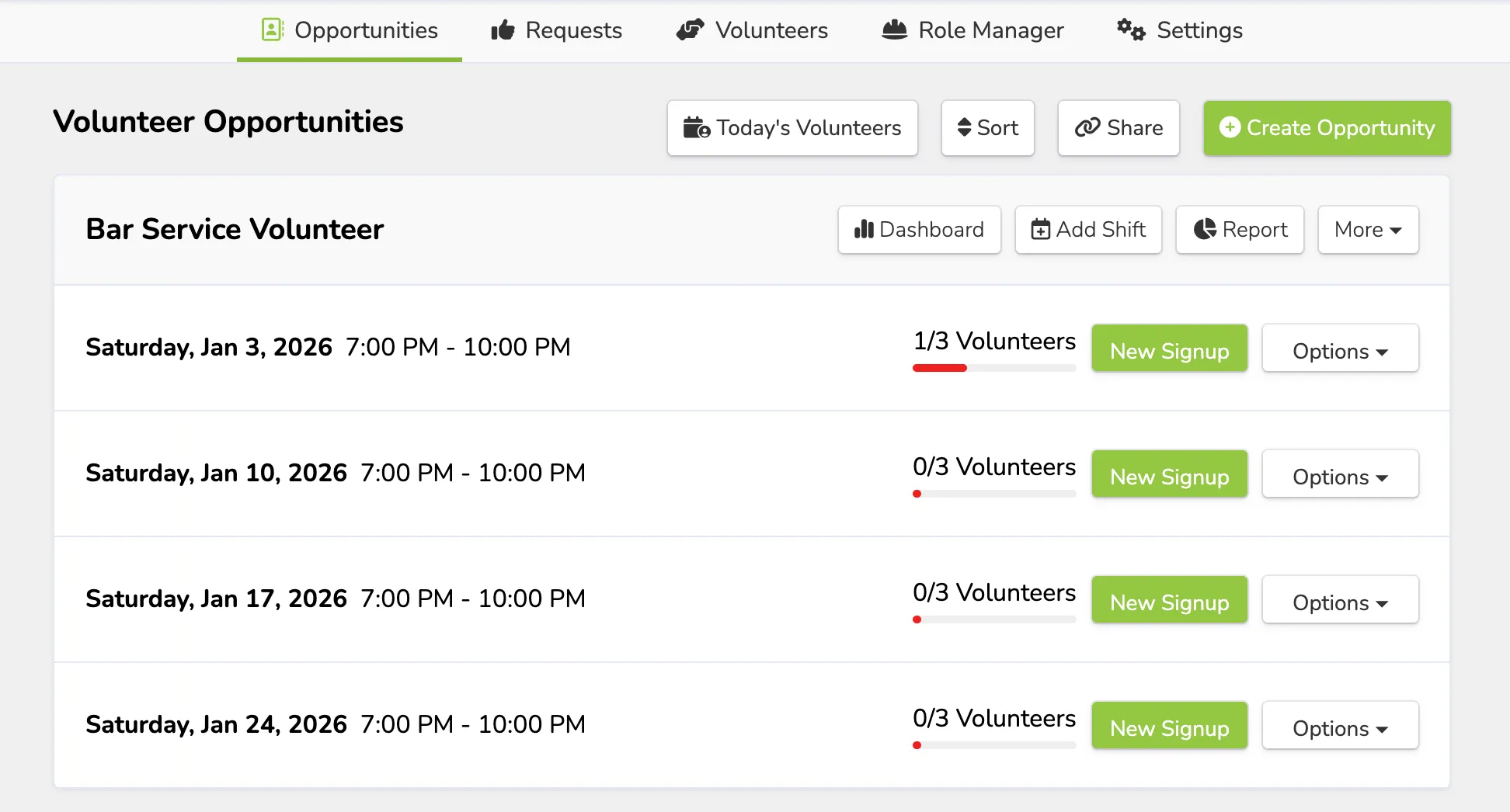
Create an Opportunity
To create an opportunity (location for volunteers to sign up), follow these directions:
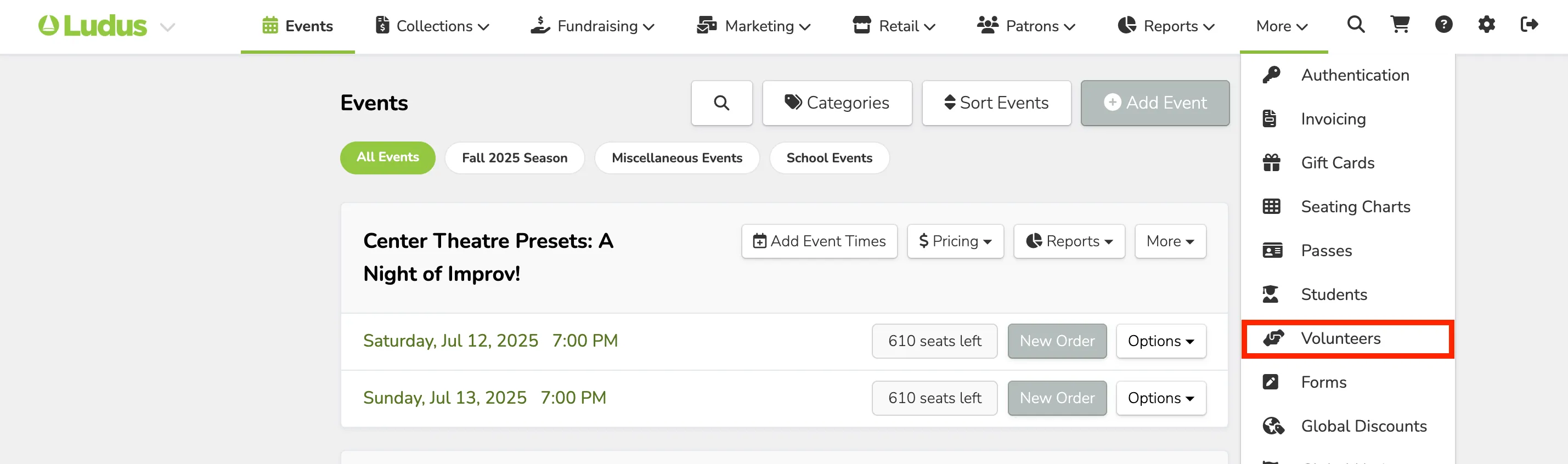
Go to More (at the top of your admin panel) -> Volunteers.
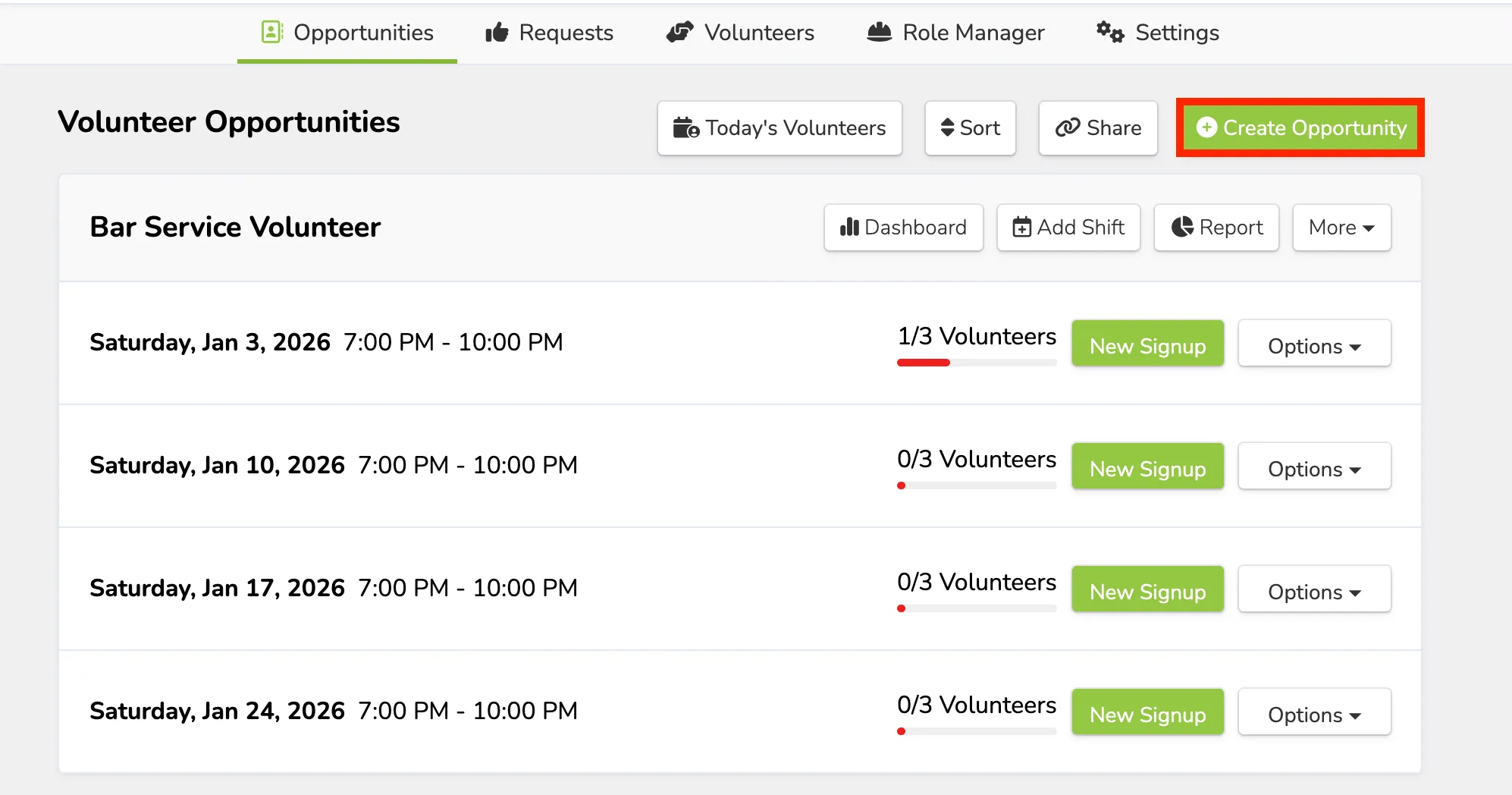
Once under Volunteers, go to Opportunities (the first tab of Volunteers) -> Create Opportunity
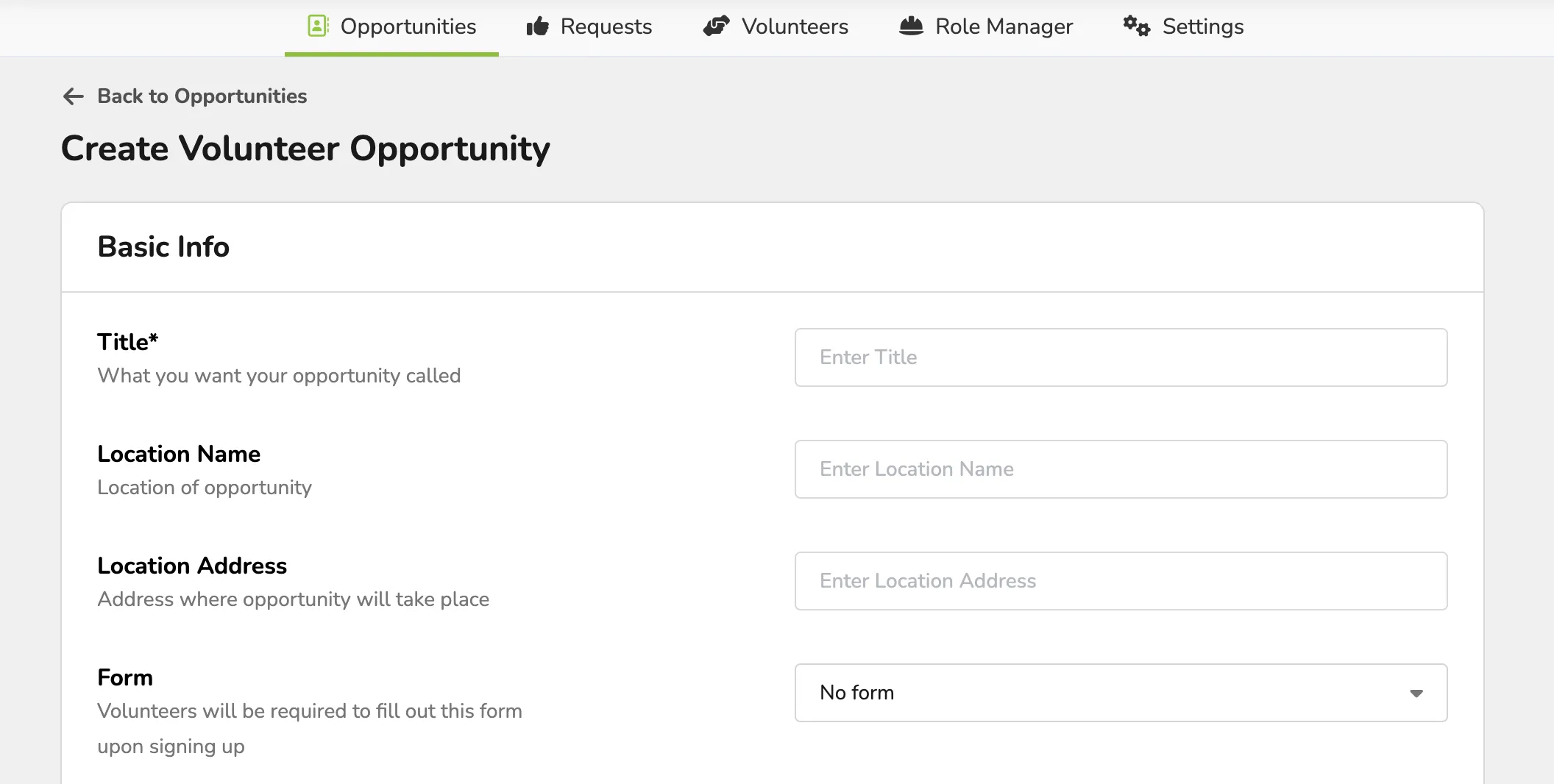
From here, you can create your volunteer opportunity.
The pop-up will ask for:
- Title (of the opportunity)
- Location (name)
- Location (address)
- Form (ability to attach to the volunteer opportunity)
- Listing Notice (add additional information)
- Roles and Needs per shift
- You can add additional roles if needed.
Under Additional Options:
- Email Reminders
- Custom Reminder Emails
- Admin Only/Public Facing Volunteer Opportunity
Once the information has been entered, be sure to select "Create Opportunity" to save.
When the Opportunity is created, you will be able to select +Add Shift. From here, you can add as many timed volunteer shifts as needed. This includes the date and start/end times. Be sure to select DONE to save.

Alternatively, you can create an opportunity that is not a set time by selecting a General Slot from the Add Shifts modal.

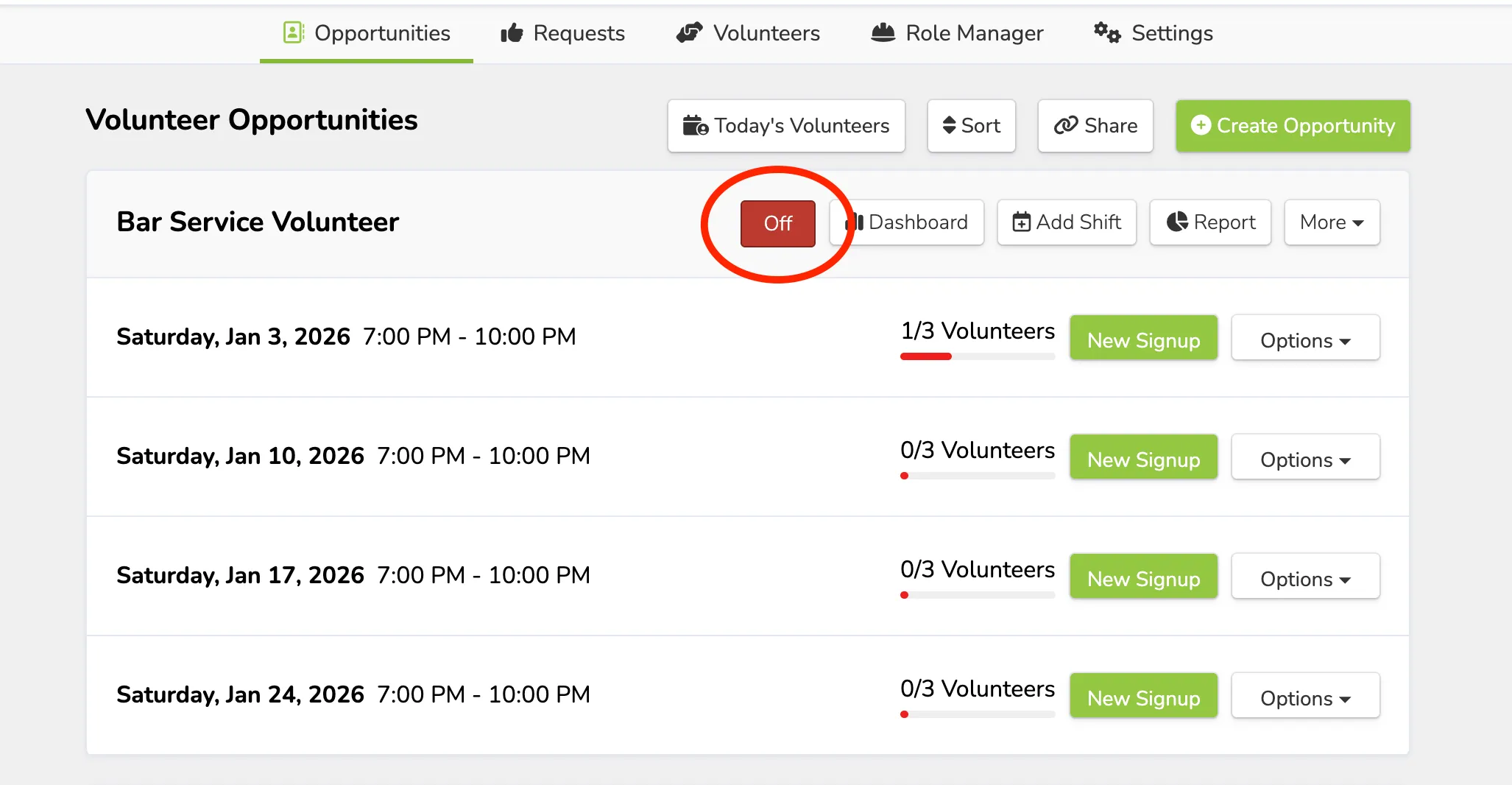
Once your shift times have been added, you will be able to turn the sign-ups on by toggling the Off to On, and patrons will be able to sign up and volunteer!
New Signup
At any time, you can also add a new signup for any of your opportunities. Similar to the New Order button on the Events page, New Signup allows the admin to sign up a volunteer at any time.
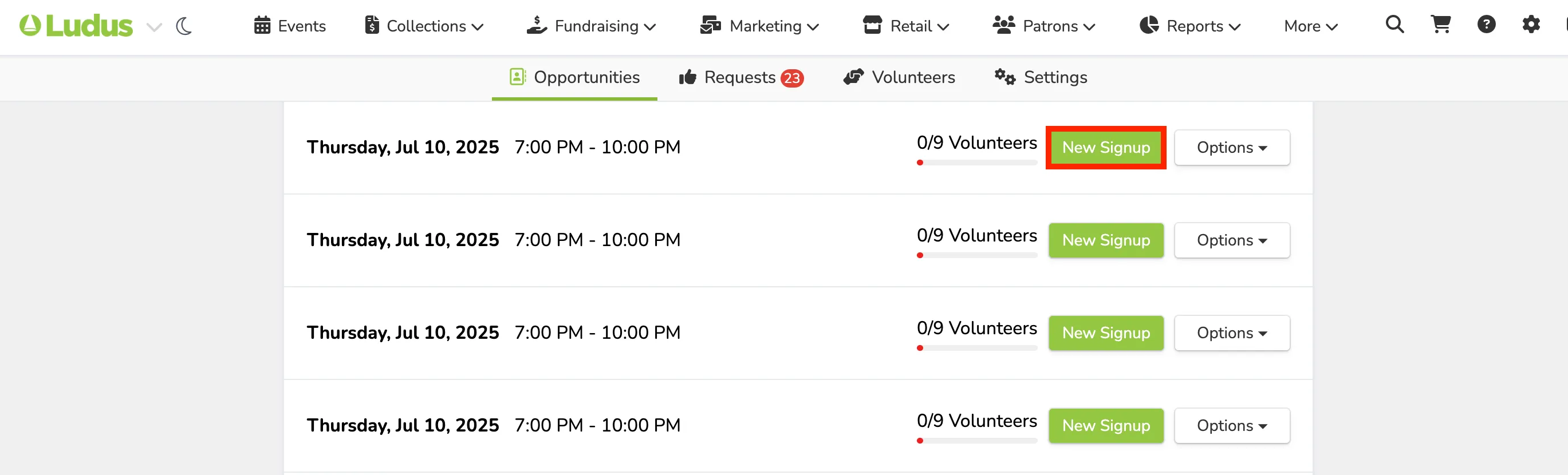
Volunteers/patrons can sign up for themselves and additional parties in the same process. Additionally, admin can do this on their accounts as well. This will prevent the person signing up from having to go through the process multiple times.
Requests within Opportunities
If you wish to request a specific Volunteer within an Opportunity, simply:
Go to Options (next to the Opportunity date) or More (at the top of the Opportunity) -> Requests.
Once selected, you will be brought to a page showing any pending volunteer requests with the option to + Request.
You will want to select + Request to and a Volunteer.

Once selected, you can choose which Role you are requesting and click Continue.

From here, you can add a new volunteer (if you do not have any yet) or select a previous Volunteer by clicking the box next to their name.
Once added or selected, click Next at the bottom.

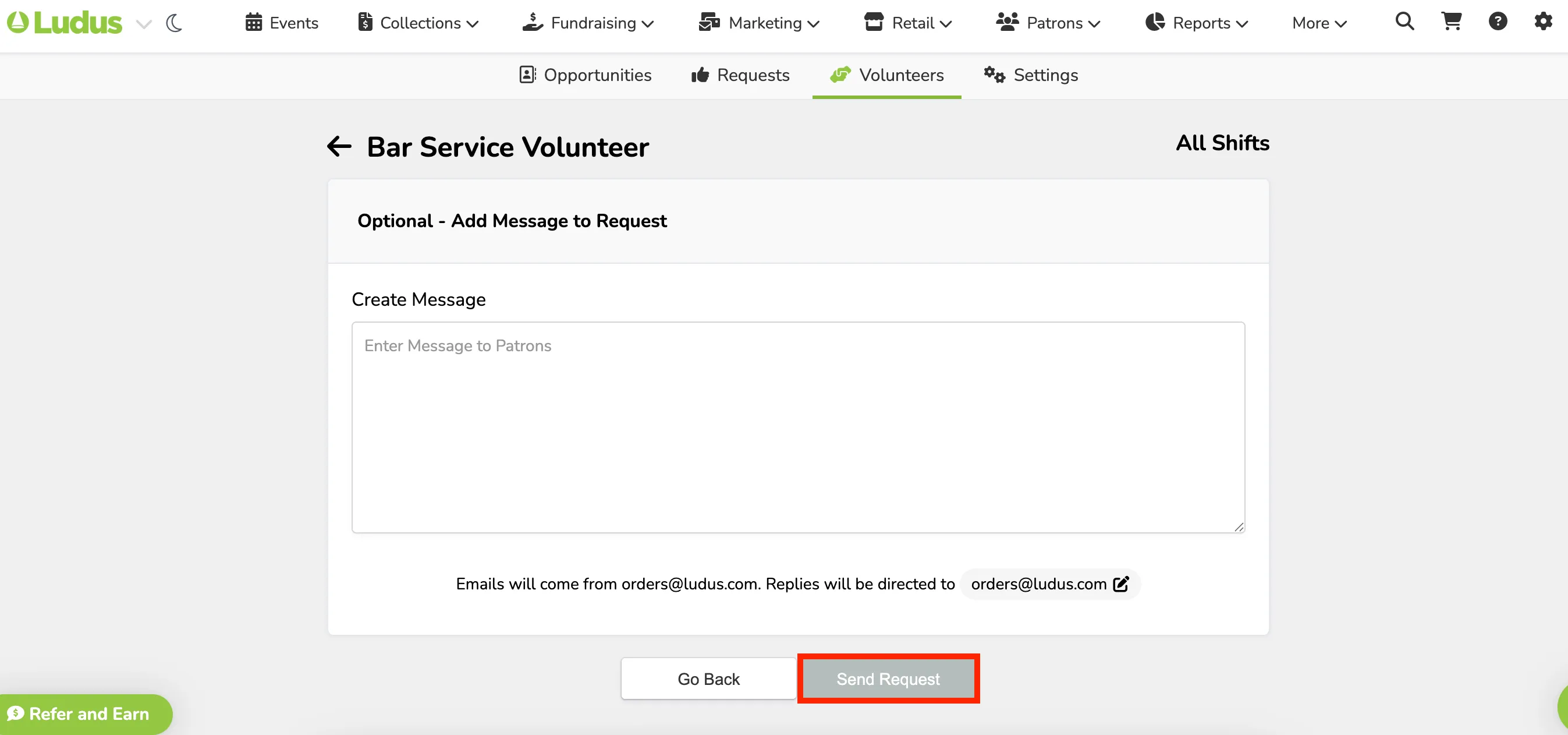
After selecting Next, you will then be prompted to include an optional message to these Volunteers.
This could simply be an explanation for the request or more information about the Opportunity.
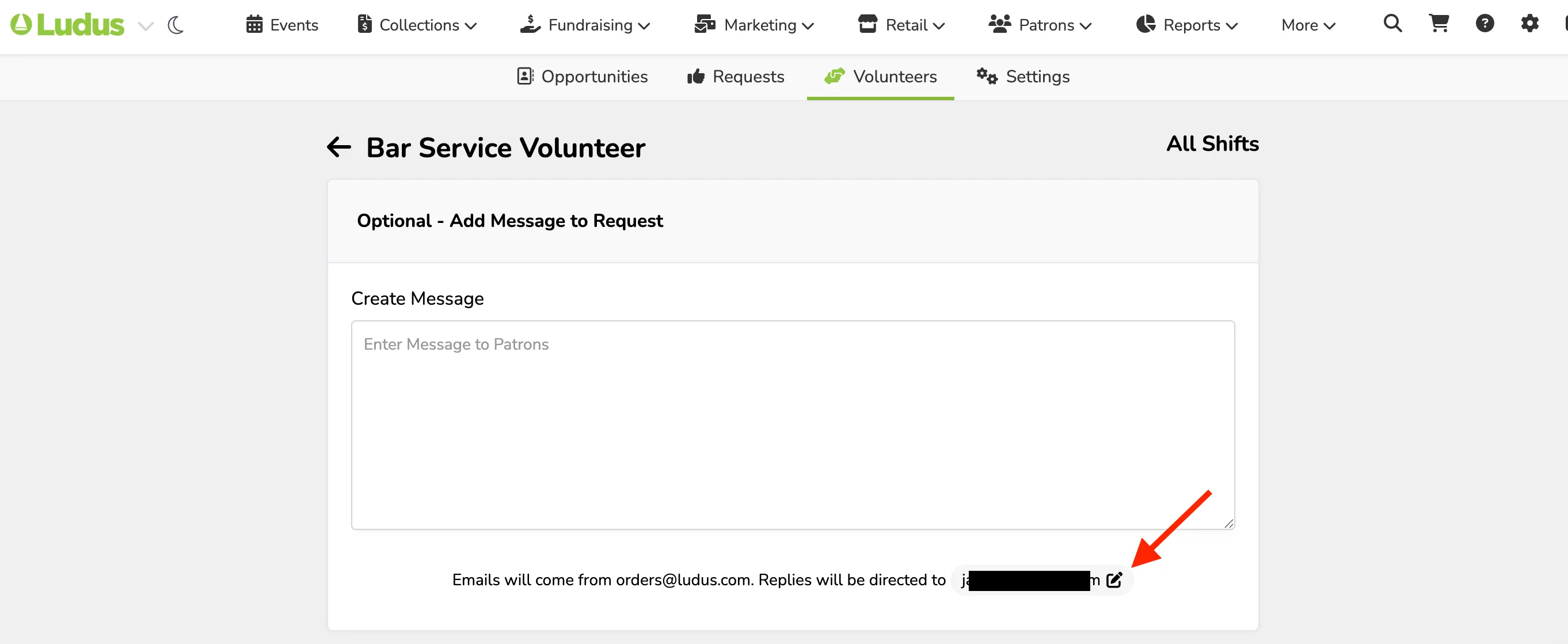
You can change where the email replies go under this section as well! Simply click the pencil icon, enter the new email address, and press Enter on your keyboard to save.
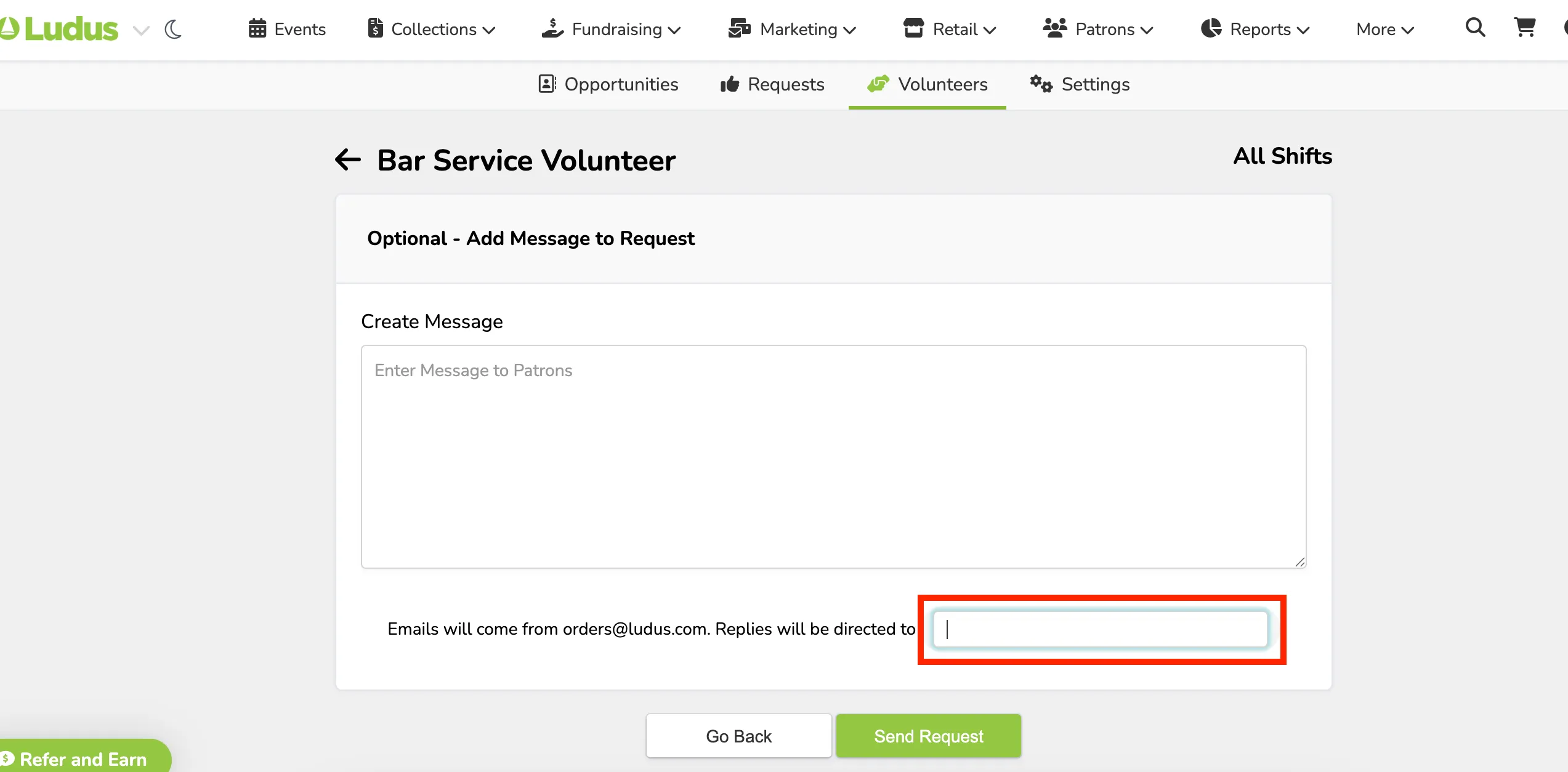
Finally, after you create your message and update the email, you can select Send Request at the bottom, and your Request to the Volunteer will be emailed to them.
Today's Volunteers
The Today's Volunteers tab on the Opportunities page provides a view of who is volunteering that day.
This can also be sorted and looked at based on:
- Roles
- Date
- Name/Email (can be searched)

Sort Opportunities
Sorting your Opportunities is a great way to manage the page and the order in which you read through the sign-ups and Opportunities available.

Remove a Volunteer from an Opportunity
To remove a volunteer from an opportunity:
Navigate to More (at the top of your admin site) --> Volunteers.
Once there, select the Title of the Opportunity (located on the Opportunities tab) and click Dashboard. Once on this page, select View, as this will bring up those who have signed up.


When View is selected, you can delete any volunteers from the list using the trash can icon.

Move a Volunteer from one role to another within an Opportunity Shift
If you have set up your Opportunity to have multiple roles within it. It is possible to move a volunteer from one role to another easily.
To do so, click Options, next to the Opportunity, and select Roster.

Click Edit next to the volunteer you wish to move.
Now in the pop-up, select the new role you wish to have them work in, and save.
Now, on your opportunity, you will see that the volunteer has been moved to the new role on that shift.
