Volunteer Settings
4 min
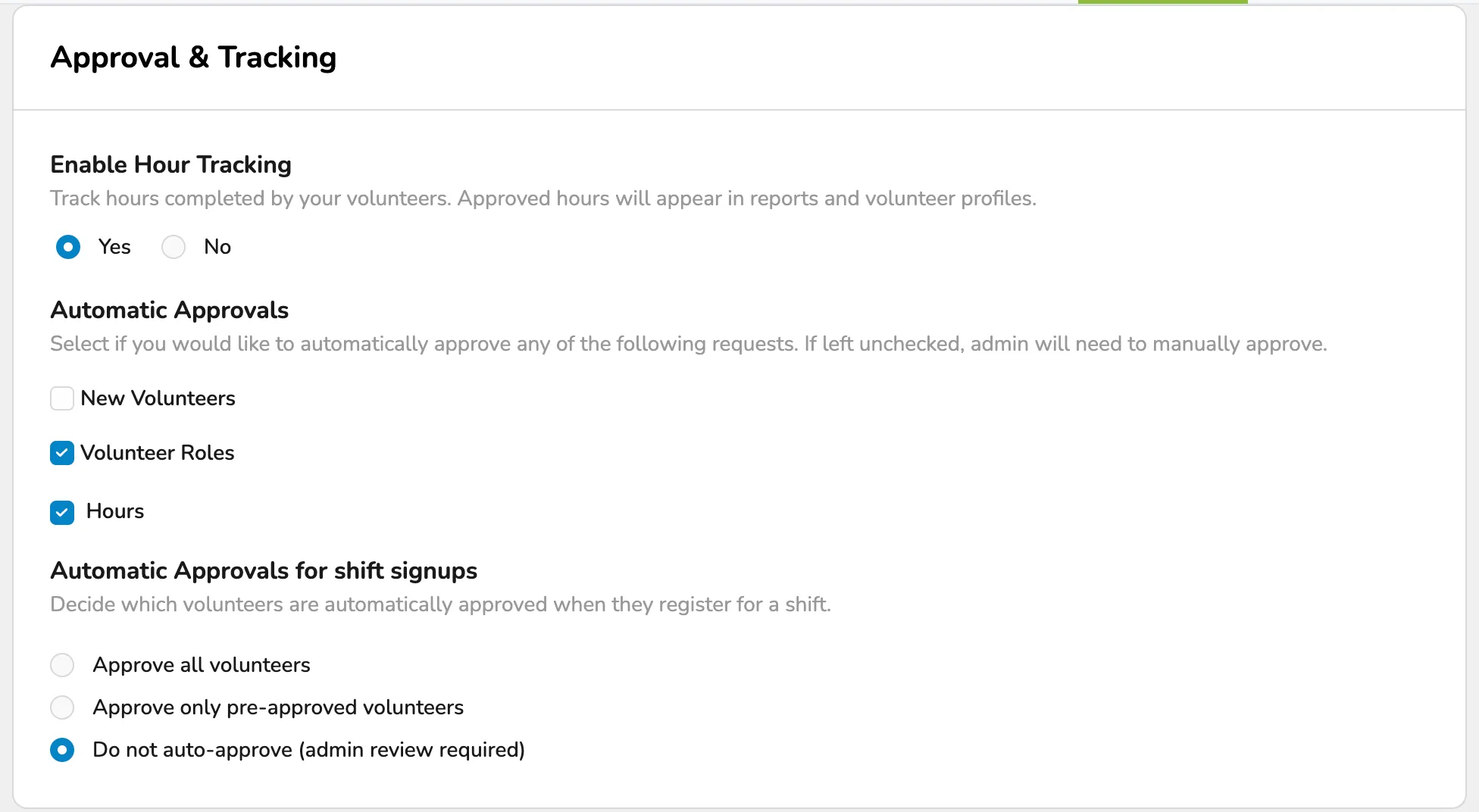
The Settings page in Volunteer Management contains several options. These included Registration and Access, Messages, and Approval Tracking.
Volunteer General Settings
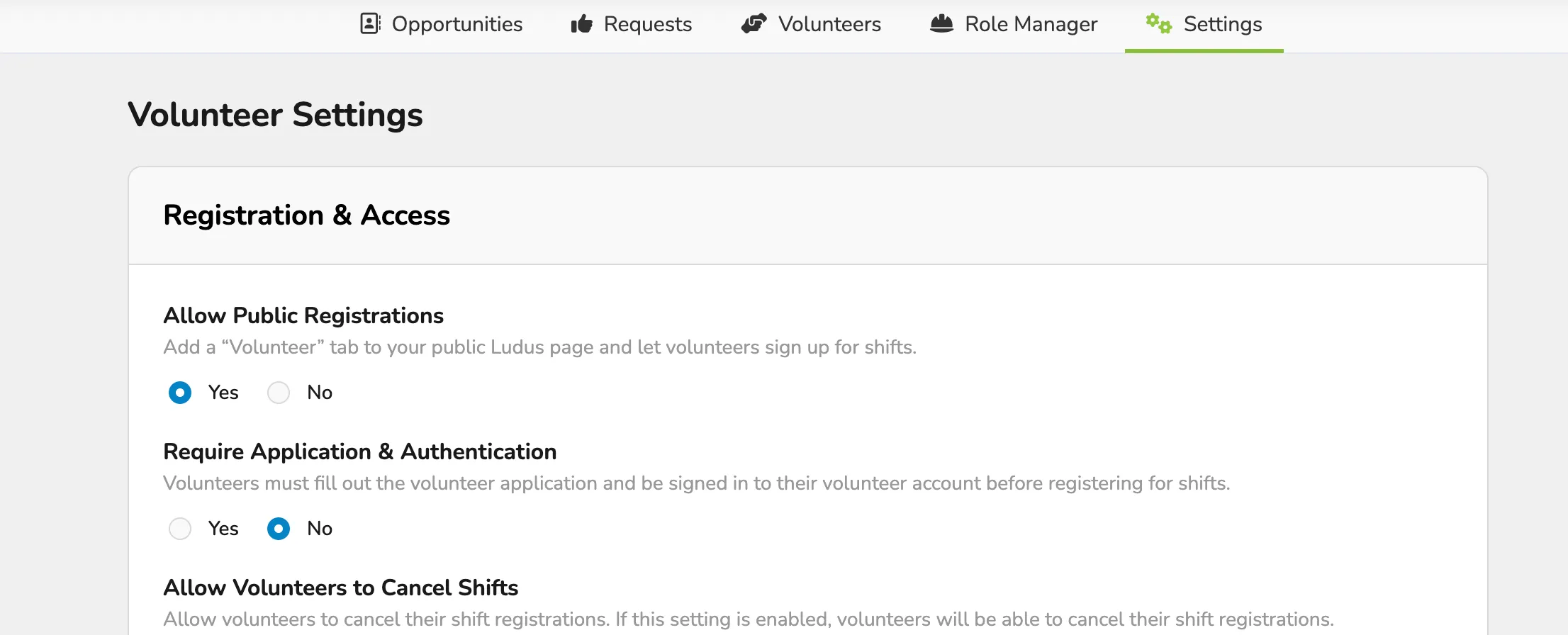
This page allows adjusting the following:
- Allow Public Registrations: Adds the Volunteer tab to your public Ludus pages and allows volunteers to sign up for shifts.
- Require Application & Authentication: Volunteers must fill out the volunteer Application and sign in to their volunteer account before registering for shifts. When disabled, a new volunteer can select the shift and click to register and sign up for it all at once, rather than going through the sign-up process first.
- Allow Volunteers to Cancel Shifts: Allow volunteers to cancel their shift registrations. If this setting is enabled, volunteers will be able to cancel their shift registrations.
- Suggested Article: Allow Volunteers to Cancel Shifts
- Require Phone Number: Requires volunteers to fill out their phone numbers to register.
- Require Address: Requires volunteers to fill out their address to register.
- Require Date of Birth: Requires volunteers to fill out their date of birth to register.
- New Volunteer Forms: Allows you to set a form to collect additional information when a new volunteer registers.
- Admin Approval Access: All Full Admins can approve volunteers by default. Emails are sent to all selected admins in this field whenever a new volunteer signs up. This allows additional admins who are not at the Full Admin level to access the approvals tab.
- Volunteer Signup CTA Message: Used to create a Call to Action message on the Signup page.
For this CTA to be visible:
- Users must not be logged in.
- Allow Public Registrations must be turned on.
- Require Application & Authentication must be turned on/
- Unapproved Volunteer Message: Create a standard reply to volunteers who are not approved.
Messages
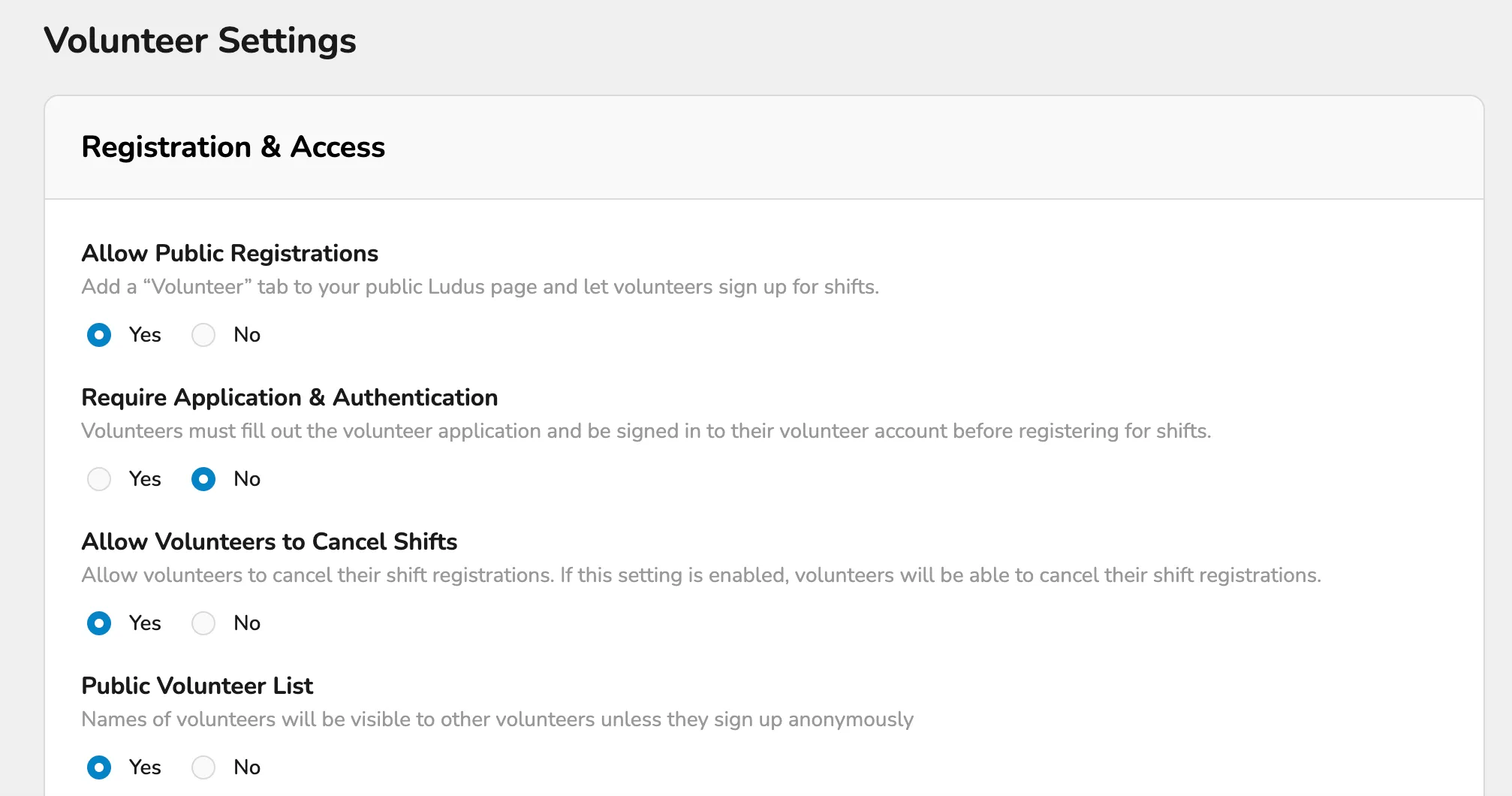
Volunteer Signup CTA Message: This message will appear on the public Volunteers page in the main volunteer signup CTA.
Unapproved Volunteer Message: This message will appear below the shift signup form for unapproved volunteers.
Approvals & Tracking Settings
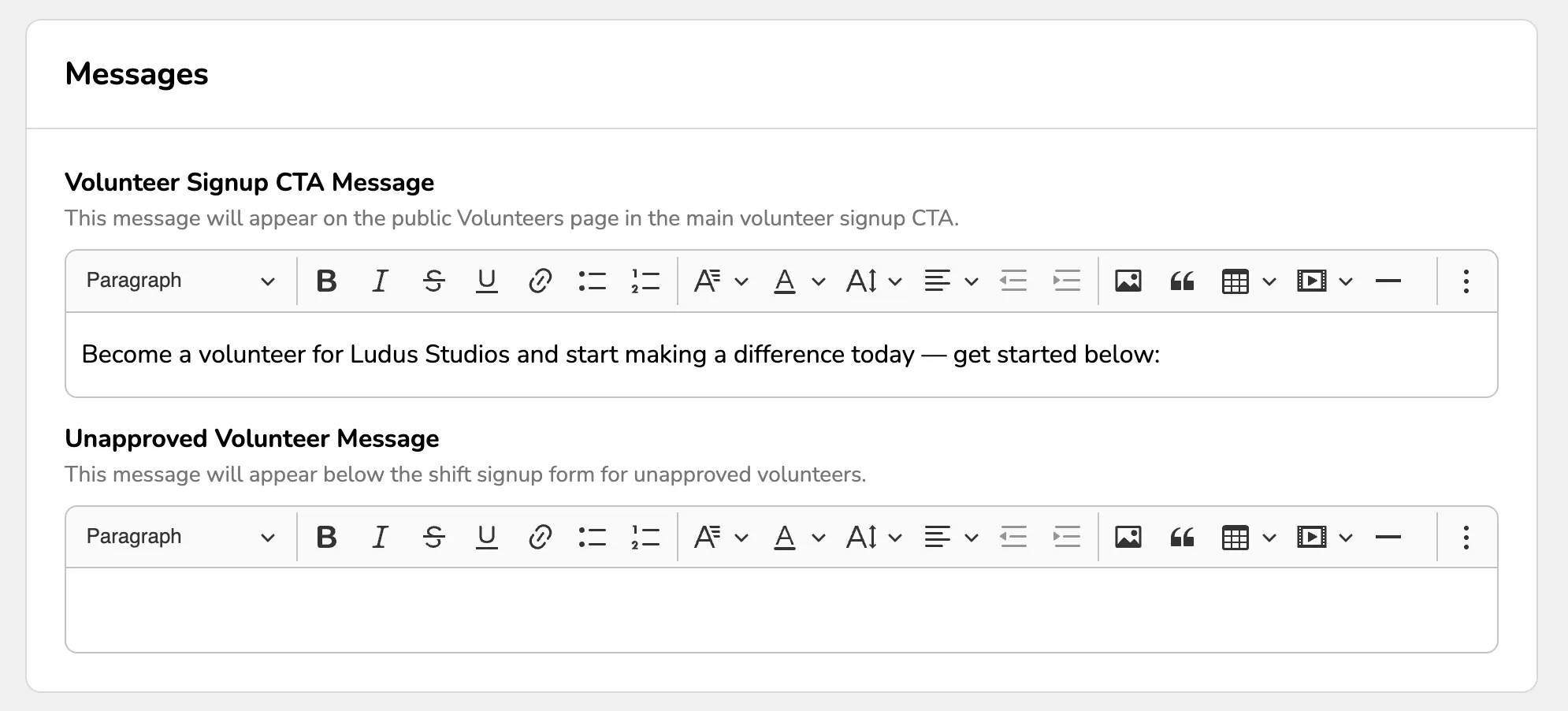
Also located on the General settings tab, Approvals and Tracking enable the automation of various aspects of the approval process.
Here you can set the following:
- Enable Hours Tracking: Track the hours your volunteers complete. Approved hours will appear in reports and volunteer profiles.
- Automatically Approve:
- New Volunteers
- Volunteer Roles
- Hours
- Automatic Approvals for Shift Signups:
- Approve all volunteers
- Approve only pre-approved volunteers
- Do not auto-approve (admin review required)