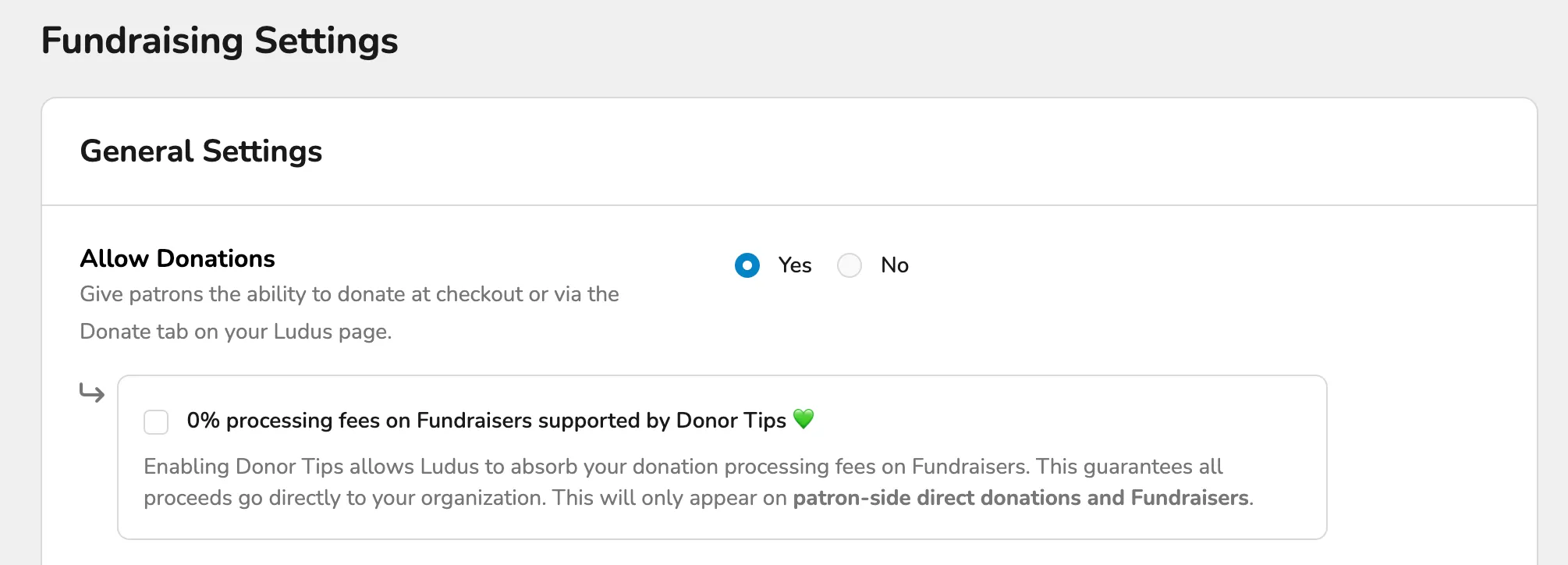
Fundraising Settings
The Fundraising settings tab allows you to view and modify donation settings for the account. Click on one of the drop-down menus below to learn more about a particular setting.
Allow Donations
By default, the ability to donate is turned off. If you would like patrons to be able to donate to your group organization, select the On button. Remember to click Save Changes at the bottom of your screen.
This also includes the ability to select to have "0% processing fees on Fundraisers supported by Donor Tips". Enabling Donor Tips allows Ludus to absorb your donation processing fees on Fundraisers. This guarantees all proceeds go directly to your organization. This will only appear on patron-side direct donations and Fundraisers.
Corporate Donations
There might be circumstances where you want a separate list of pre-set donation amounts and Donor Levels on your Donation tab. To accomplish this, click Corporate Donations.
This will create a separate tab under Donations on the patron side where they can toggle between Individual and Corporate donations.
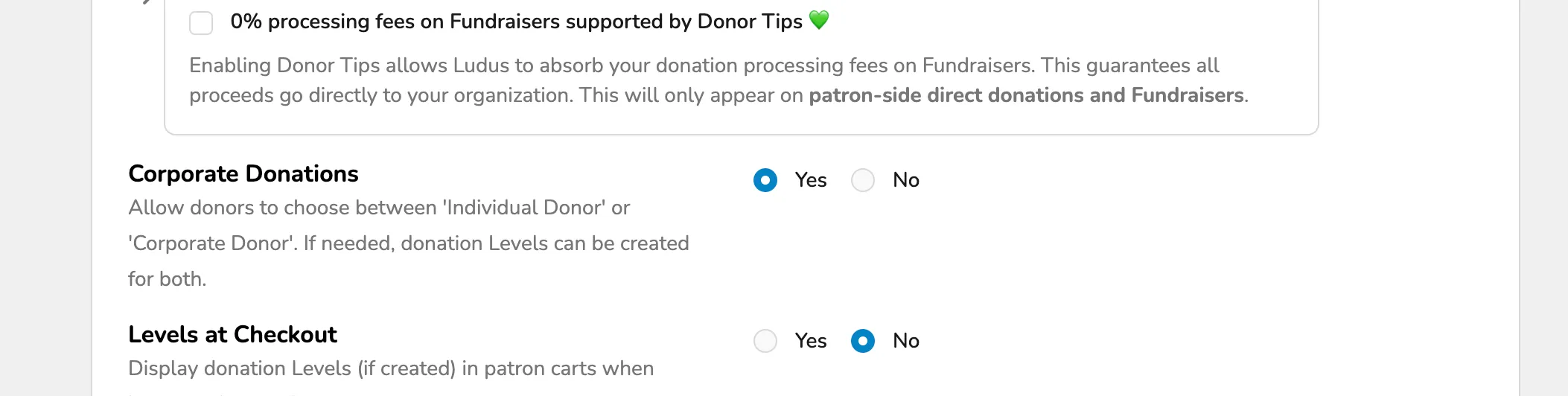
Levels at Checkout
When utilizing the Donor Levels feature, you might want to display these levels during checkout. To do so, click on the section labeled Levels at Checkout. Subsequently, the set donation levels will appear at checkout.

Round Up Donations at Checkout
Patrons will be prompted to round up their cart total at checkout. It will only ask patrons to round up if they did not already add a donation.

Custom Form
Just like many other areas in Ludus, you can attach a custom Form to donations. By adding a form to this section, you will have that set of questions asked anytime someone makes a donation to your organization. You can click this link to learn more about Forms.

Communication Settings
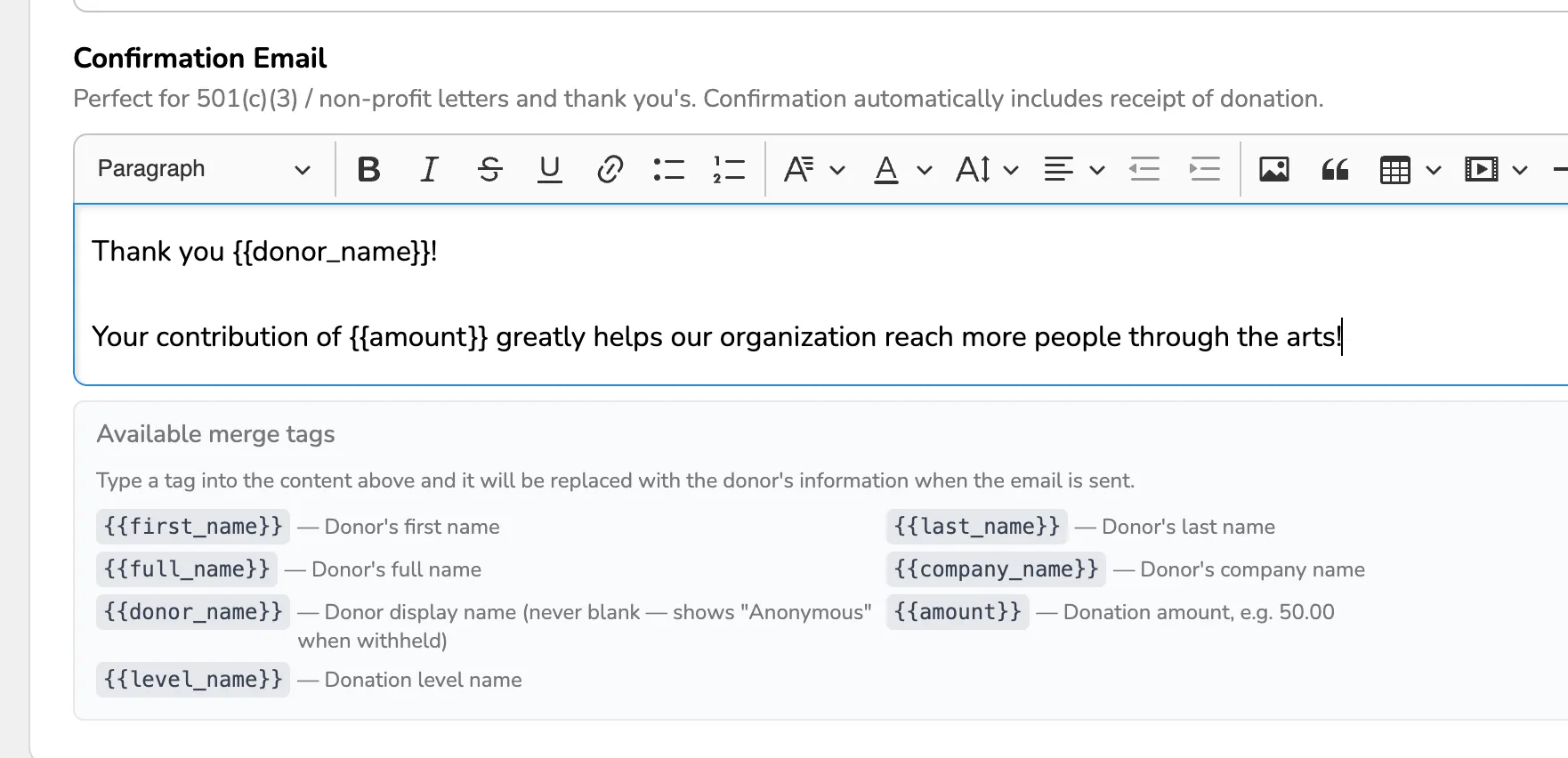
Confirmation Email
When a donation is made, the patron will automatically receive a receipt at the email address entered at checkout. You may wish to insert some additional text into these emails. You may insert custom messaging into the email by typing into the text box under the section labeled Confirmation Email. This is perfect for 501(c)(3) / non-profit letters and thank-yous.
Donor Plea at Checkout
This field allows you to create a customized plea for donations that will appear in the "Donate" box when patrons purchase event tickets, Collections, Classes, or Passes.
Additionally, Donor Merge Tags can be used for these emails. These include:
- {{first_name}}— Donor's first name
- {{last_name}}— Donor's last name
- {{full_name}}— Donor's full name
- {{company_name}}— Donor's company name
- {{donor_name}}— Donor display name (never blank — shows "Anonymous" when withheld)
- {{amount}}— Donation amount, e.g. 50.00
- {{level_name}}— Donation level name
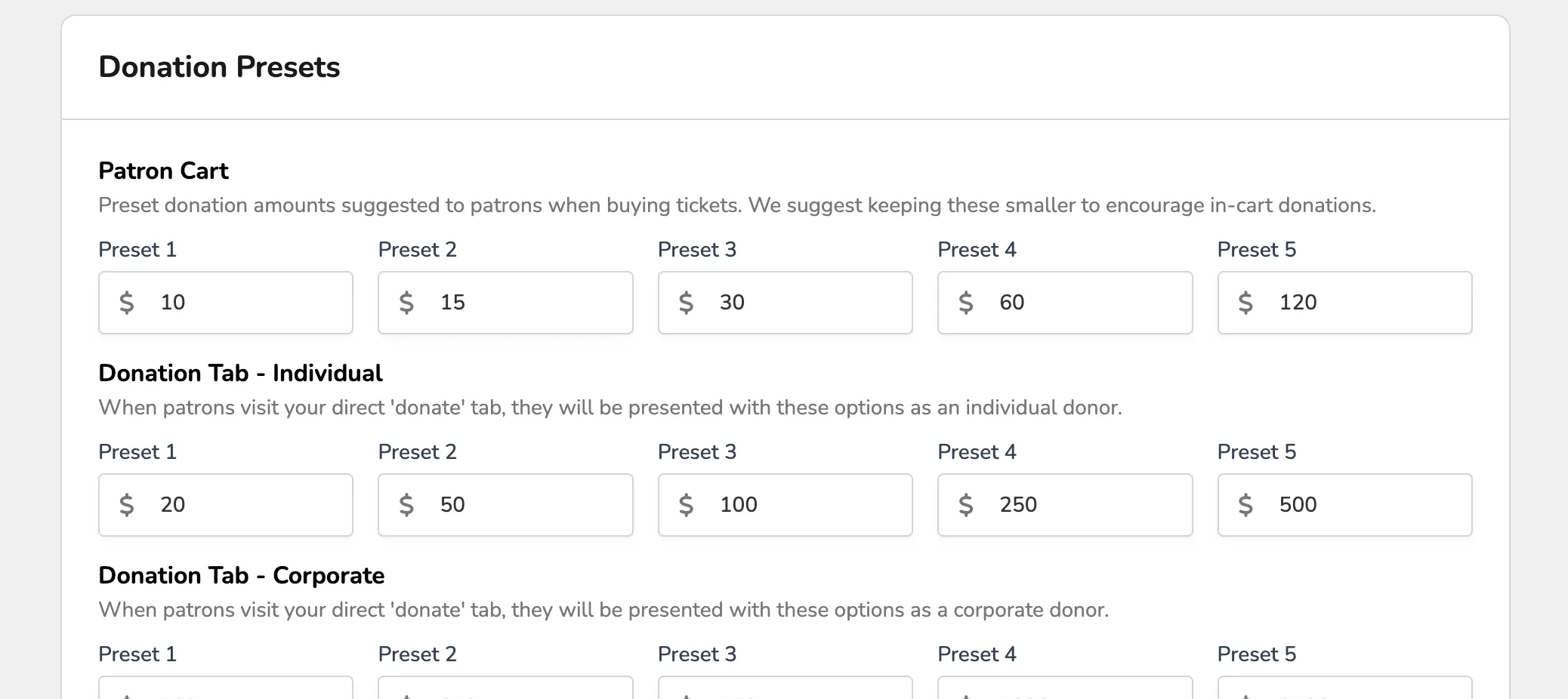
Donation Presets
Check out Donation Presets for more information on how best to utilize the various options.