Volunteer Management
Volunteer Management is part of your Ludus account and is FREE to use!
Video Overview:
What can this feature help with?
Volunteer Management allows you to attract new volunteers to your organization and to simplify your volunteer signup and scheduling within Ludus.
Why use this feature?
If you have many volunteer opportunities throughout the year or just need a better way to manage your volunteers, this feature can help. From creating opportunities and adding volunteers to managing volunteers, the Volunteer Management feature can help!
What makes this feature so special?
Ludus was built for the performing arts by people who care about them, and we want to make your life easier. The Volunteer Management feature has a lot of helpful features, including:
- Admin Only Volunteer Opportunities
- Share Opportunities with patrons (without making them live)
- Set up your settings to automatically approve volunteers/opportunities
- Manage Roles
- And so much more!
So how does this feature work?
Volunteer Management works as an all-encompassing volunteer tool. When setting it up, you can create your opportunity, turn it on, and offer it up for your patrons to volunteer. The volunteer management process can be as hands-on or as automated as you like, depending on the settings you choose.
How do I set up my first Volunteer Opportunity?
To create an opportunity (location for volunteers to sign up), follow these directions:
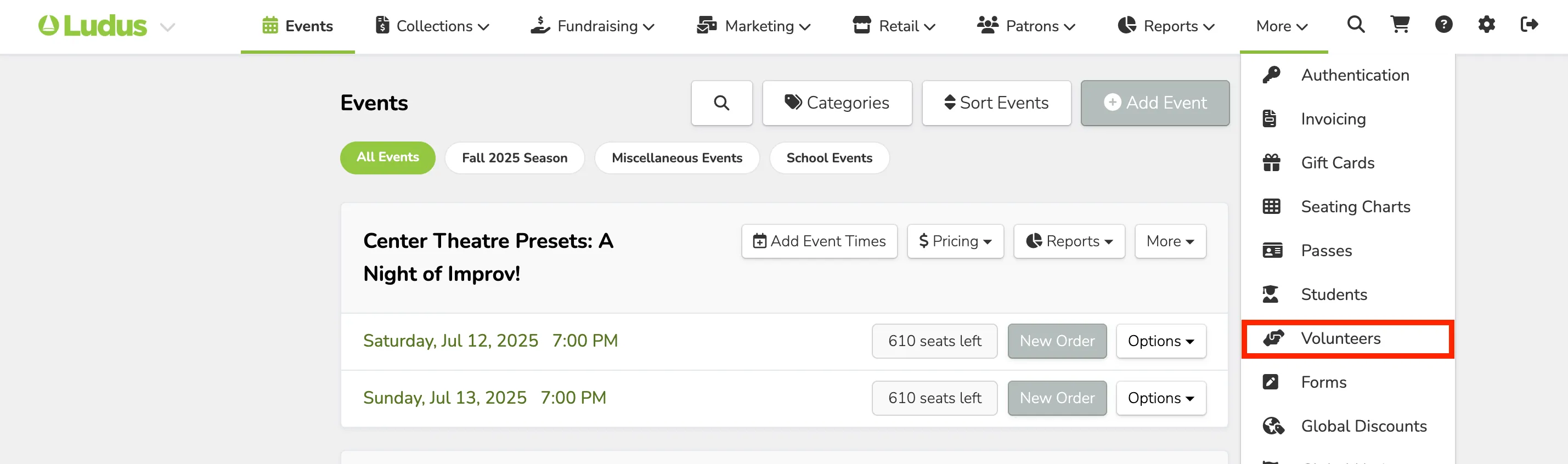
Go to More (at the top of your admin panel) -> Volunteers.
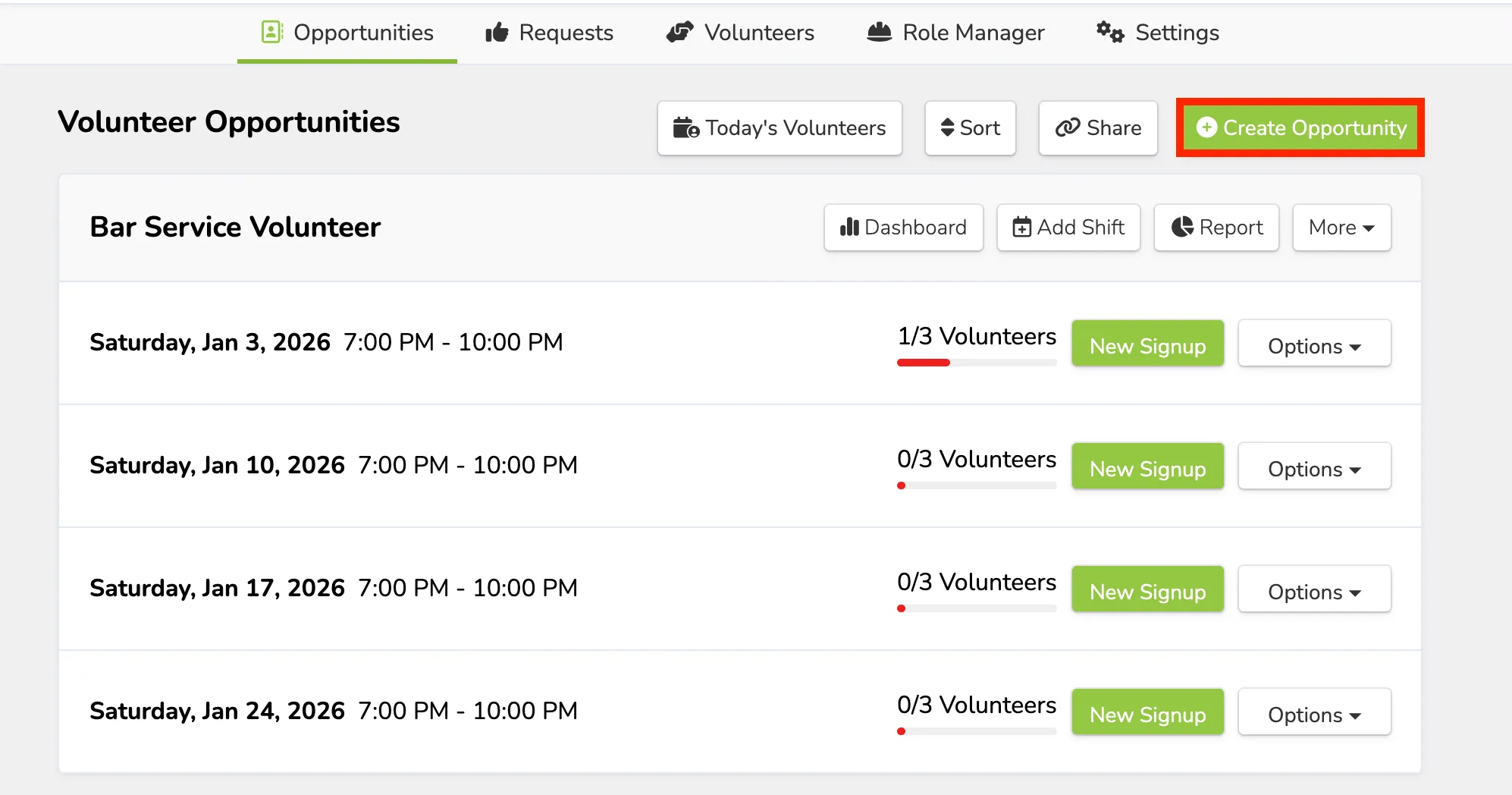
Once under Volunteers, go to Opportunities (the first tab of Volunteers) -> Create Opportunity
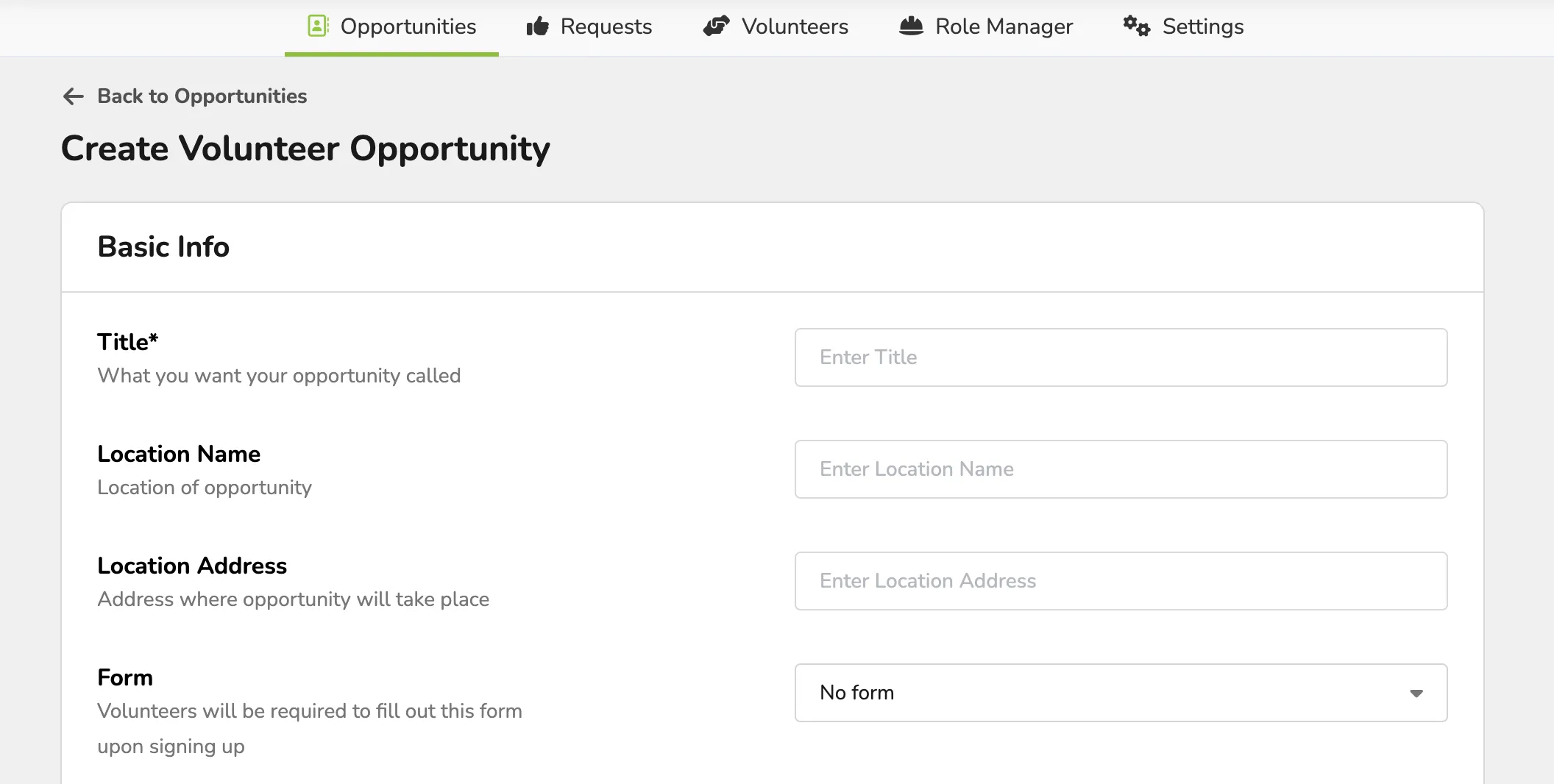
From here, you can create your volunteer opportunity.
The pop-up will ask for:
- Title (of the opportunity)
- Location (name)
- Location (address)
- Form (ability to attach to the volunteer opportunity)
- Listing Notice (add additional information)
- Roles and Needs per shift
- You can add additional roles if needed.
Under Additional Options:
- Email Reminders
- Custom Reminder Emails
- Admin Only/Public Facing Volunteer Opportunity
Once the information has been entered, be sure to select "Create Opportunity" to save.
When the Opportunity is created, you will be able to select +Add Shift. From here, you can add as many timed volunteer shifts as needed. This includes the date and start/end times. Be sure to select DONE to save.

Alternatively, you can create an opportunity that is not a set time by selecting a General Slot from the Add Shifts modal.

Once your shift times have been added, you will be able to turn the sign-ups on by toggling the Off to On, and patrons will be able to sign up and volunteer!
Learn More: