Discount FAQ's
Below are some of the most frequently asked questions about Discounts.
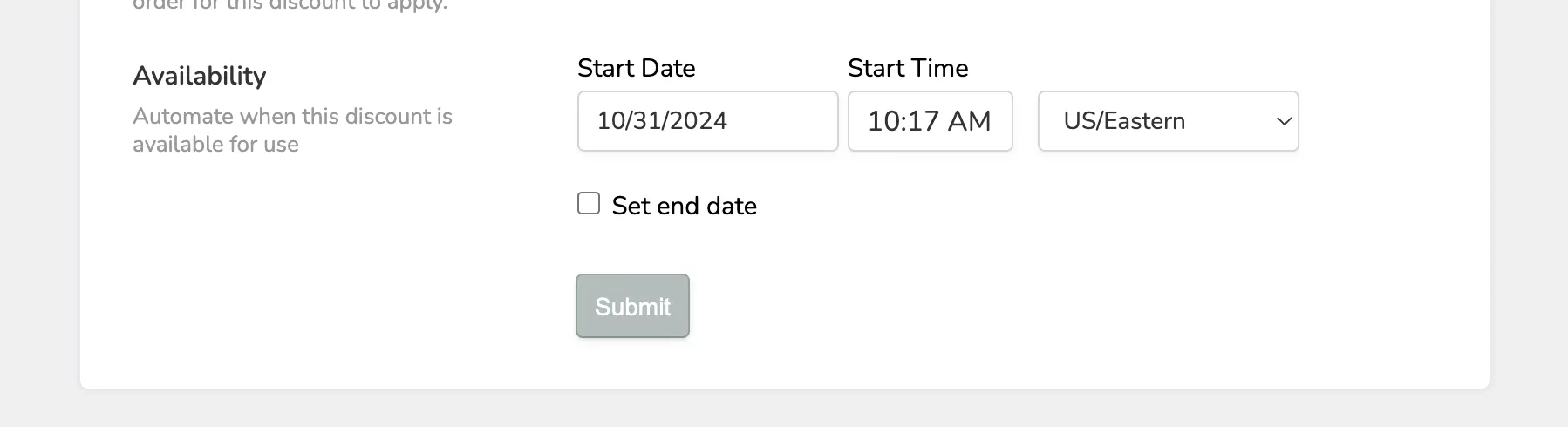
Can I make my discount available only for specific days?
Yes! When setting up your discount code, simply select the dates you would like it available for.
Are discount codes case-sensitive?
No, discount codes are not case-sensitive. As long as the code is entered correctly, it will work.
Can a discount be set for Admin only?
Discounts cannot be set to admin only. When you create a discount code, your patrons won't know about it unless you share it. Even if you apply it to a ticket order, the code used does not appear anywhere that a patron can see it. They only see that a discount was applied.
How can I make a discount apply automatically without a code?
Currently, only Bulk discounts can be applied without a code. These can be set up under the Bulk tab when you click Discounts in pricing.
More information on Bulk Discount settings can be found here.
How can I make a Discount for buying 2 different events?
Currently, this would be better accomplished as a Pass. Either a flex pass or Season Ticket can work for this.
However, you can create a global discount that is valid if a minimum number of tickets is met in the cart and have this discount apply to more than one event.
That said, if you put a minimum number of tickets for the code to work, it will count events that are not part of the discount towards that minimum number of tickets. However, the discount would apply to only the events listed on the discount. To learn more about global discounts, click here.
How can I offer free or Comp Tickets?
You have a few options to offer free or comp tickets. This article goes over various methods.
Can I offer discounted pricing to my Flex Pass holders for an event that is not a part of the Flex Pass?
Yes, you can! So here is the scenario! You sold Flex Passes and have now added a new event that you would like to offer at a discount to, but not be a part of the Flex Pass.
Simply create a discounted price term, not a discount, that includes any limits you wish on it. Then under the Access section, select Pass Holders and then set which passes you want to be able to get this price.
For more instructions/details see this article.
How can I add an expiration date to my Discount?
If you wish to have your discount expire at a certain date/time (IE, maybe you are running a flash sale), this is easy to do through the discount feature!
Set an expiration:
Go to Pricing (next to the Event or Collection) -> Select Discounts.
Once there, you can select +Discount (if creating a new discount) or Edit (next to an existing discount).
If you scroll to the very bottom of the discount setup, you will see an Availability section. From here, you can set the start date and, if needed, an end date.
Something like a "flash sale" would work great with a start and end date discount.
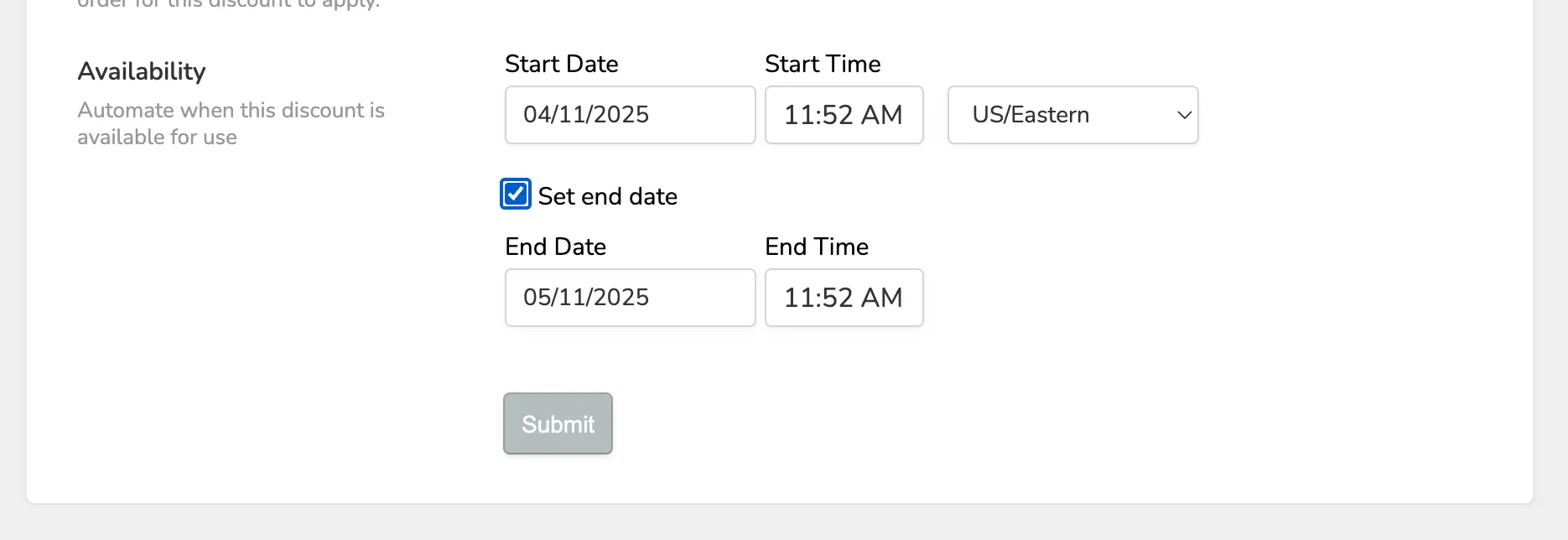
Be sure to select all other options needed if creating a new Discount, and select Submit to save!
Name Your Own Price Tickets & Discounts
When using Name Your Own Price for tickets, please note that discounts will not operate properly.
Please reach out to Support for help with this and to figure out what might work best for your group.