Events
The Events page on Ludus lets you sell tickets for events and includes features such as discounts, Add-Ons, Access Codes, and more.
An event mainly consists of event times (the dates/times patrons can attend) and ticket prices (how much patrons pay to attend), with everything else supporting those core traits.
What can this feature help with?
Create and set up events; from musicals to marching band competitions to school dances, this is the place to do that!
Why use this feature?
We have seen so many groups successfully set up events and sell their tickets via the Events page. Not only can you set up your event, but you can also share an individual link for that event or a link for all your events.
What makes this feature so special?
Ludus was built for the performing arts by people who care about them, and we want to make your life easier. The Events feature in Ludus features so many amazing extras, including:
- The Waitlist Feature
- Private and Public Share Links (QR codes)
- Ad Manager (adding ads to your tickets)
- Event Notices
- And so much more!
So how does this feature work?
When you set up your first event, you will be guided through the steps to create and configure all the details. Events will serve as your patrons' main landing page when you set them up. Including every detail possible for your patrons not only makes your event day easier but also eases their minds!
How do I create my first event?
Steps to add an event
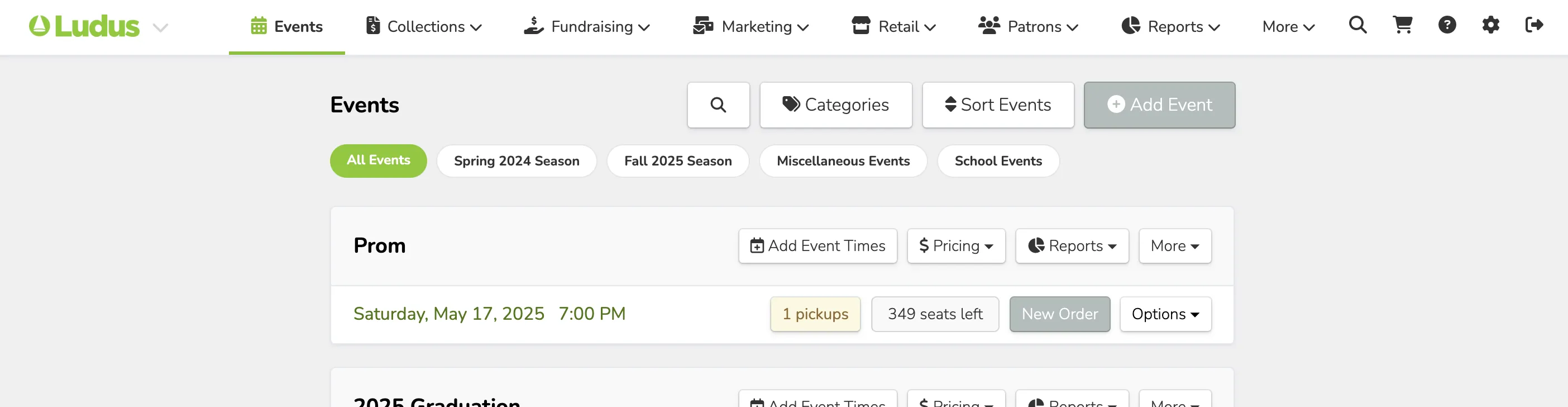
In your admin panel, go to the Events tab and click the Add Event button.
Enter the details of your event, including event name, venue info, seating type, retrieval options, and more. This can all be edited later Edit an Event
Once you are done adding the details, click Continue.
Not sure what the different options/terms mean? Scroll down in this help article for a detailed explanation of each.
Next, you'll be asked to enter the ticket prices for your event. Click the + Ticket Price button to add prices to your event. Learn more: Ticket Prices
This can be as simple as having a $20 Adult ticket and $10 Student, or getting advanced with tiered seating (Set up Tiered or Premium Reserved Seating), early bird pricing (Set up Early Bird Pricing), and more.
When done adding in your prices, click the Finish button to go to the next step or return to your Events tab.
Lastly, you'll want to click the + Add Event Times button next to your event to add the dates/times of your event.

When you are ready to go live with your event, hover over the Red off button and turn the event to On.
Alternatively, you can set Triggers to turn your event's public sales on/off automatically: Set Triggers on an Event