Sell tickets to an Event
Video Overview:
To Tickets to an Event
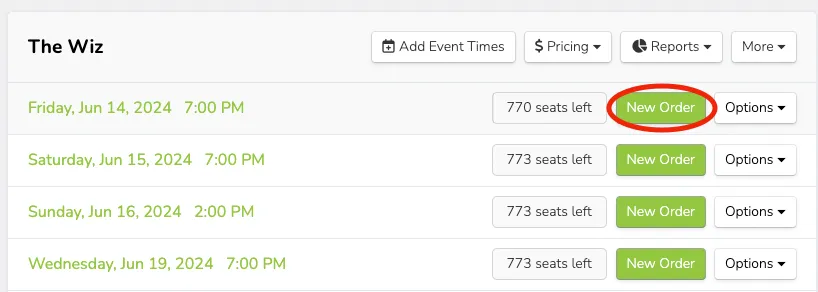
Navigate to the desired event and, next to the appropriate event time, click New Order.
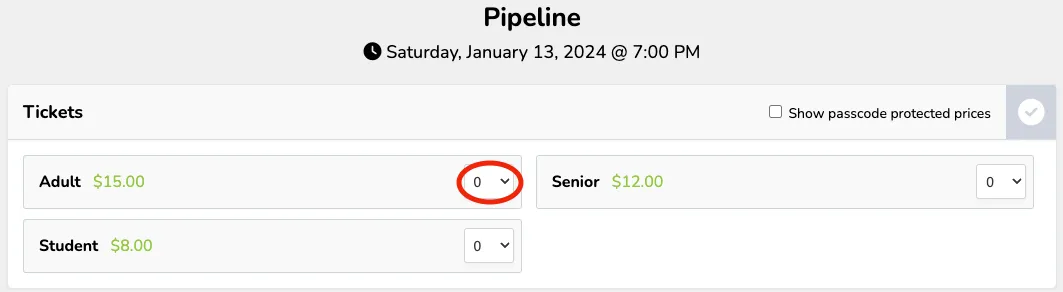
For a general admission event, simply click the desired number of each ticket type you have available.
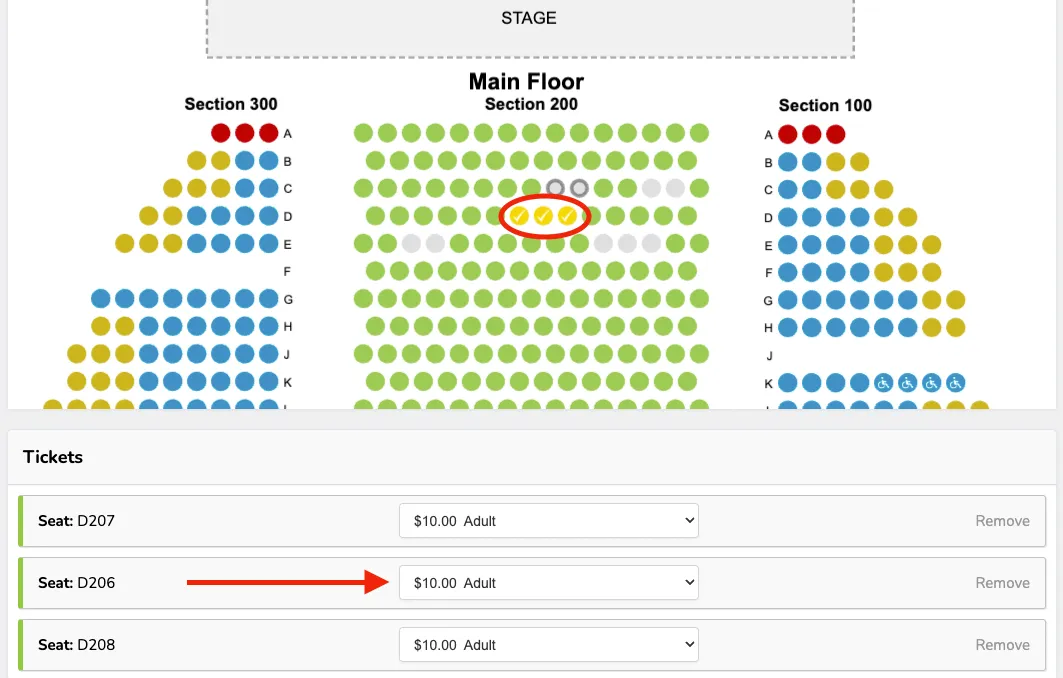
For a reserved seating event, click the desired seats from the chart and then scroll down and use the drop-down menu to change the ticket type/price that is applicable.
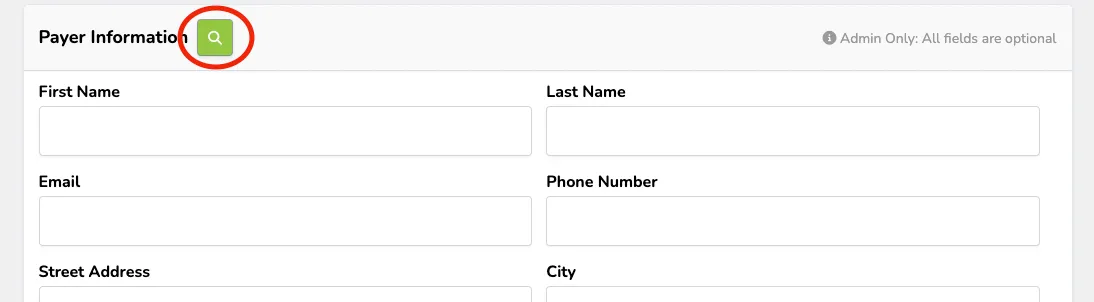
Under Payer Information, insert as much or as little information as your organization desires. We recommend at least a name and email to make tracking this order easier later on.
If they have been a patron with you before, you can click the green Magnifying Glass button (🔍) and look up their name/email. Then, click Select, and all of the information that is on file will autofill, and you can add/update as needed.
Click Add to Cart.
Optional: Add a donation, discount code, or pass holder code to the order. (Check out the links at the bottom of this article)
From the checkout screen, you have three main options: Credit, Cash, and Comp. Select the button for the type of sale you'd like to make. To learn more about each type, check out this article.
Suggested Article: Overview of payment options
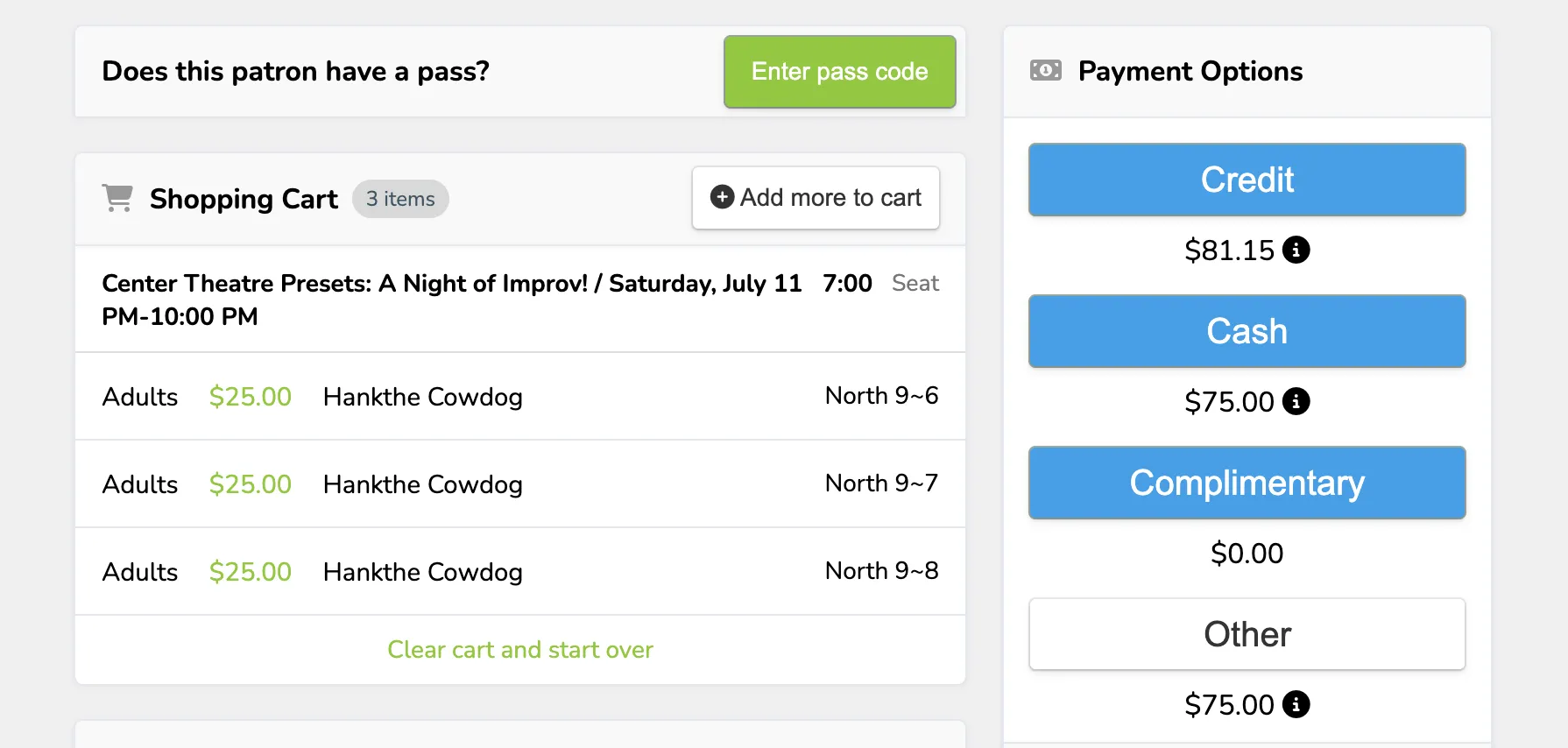
Once you finalize the payment, you will be taken to the confirmation screen. If you inserted a patron's email during the order, they will automatically receive a confirmation email.
From the confirmation screen, choose whether you'd like to print the tickets, send them digitally (email or text), or mark them for Will Call. Suggested Article: Overview of retrieval options
Optional: Insert private notes for the order using the box in the bottom right-hand corner of the screen.
Sell Tickets to a Pass Holder
If a patron is a pass holder (either a Flex Pass holder or a Membership holder), you can enter their information, and their pass will automatically be found and applied to the order.
Navigate to the desired event and, next to the appropriate event time, click New Order.
For a general admission event, simply click the desired number of each ticket type you have available.
For a reserved seating event, click the desired seats in the chart, then scroll down and use the drop-down menu to change the applicable ticket type/price.
At this point, you will enter the patron's information using the small magnifying glass. This will pull up the patron and their pass information when you proceed to checkout.

When you proceed to checkout, you will now see any associated passes at the top of the order screen:
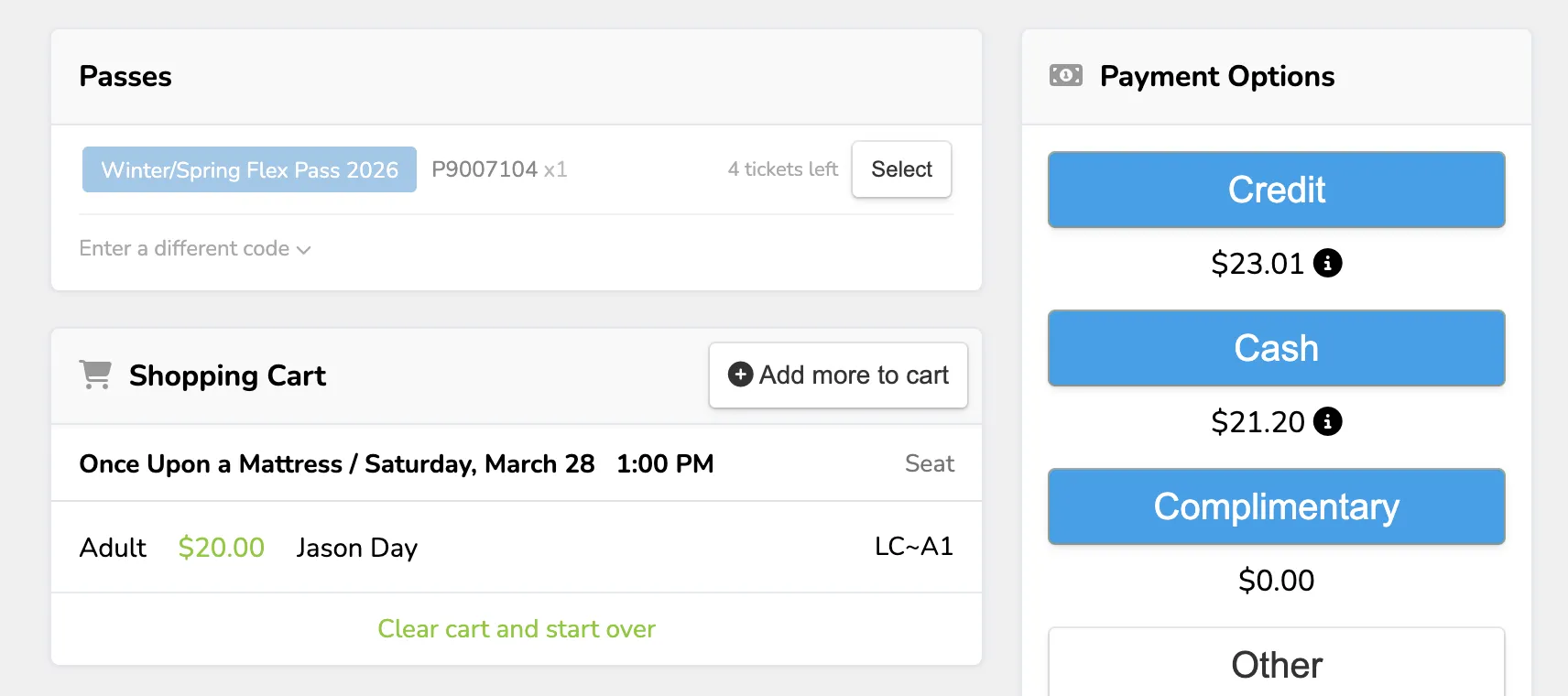
Click Select next to the pass, then apply it to the applicable tickets in the cart.
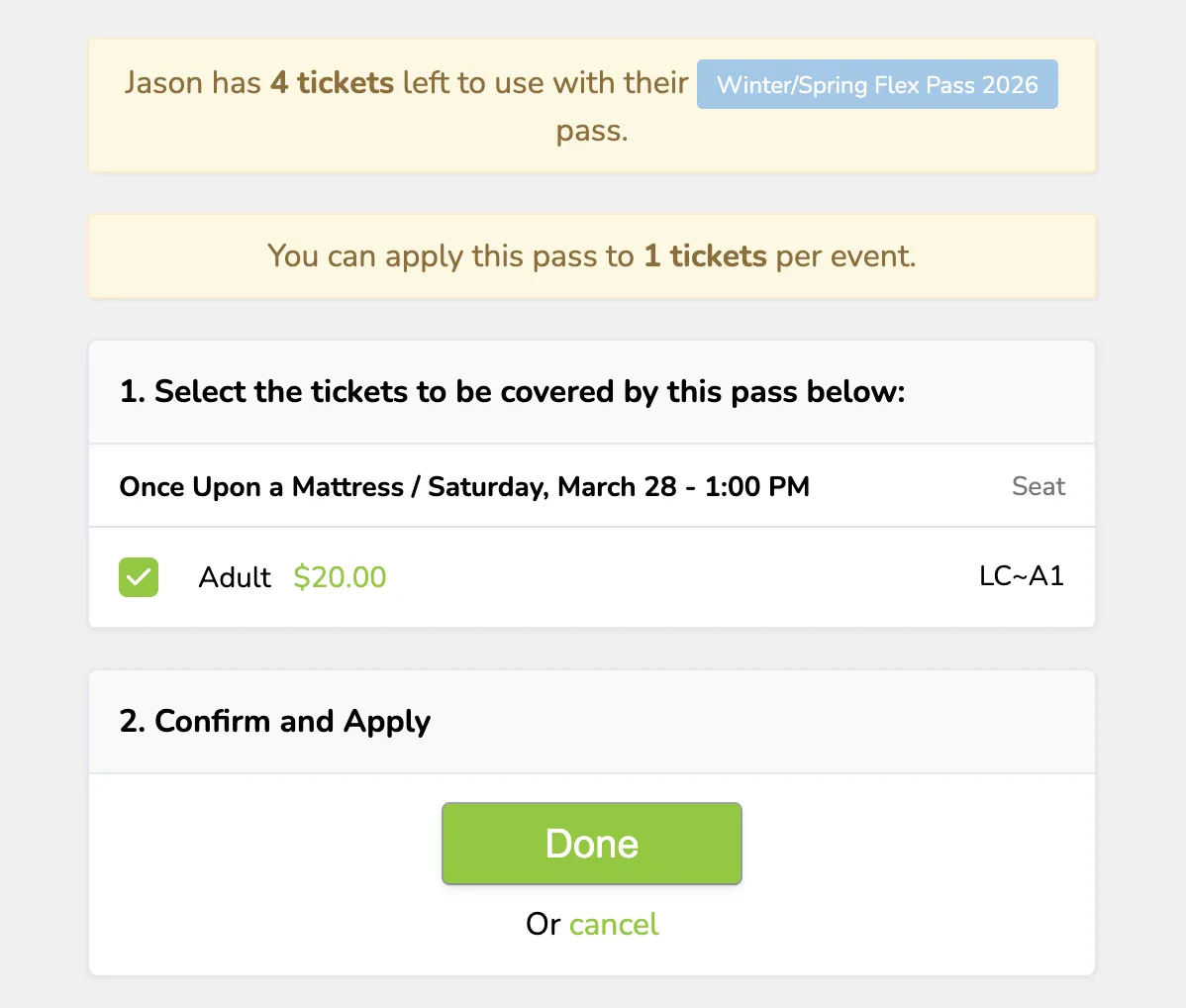
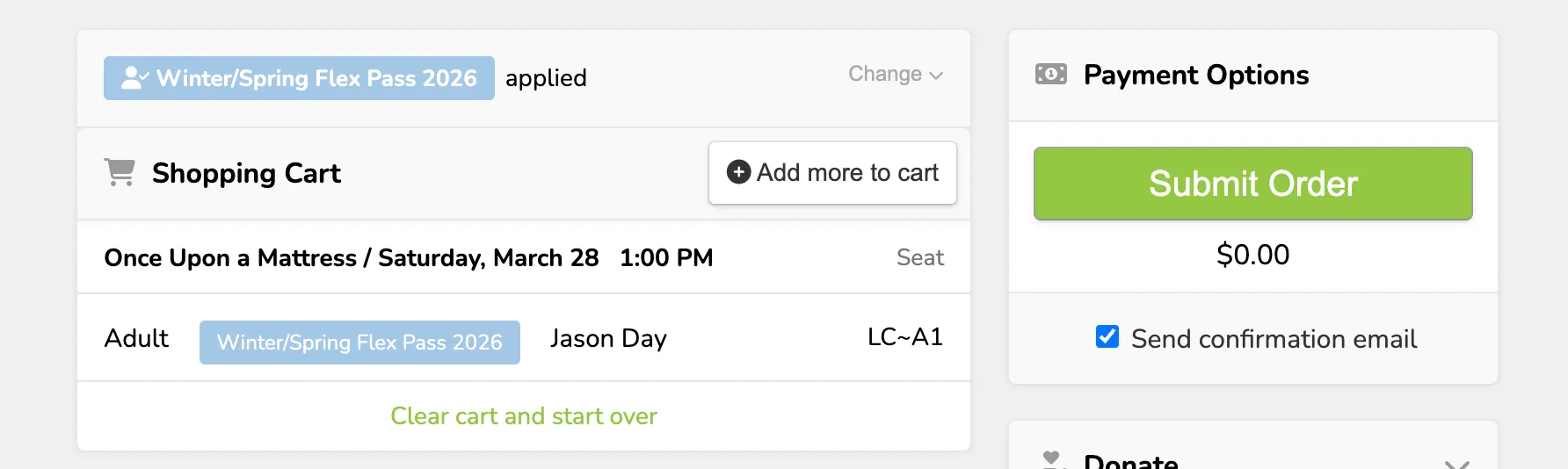
Once you select Done, you will then see the pass applied to the selected ticket(s) in the cart and can proceed through checkout (Submit Order).
Additional Options on an Order