Set up a Membership
3 min
Steps to Create a Membership
From the top navigation bar, click More --> Passes.
Click Create Pass and select Membership.
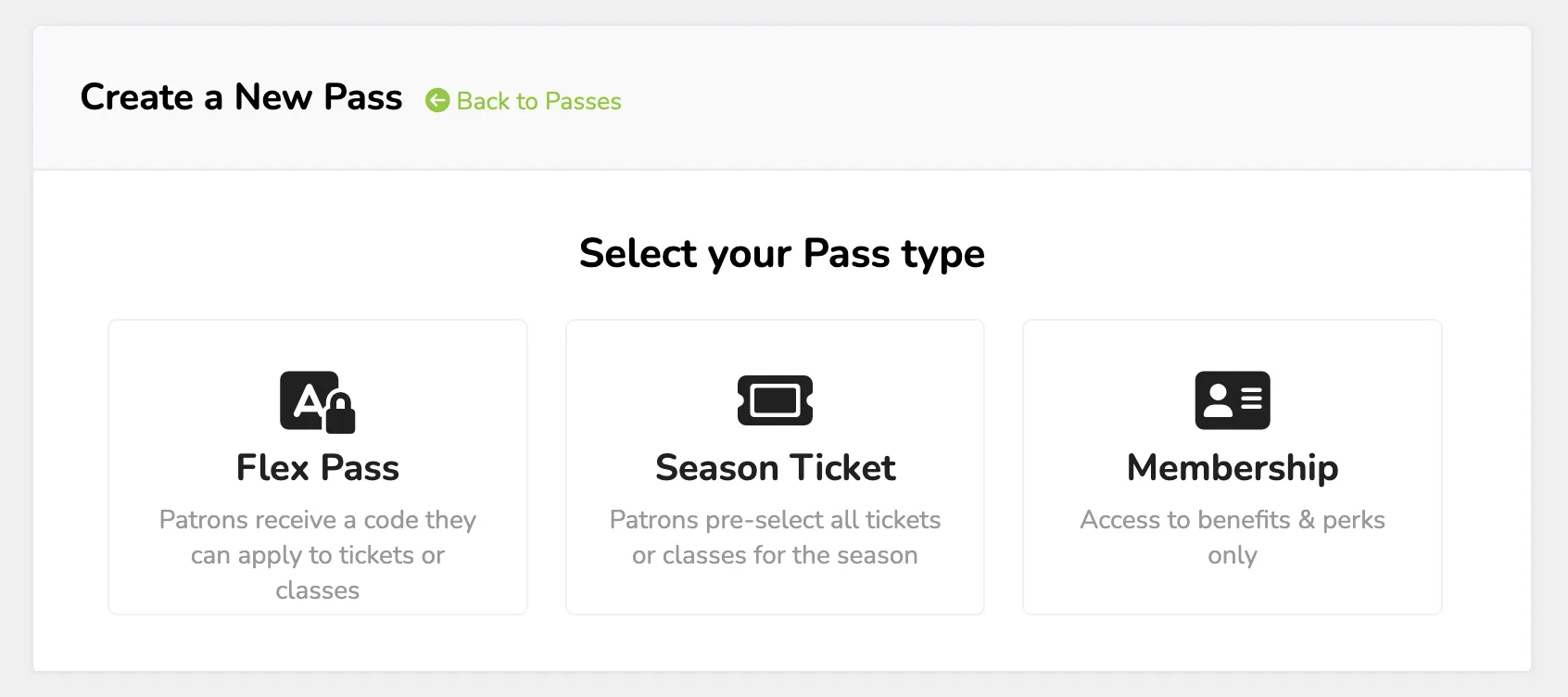
Fill out each section in accordance with how you'd like the pass to function. For more information about each section, view the "Options & Terms" below.
Click Add Pass to save.
Options & Terms
- Type: The kind of pass you are setting up. This will be automatically chosen based on your selection on the previous page.
- Name: The name of the pass. Patrons will see this when purchasing the pass.
- Pricing: The price patrons will pay to purchase the pass. For memberships, you can choose both the price and the frequency (if you want a recurring membership fee).
If you choose to set up a Recurring Membership, you can then select to add a custom message to the recurring membership reminder emails. This will go out with the reminder emails sent before each renewal.
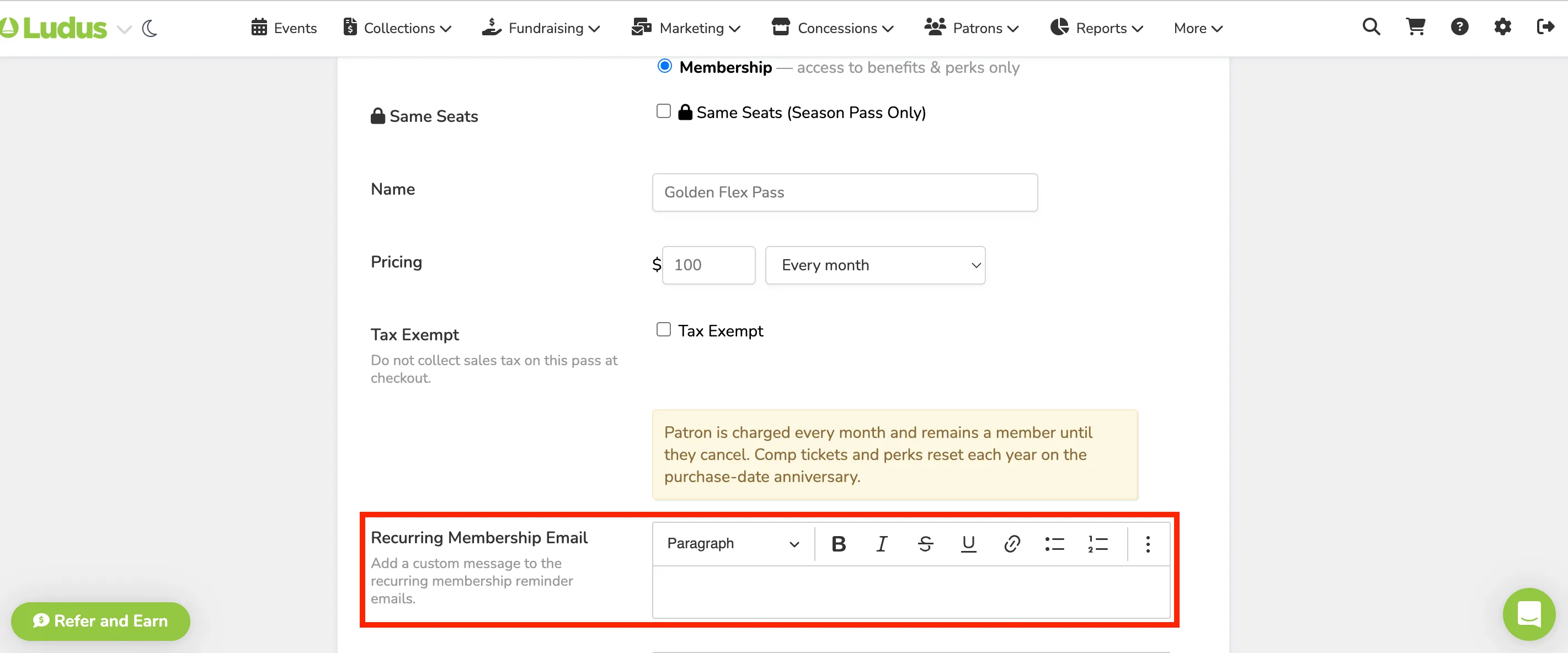
- Tax Exempt (only if you are collecting Sales Tax): Select if you wish for the pass to be exempt from any Sales Tax
- Suggested Article: Collect Sales Tax
- Expiration: When the passcode stops working for each patron.
- Description: A customized description displayed when patrons choose their pass. Great for explaining the pass's benefits to the purchaser.
- Perks: Manage perks given to pass holders when they sign in using their pass.
- Suggested Article: Perks available for Flex Passes and Memberships
- Form: Attach a form to the pass purchase process. Suggested Article: Attach a Form to a Pass
- Coming Soon: Display the pass as an option that will soon be for purchase while still restricting public sales.
- Suggested Article: Enable Coming Soon mode for a Pass
- Special Passcode: Requires a special passcode to unlock this pass. Leave blank for no passcode.
- Suggested Article: Passcode protect a Pass
- Fees: Choose whether you'd like to pass on or absorb the Ludus ticketing fee. *Note: The fee for flex passes applies only when the pass is purchased, not when tickets are redeemed on the pass.
- Suggested article: Ludus Pricing Table
- Color: The color that will appear on the pass selection page and pass reporting. This is only a visual change and does not limit or change any functionality.