On-Device Tap to Pay with Android
With On-Device Tap to Pay on Android, Ludus lets you accept contactless payments in person right on your device. Take payment from physical debit and credit cards and other digital wallets. No extra terminals, readers, or hardware needed. It’s easy, secure, and private for you and your customers.
What is needed?
To accept On-Device Tap to Pay on your Android device, you'll need:
- A Ludus admin login to build Box Office or Concessions orders
- An eligible device running Android OS 5.0 or later
- Initial setup for Tap to Pay, depending on your device and Ludus payment method
How to set up On-Device Tap to Pay on your Account
Log in to your admin panel and go to Settings -> Payments & Billing.
Locate the Tap to Pay section.
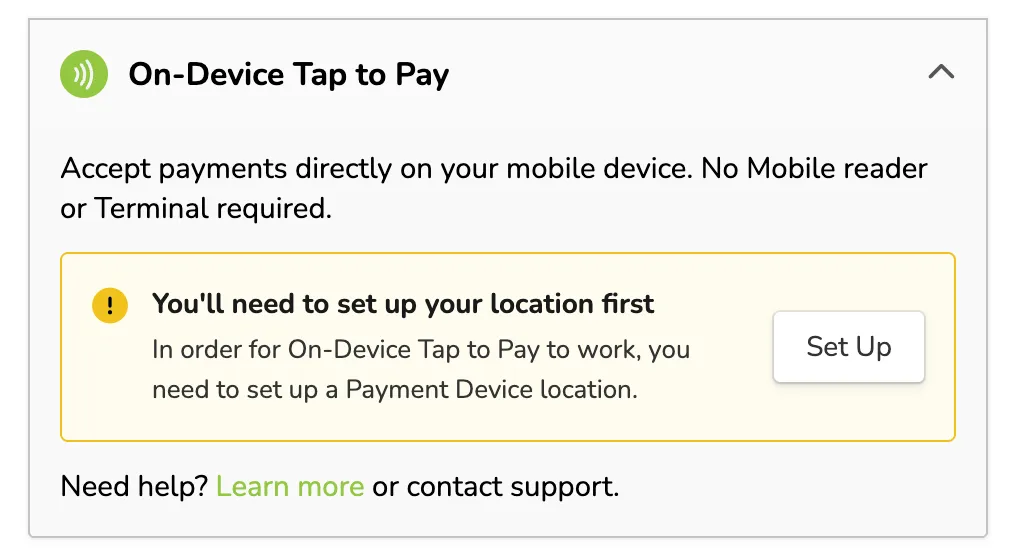
Paper Checks - If you don't have a location already set up for your payment device, you will see an image with this banner:
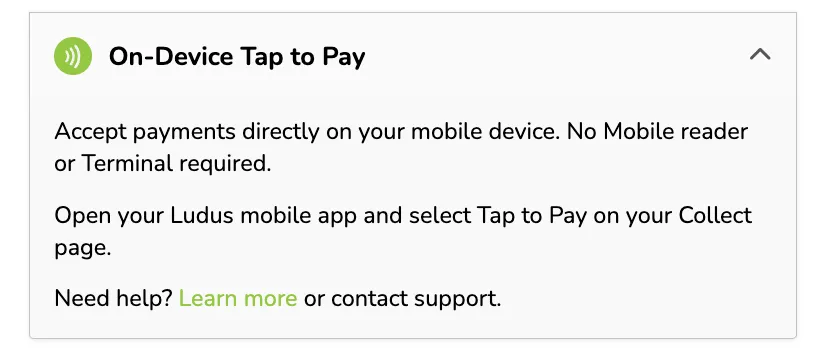
If you do have a location already set up:
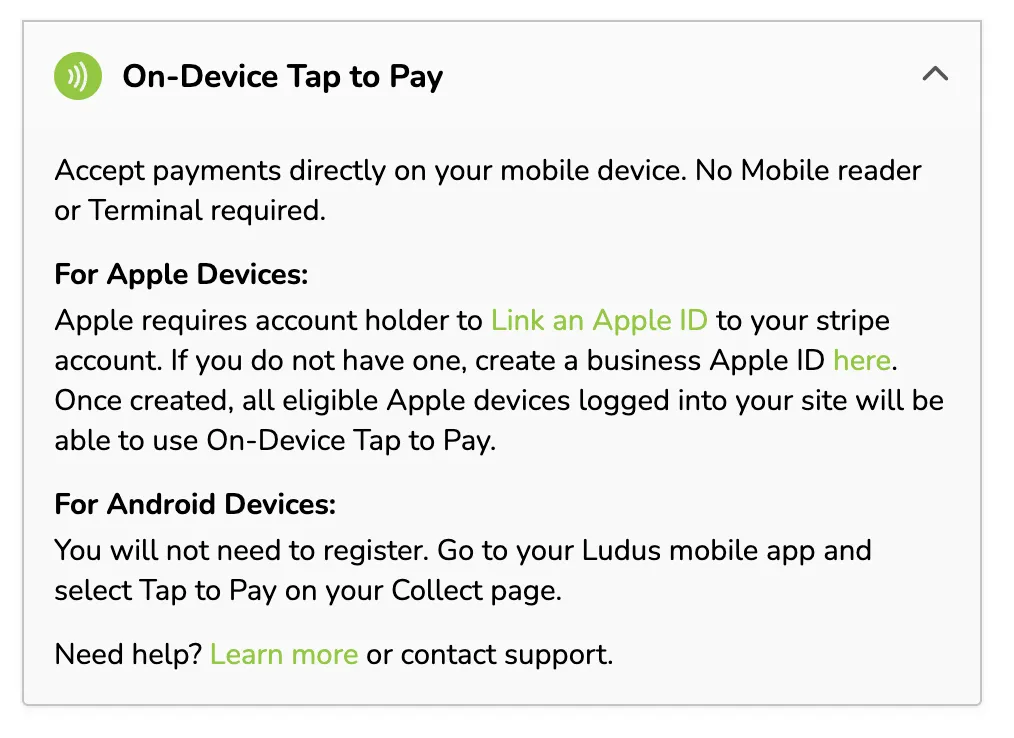
Direct Deposit - If you do not have a location set up yet, you will need to create one.
Open the app and go to the Collect tab.
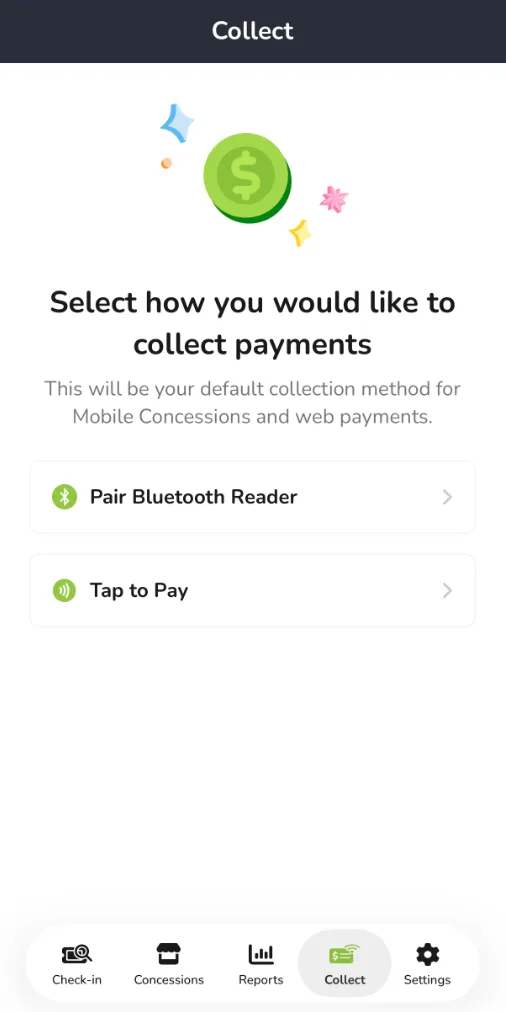
Select Tap to Pay and follow the on-screen instructions to name your device (this name will show in your admin panel).
Your mobile device will automatically appear under Settings-> Payments & Billing in Payment Devices.
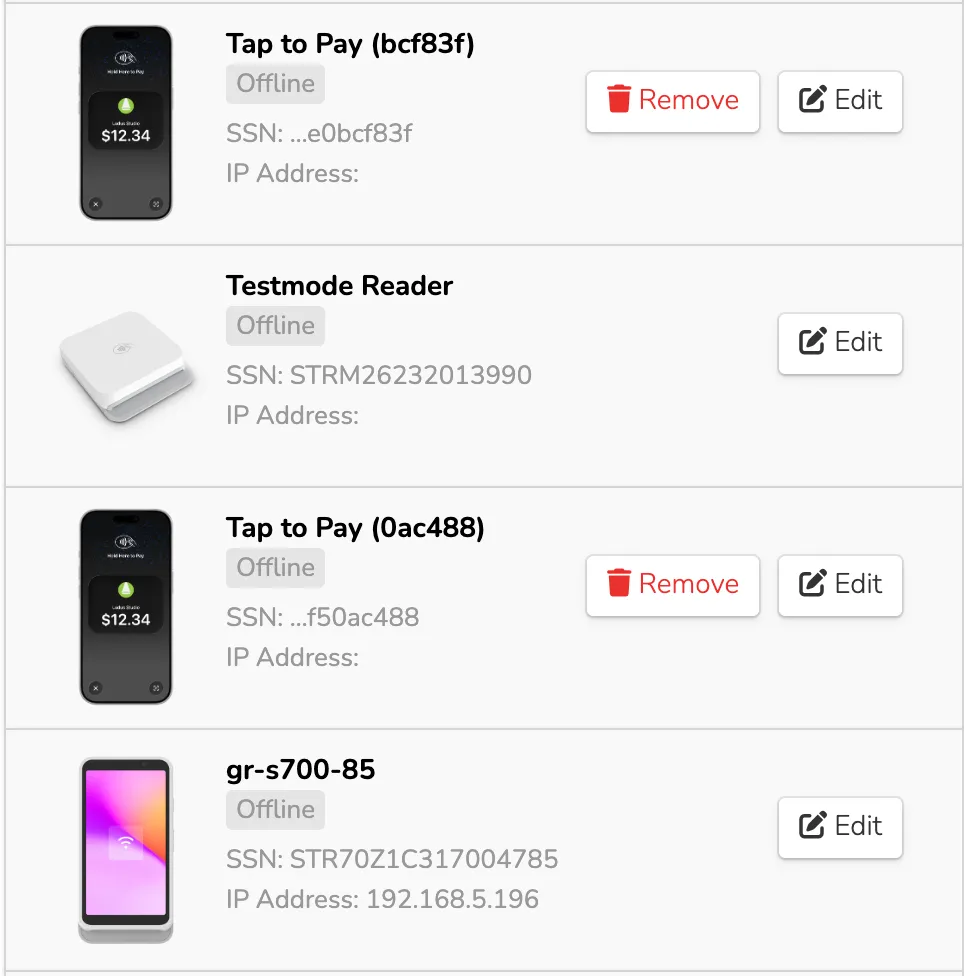
After the initial Tap to Pay setup, any eligible device that logs into your admin app will automatically be enabled and registered for Tap to Pay.
How to remove a payment device
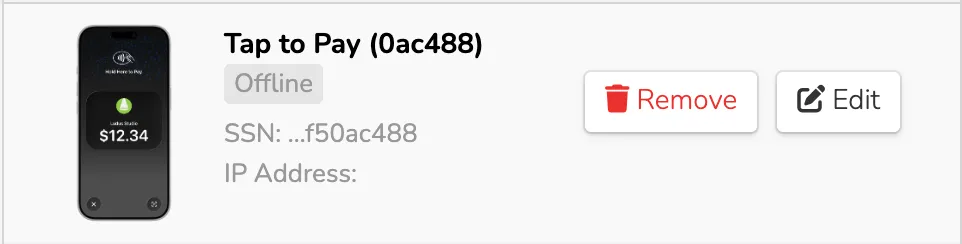
Go to Settings (the gear at the top) -> Payments & Billing on your admin panel and find the mobile device in your list.
Select Remove next to the device you want to take off the list.
To add the device back, manually disconnect Tap to Pay on iPhone in the Ludus Mobile app, then reopen Tap to Pay on that device before adding it again.
How to accept transactions using On-Device Tap to Pay
You can accept On-Device Tap to Pay on your Android device in two ways, depending on where you check out.
- Checking out with Concessions on your mobile device
- Checking out for Box Office or Concessions sales from the web
On your mobile device:
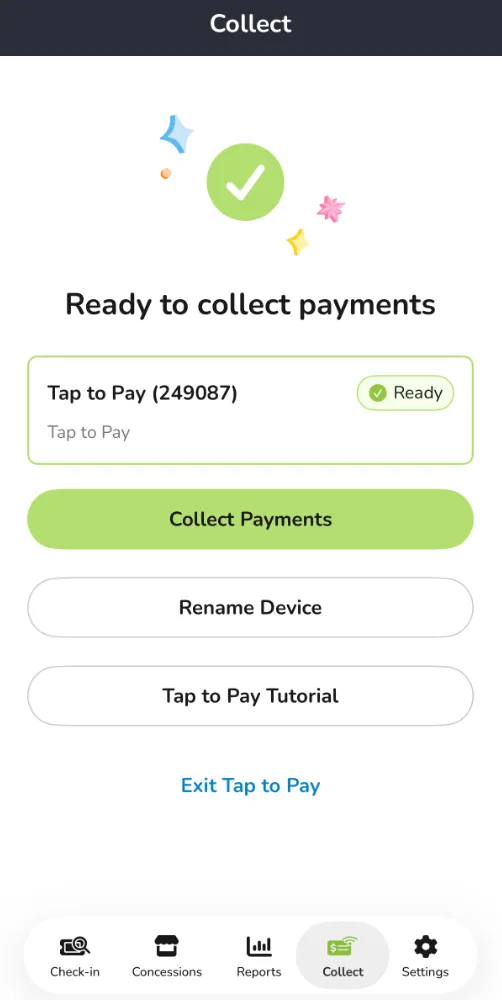
Go to the Collect tab
Select Tap to Pay
Select Collect Payment. Your device will now wait for the transaction
From your admin panel on the web:
Select Connect to Terminal.
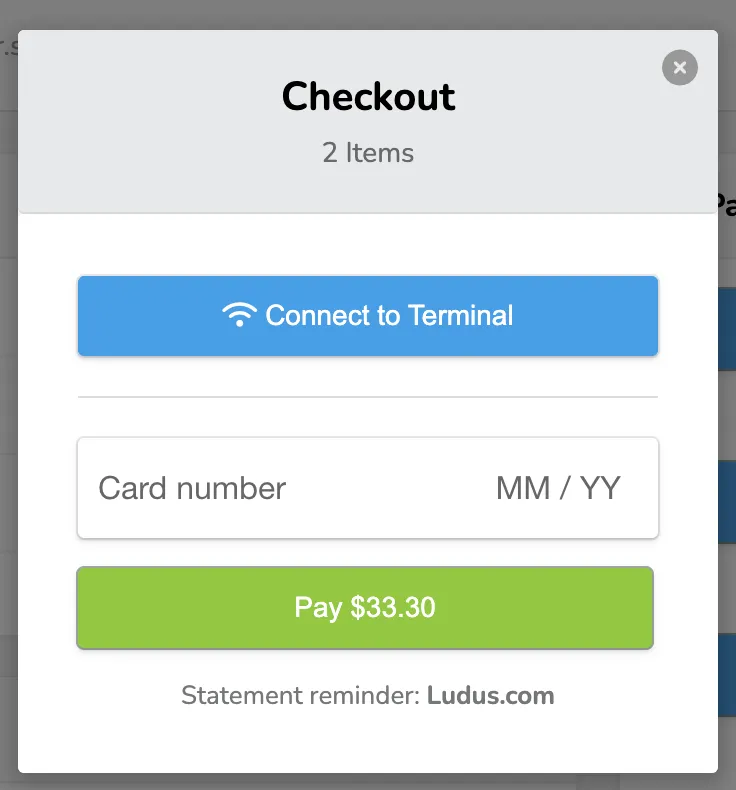
Select your mobile device from the list. If you do not see it, refresh the list.
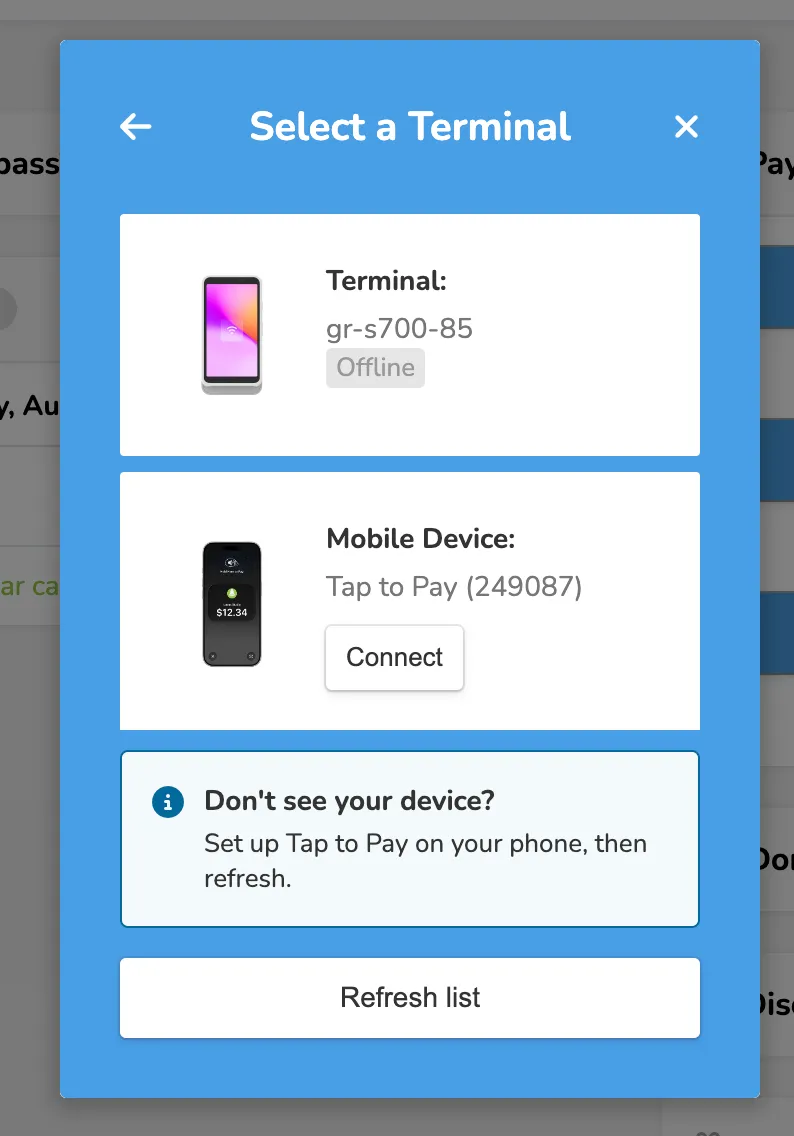
Send the payment to the Ludus Mobile app by selecting Use Tap to Pay on Phone
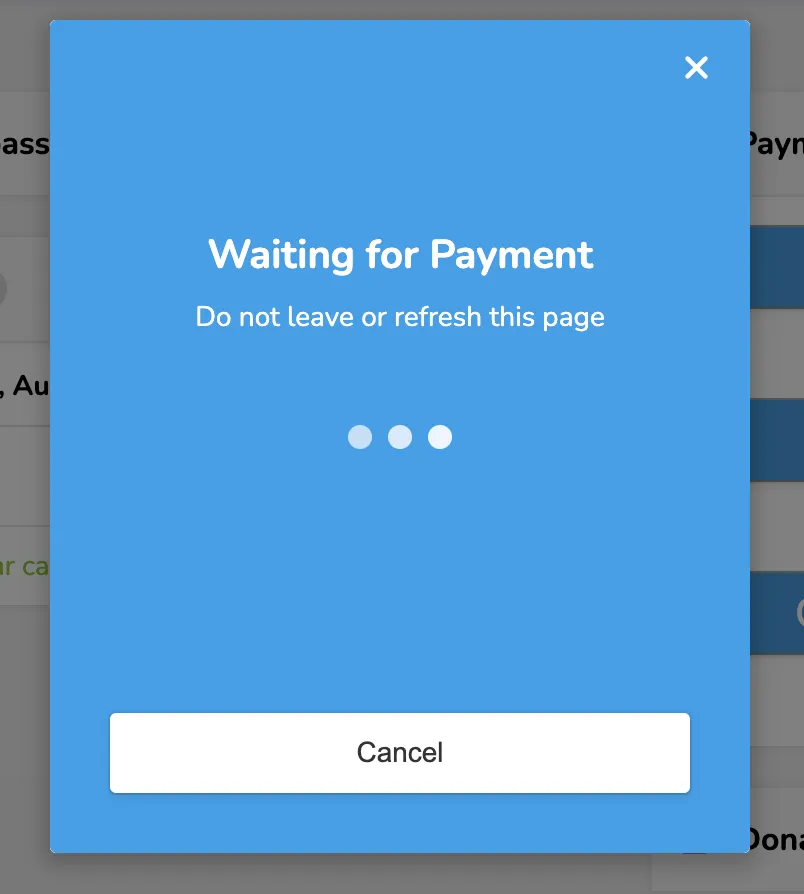
After you send the payment from your box office to the app, select the Collect tab to complete the transaction.
Finally, have your customer hold their card or device near your Android device and process the payment.
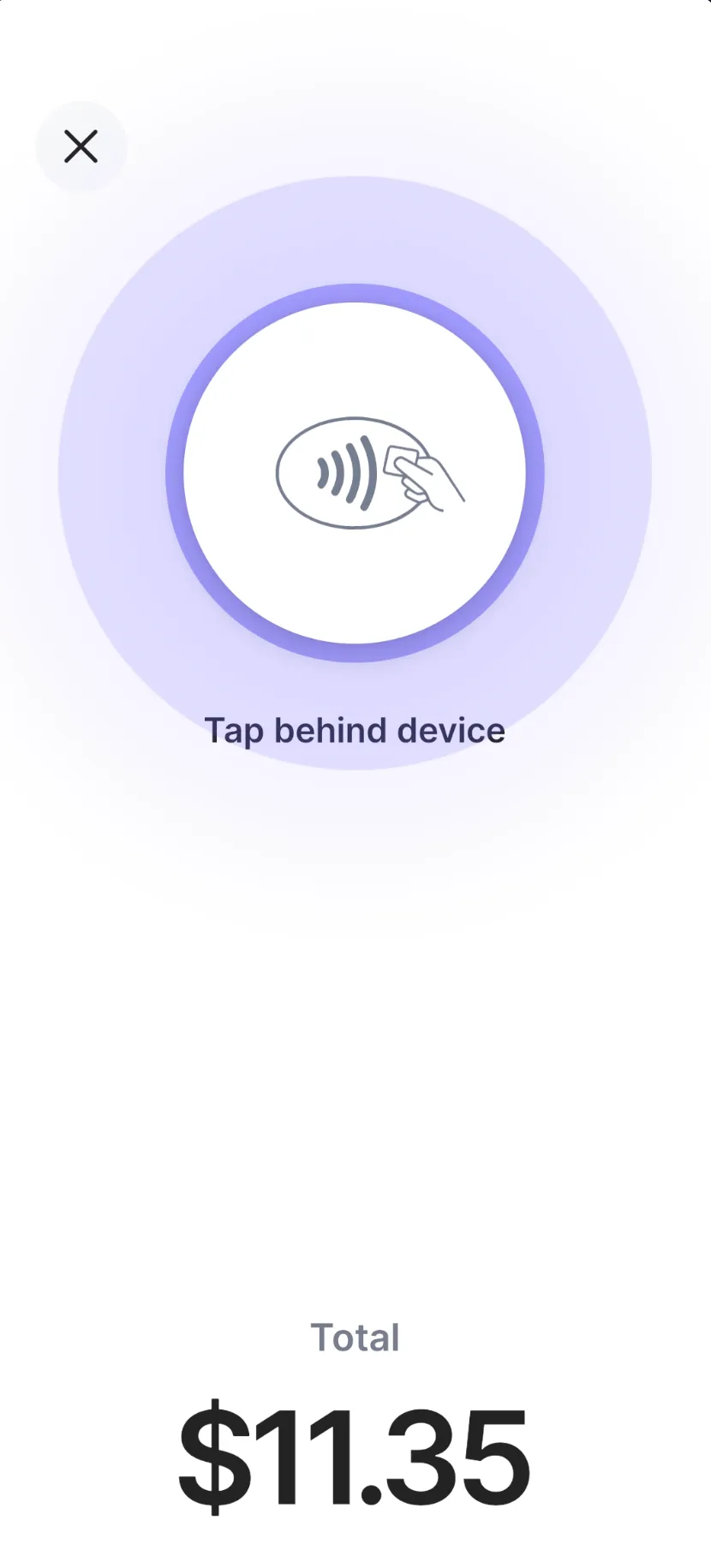
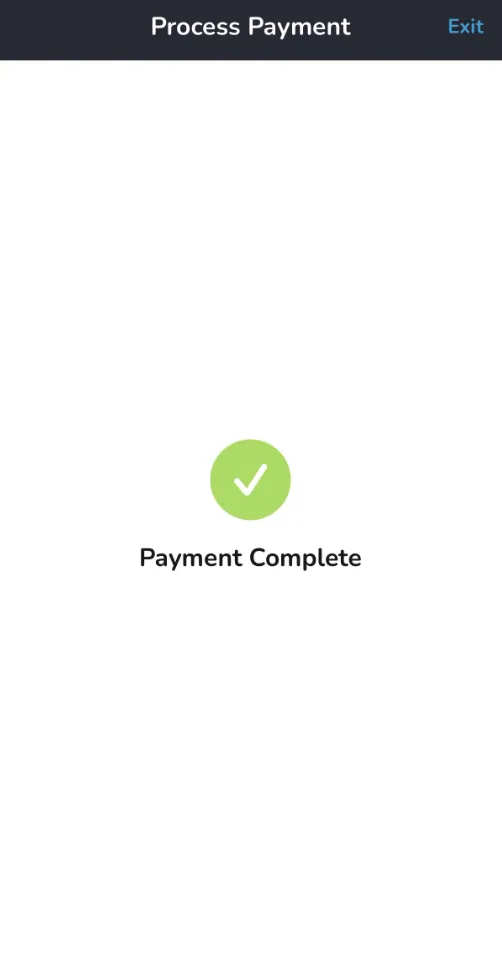
The payment will then show as processing.
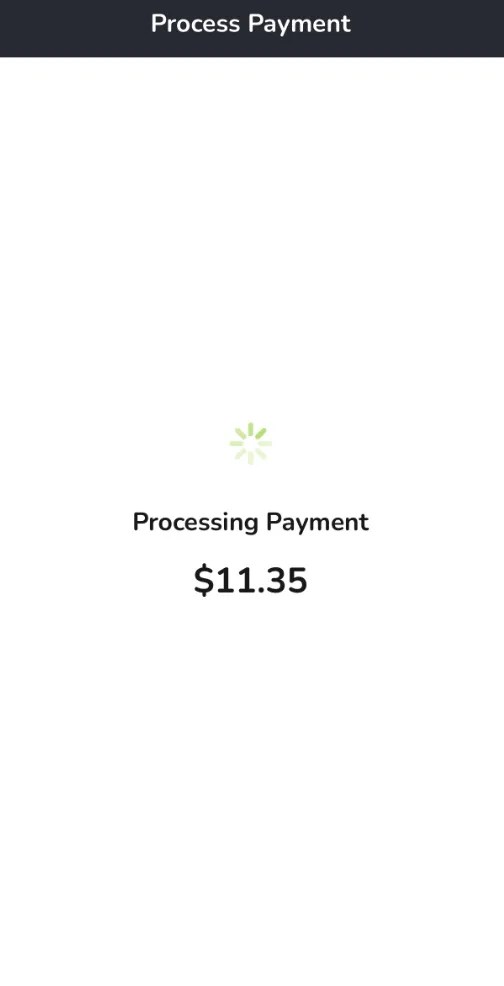
Once fully processed, the Payment will show as completed.
FAQ's for Android
What Devices Support On-Device Tap to Pay?
Please see the following for all devices that are supported - Supported Android Devices