Merge Tags & Campaigns
If you are looking to further customize your email campaigns, you can do so easily using the Merge Tags feature within the Campaign. When you add these tags, you can connect directly with patrons by their first and last names.
Add Merge Tags
To add Merge Tags to your Campaign, go to Marketing (at the top of your account) -> Campaigns -> New Campaign.
This can also be updated or added to a Campaign that has not yet been sent out. Once a Campaign is sent, you can no longer add this, and will want to create a new email.
When you go to create your new campaign, simply select a Starter template or one of the templates you created under My Templates.
For more information on how to best create your Campaign, read through Basics of the Marketing email design tool .
The Support team is always available if you need additional help as well!
Once you have added a text box to your Campaign, you can begin customizing the message so it is directly addressed to your patron.
Begin by clicking the text box, where you will see Merge Tags along the top. You will want an intro to your email, like "Dear" or "Hello", so you can insert the patron's name.
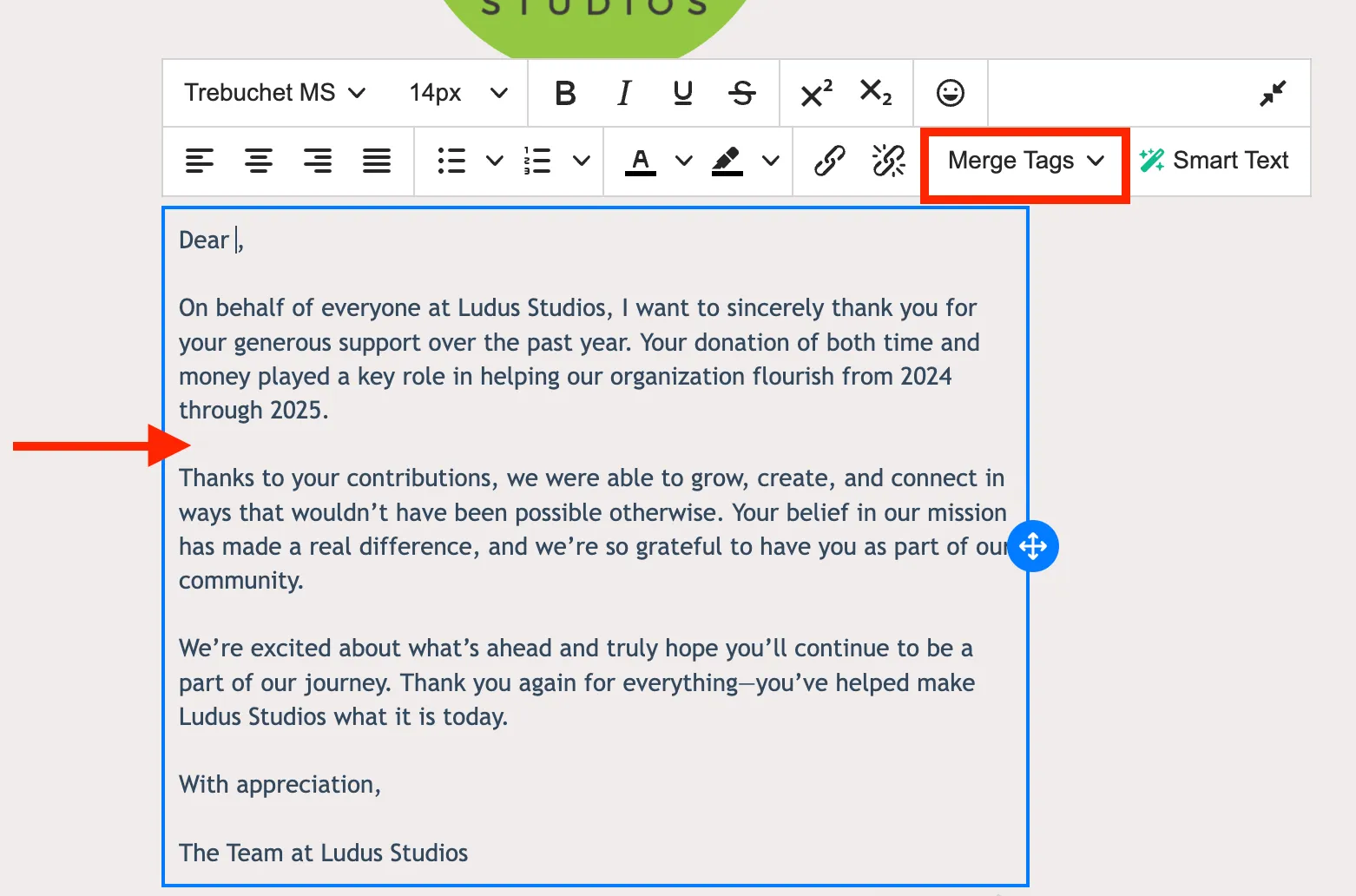
From here, place the cursor where you would like the patron's name to go. If after "Dear", add a space and leave the cursor there.
Next, you will click the Merge Tags. At this point, you can select a first name or both first and last names.
If using both first and last names, you will want to add a space between those.
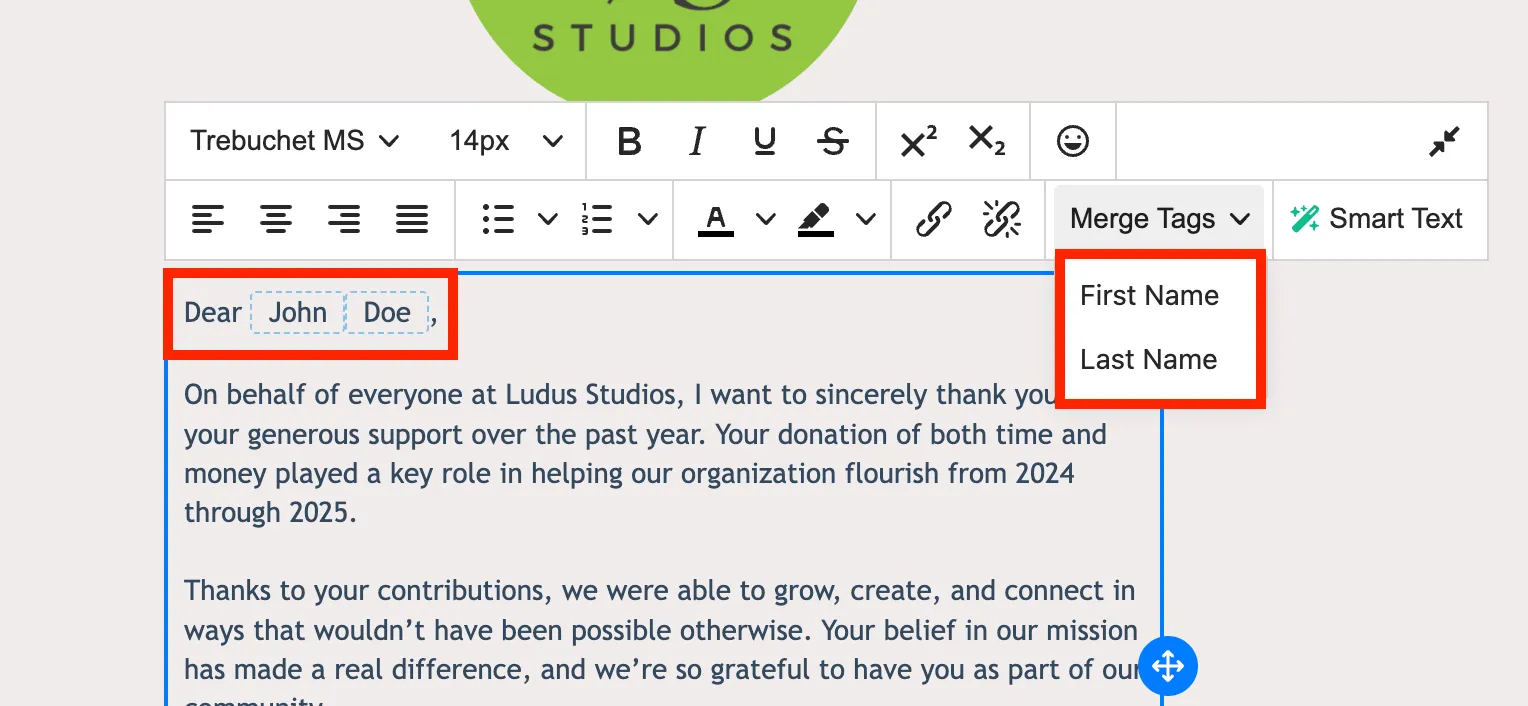
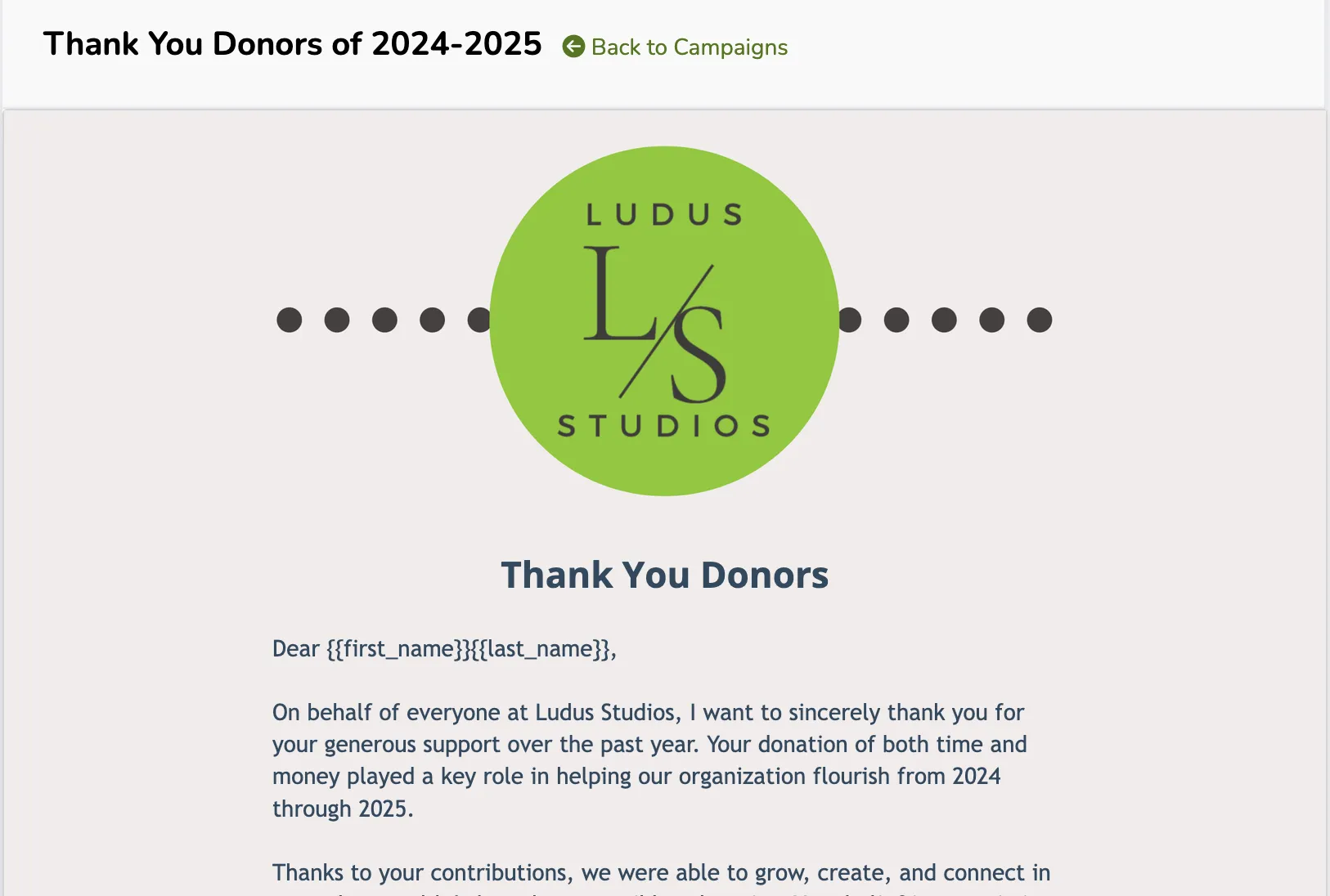
Once your Campaign Design is done, be sure to save it. Once you close out your design, you can preview it and schedule when to send it.
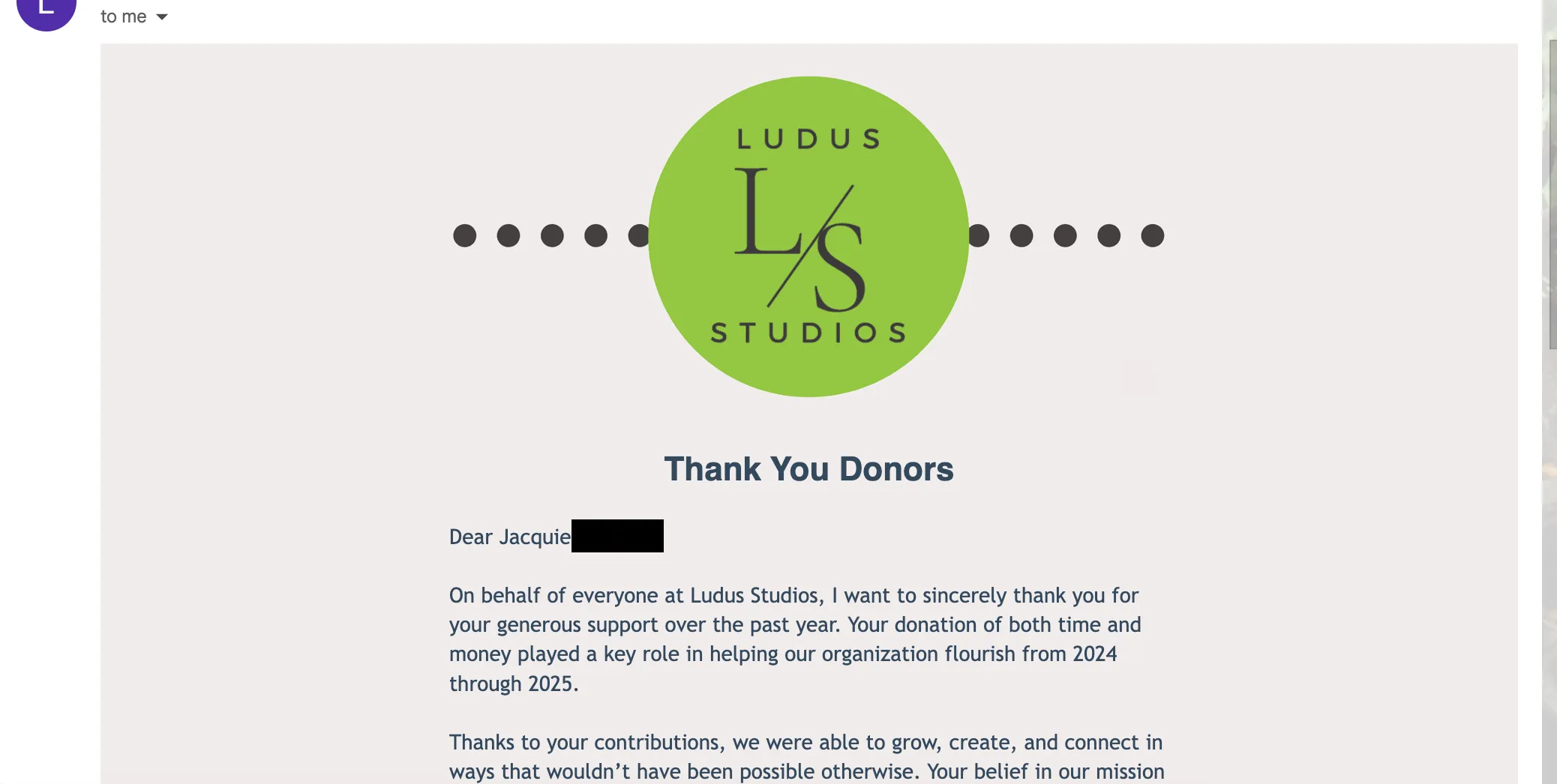
Once that email is sent, it will look something like this (though the last name is blurred out below):
By using the Merge Tags feature, you can now directly address your email campaigns and make them feel more personal all around.