Send Individual Letters
You can send Individual Letters to donors outside the Letters section of Fundraising+. The default template for the individual letters can be set up under Letters (at the top of your account) -> Settings.
From here, you will select Change Template (or Edit) to update the default Template:
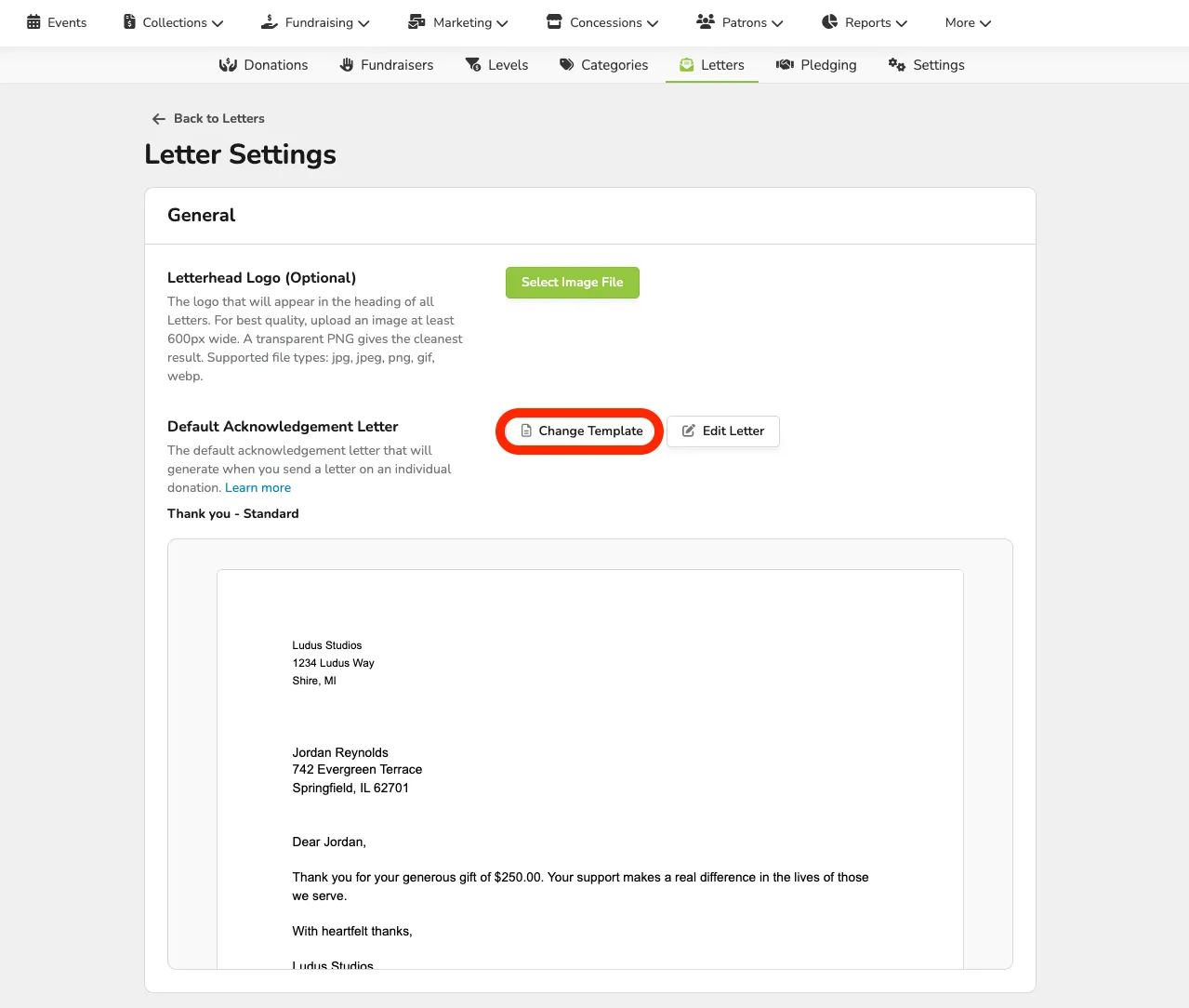
You can also change and edit the letter when sending to an individual donor; this only adjusts the default.
Send an Individual Letter
To send an individual letter, first locate the donation and donor you want to send the letter to.
You can do this easily under:
- Fundraising -> Donations, and selecting the donation from the list.
- Reports -> Donations, and selecting the donation from the list.
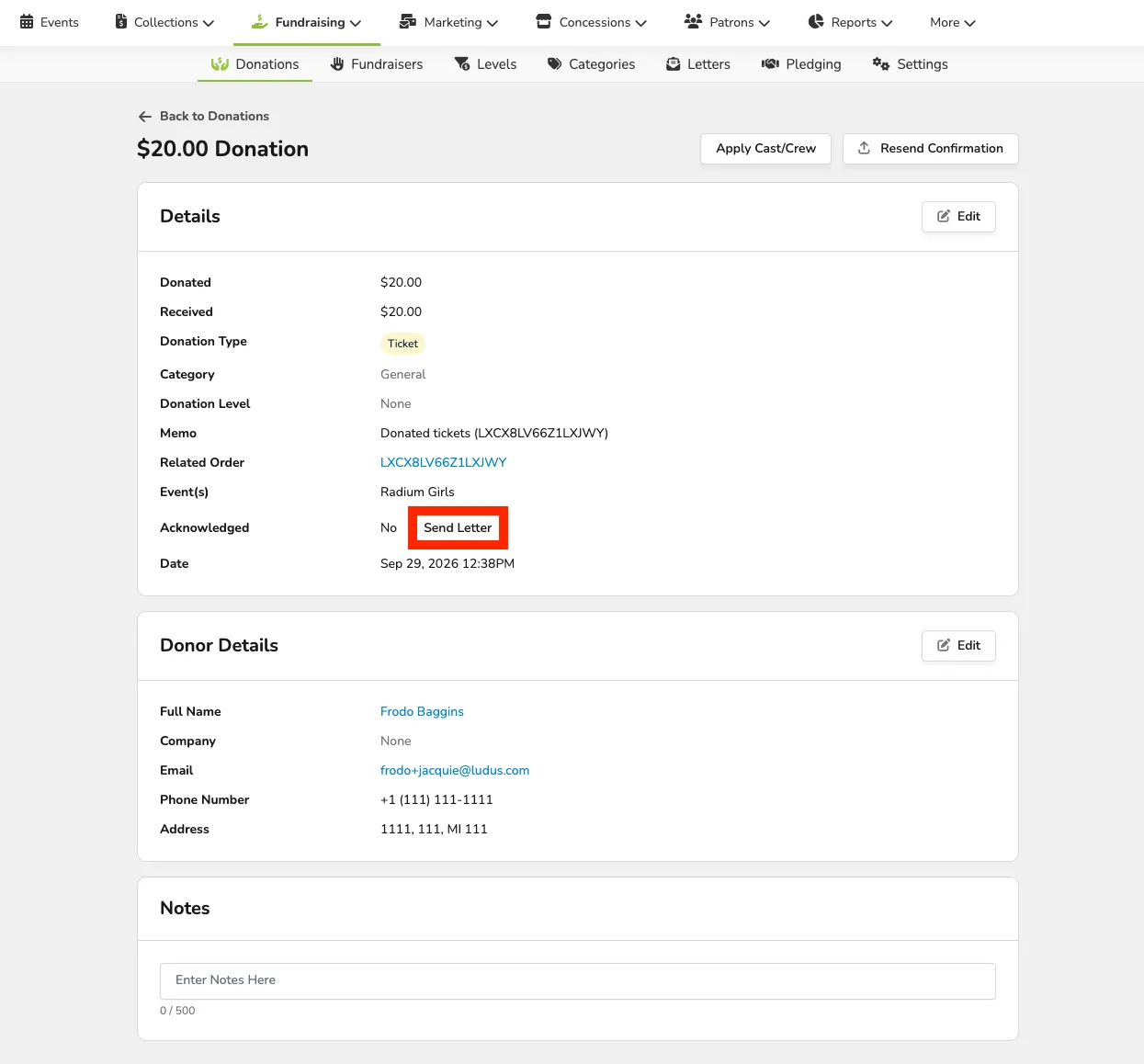
Once you select the donation, you will be taken to the confirmation screen for that donation and see Acknowledged under the donor Details.
From there, select Send Letter.
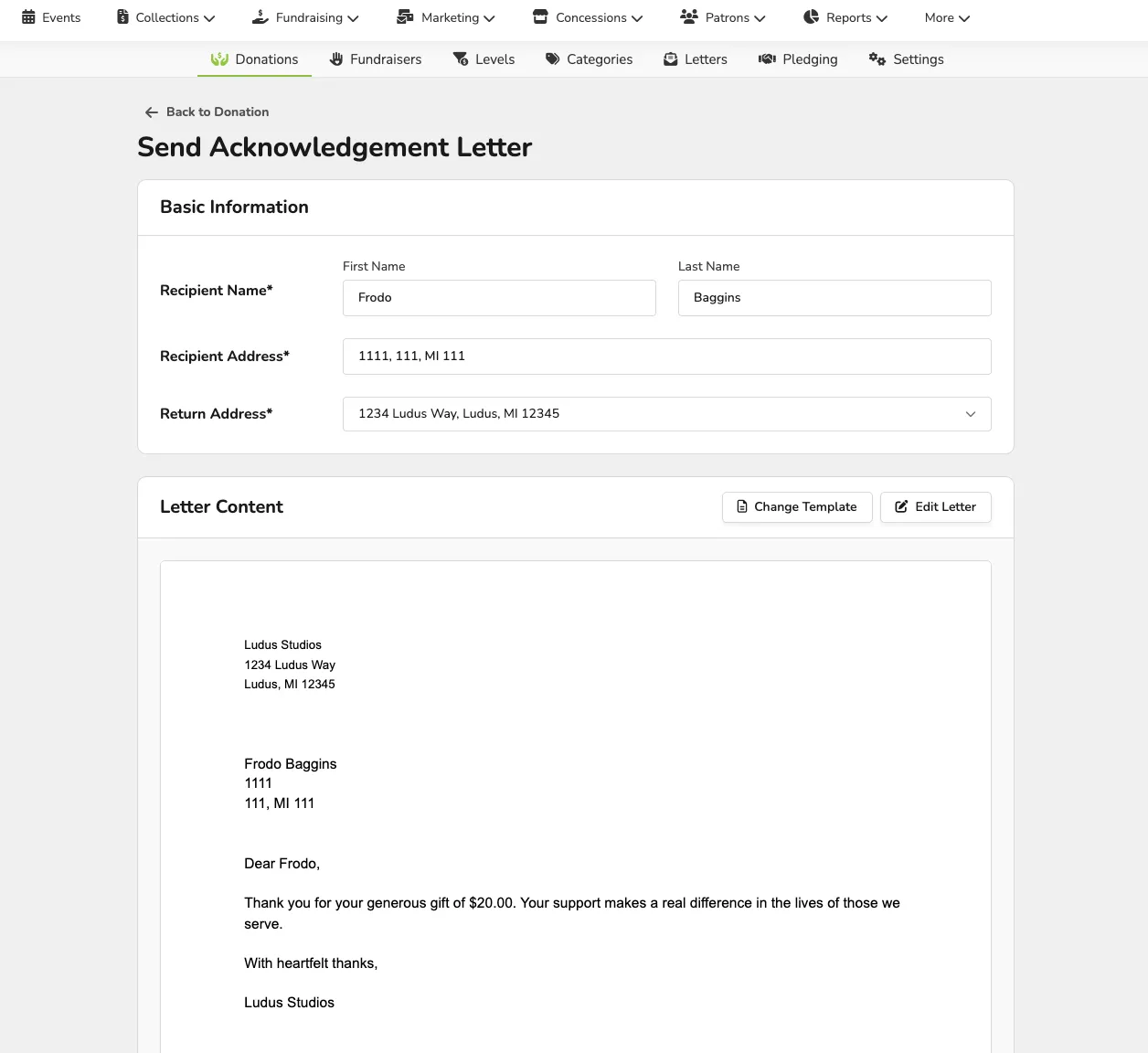
This opens the donor's Basic Information (including address), which you can confirm.
You can also change the template or edit it as needed.
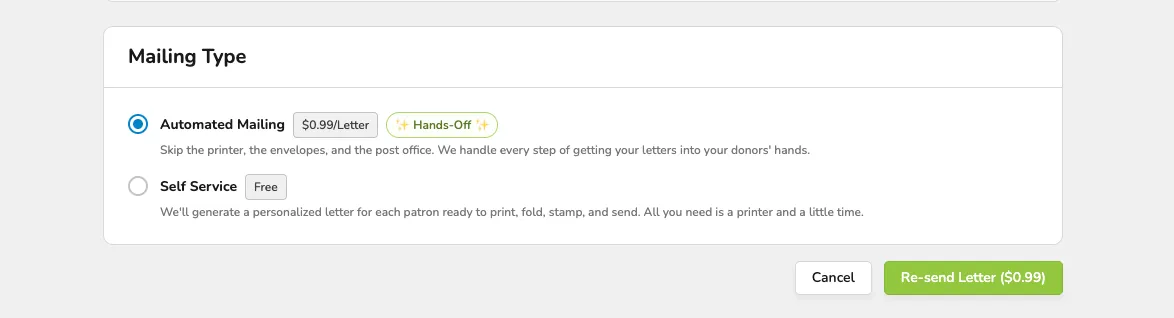
Once you verify the donor's information and the letter's content, you can choose whether to send the letter yourself or automate the mailing for $.99/Letter.
Select either Send Letter or Print Letter to proceed.
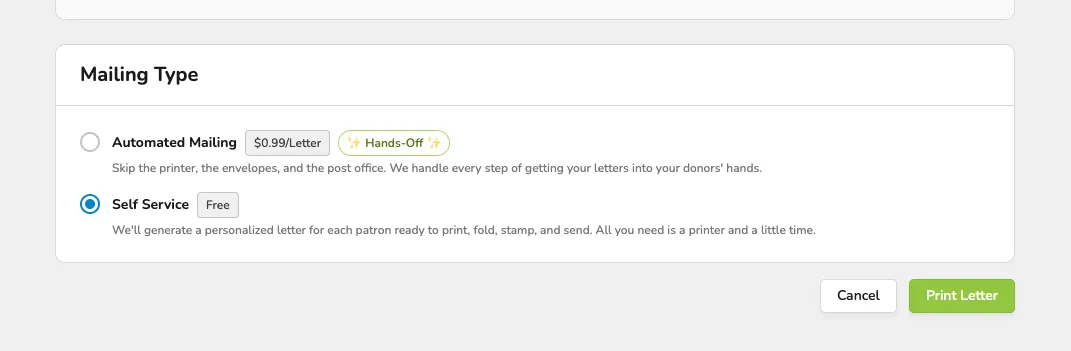
If you are printing the letter, you will be brought to a print screen next so you can print and send it out.
After you complete these steps, you will see "Yes" next to Acknowledged, along with the date the Letter was sent.
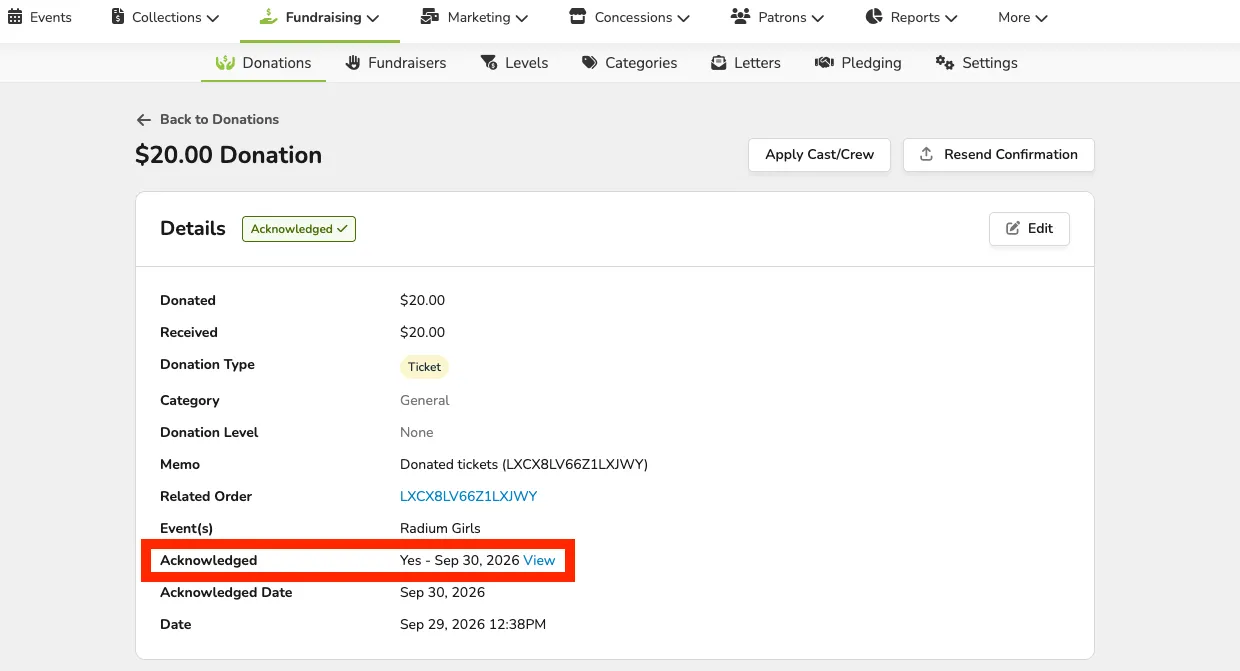
When you select View next to the date the letter was sent, you can reprint or resend the letter if needed.